

Lightroom Classic
Integrate VAULO seamlessly with Adobe Lightroom to streamline your photography workflow.
Download
1. Installation Process
Step 1: Download Lightroom Integration
Download our plugin for Lightroom Classic using the button above.
Step 2: Download and Install the Plugin
Download the plugin.
Unzip the zip file.
Open Lightroom Classic and click on File in the header of Lightroom Classic, then click on Export...
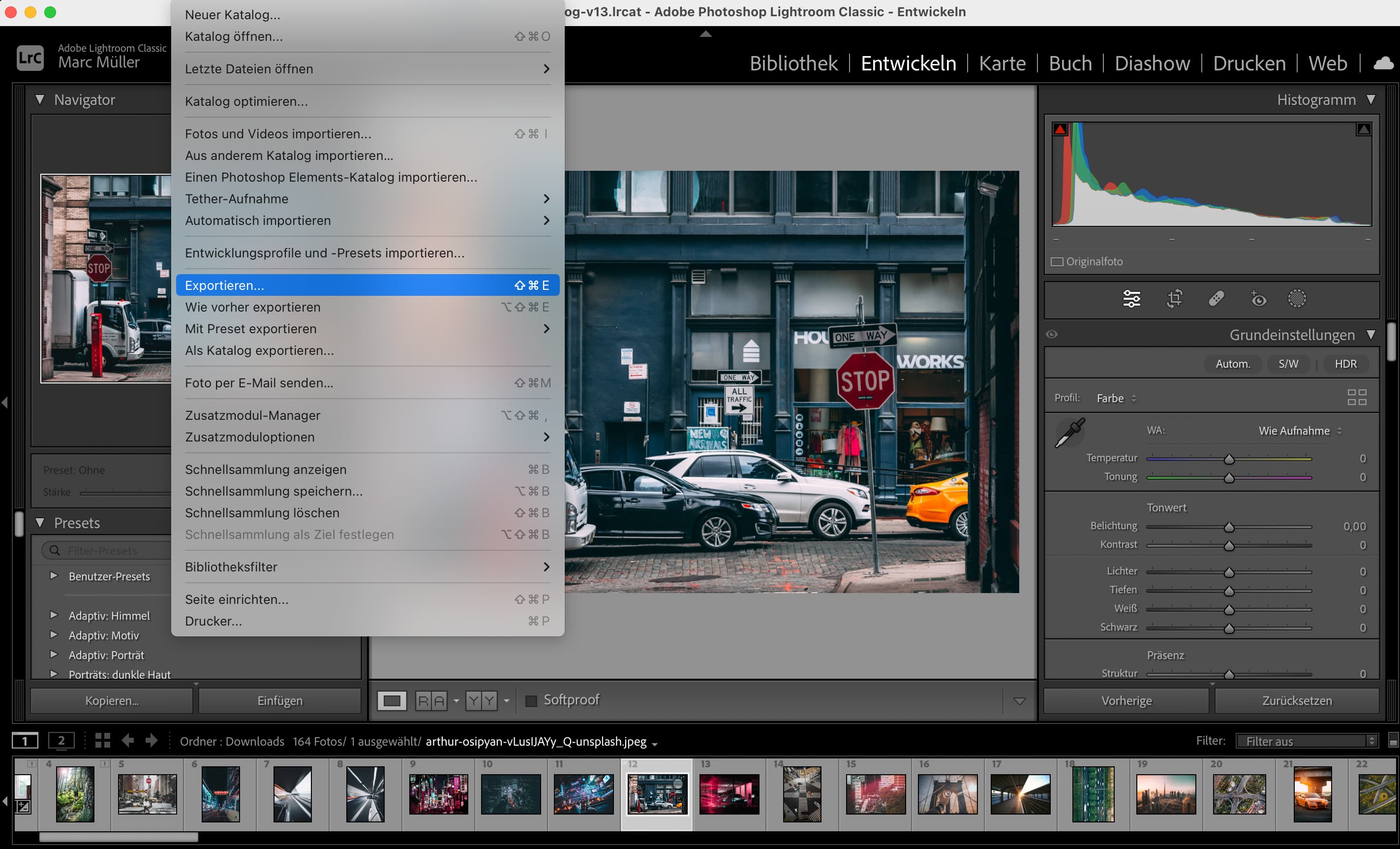
In the modal that has now opened, click on Plug-in Manager...
Now click on Add and select the unzipped plugin. Then click Add Plug-in.
The module has now been added. You can close the modal by clicking Done.
Close Lightroom Classic.
2. Configure Lightroom Integration
Step 1: Open Lightroom
Open Lightroom Classic again and go to the Library. On the left side, you will find the Publish Services tab. Click on the + there and then on Go to Publishing Manager...
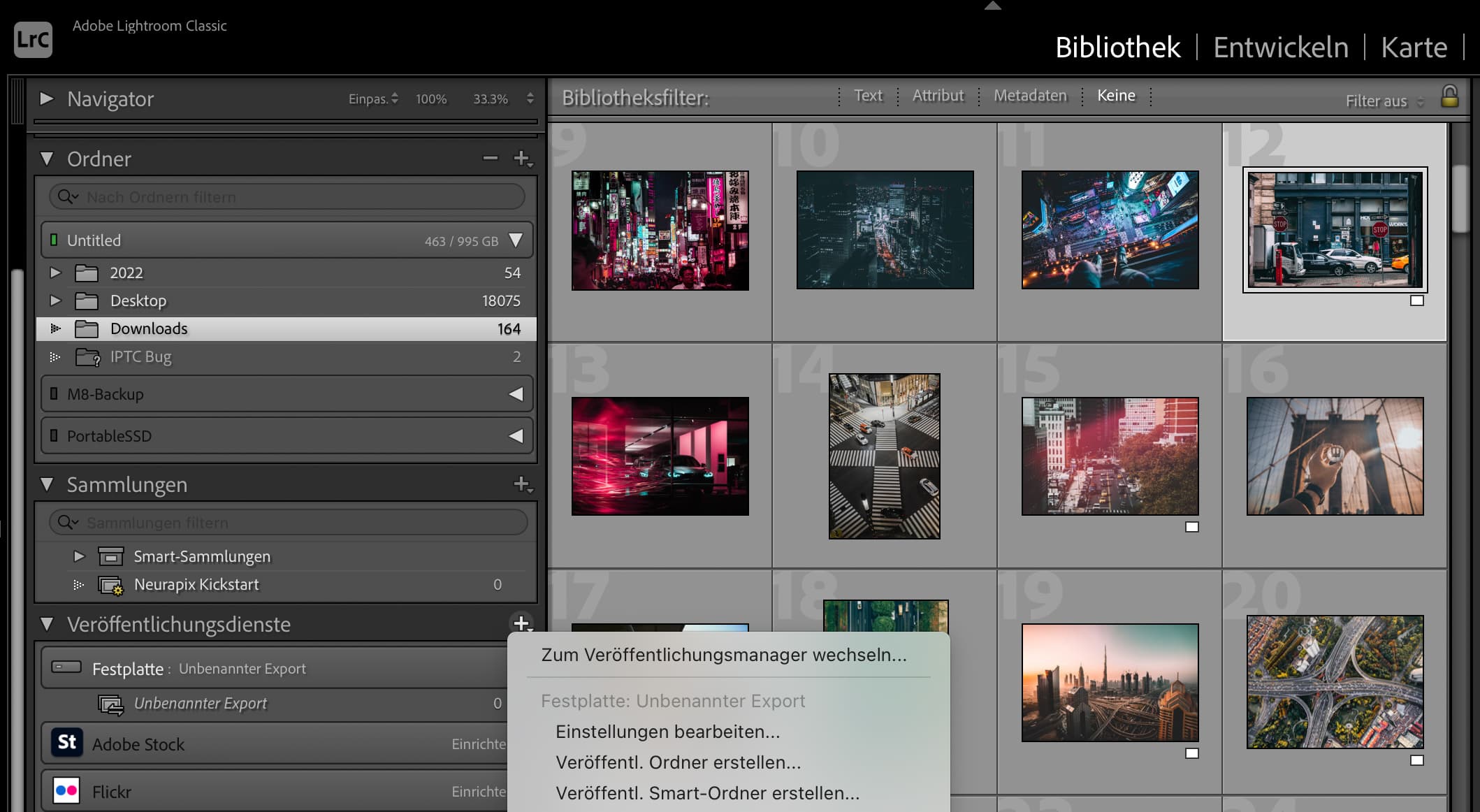
Step 2: Open Publishing Manager
VAULO will now be displayed under Publish Services.
Click on VAULO and then on Login to VAULO.
A browser window will open. Enter your login credentials there and then click Connect with Adobe Lightroom Classic.

In the following window, check the checkbox and click Open.
Then click Save in the Publishing Manager.
Step 3: Publish Images
Now go to the Library tab in VAULO. On the left side, you will find the Publish Services tab, under which you will find your VAULO account. Navigate to the folder where you want to upload your images by expanding the Spaces and folders accordingly.
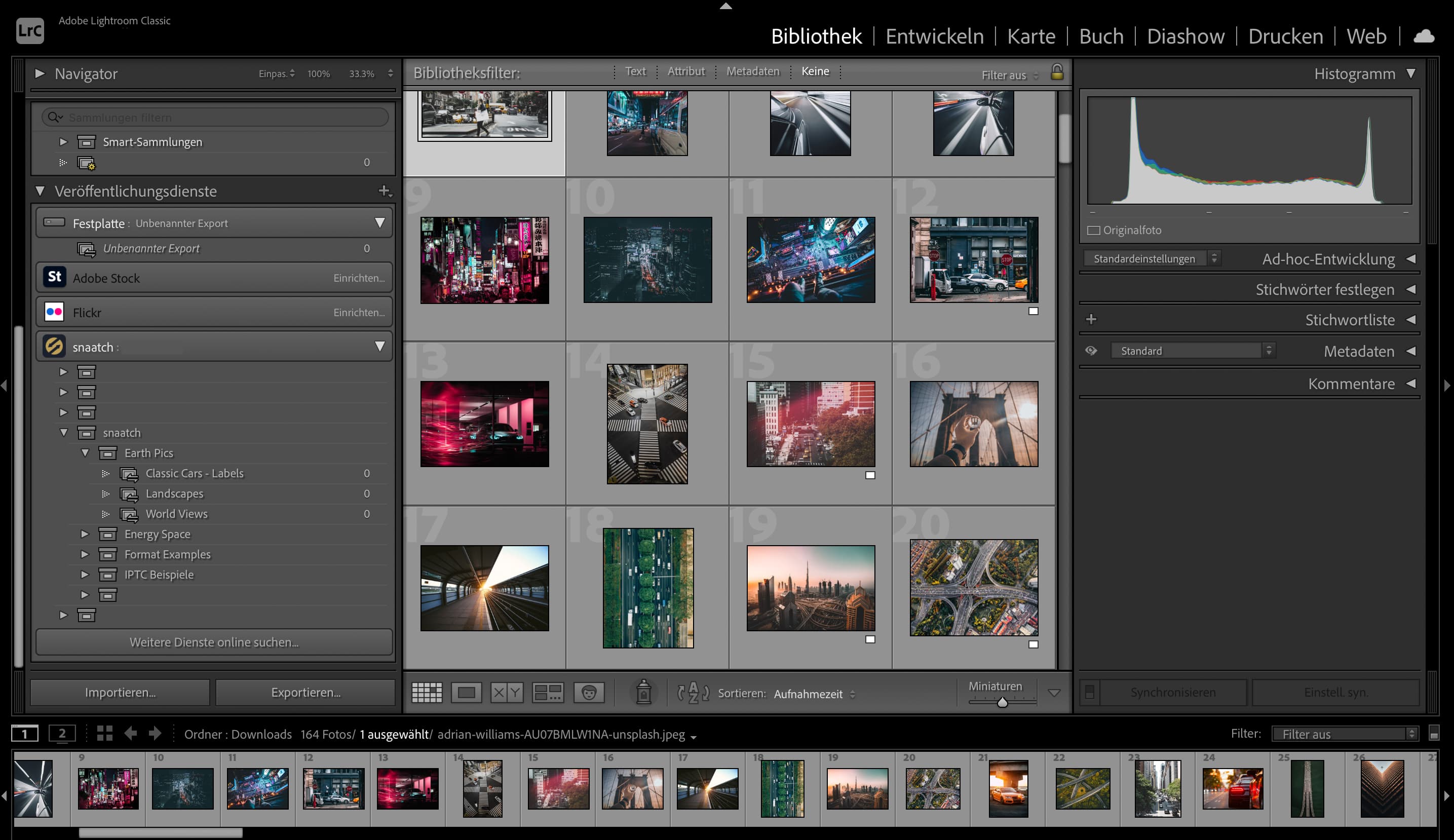
Then select the images in the main window that you want to upload to VAULO and drag them via drag & drop to the corresponding folder.
The number next to the corresponding folder will now increase by the number of images. To finally upload the images, right-click on the folder and then click Publish Now.
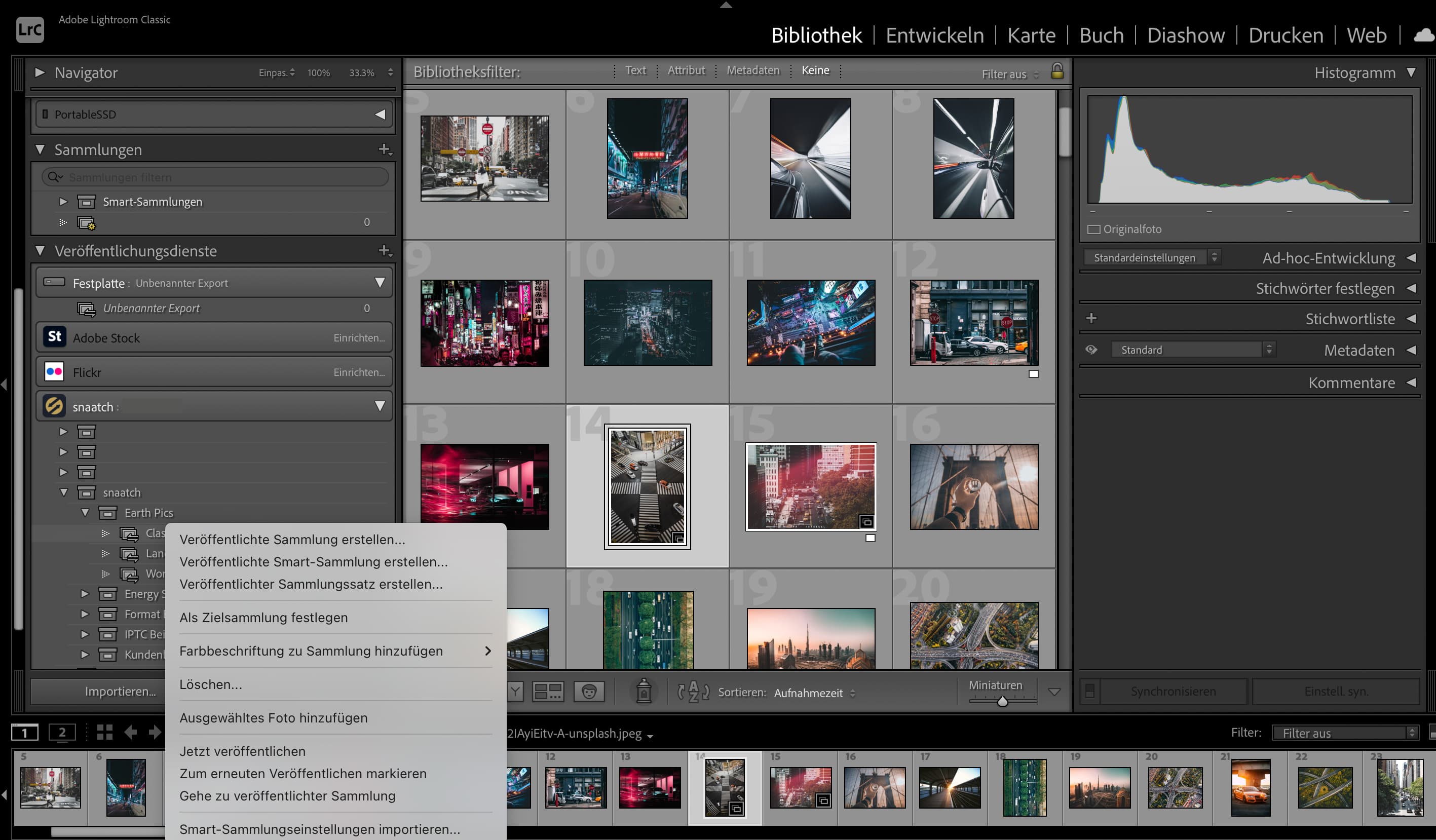
In the upper left area of Lightroom, you can see the progress of the upload.
Summary
Congratulations! You have successfully installed and configured the Lightroom integration for VAULO. By seamlessly connecting these tools, you can enhance your photography workflow, manage metadata efficiently, and ensure a smooth transition of assets from Lightroom to your DAM system.
Lightroom Classic Plugin is a paid add-on. Already included in the Platinum Freelancer plan. Available as an option for all Business plans.
Contact SupportVersion history
- 1.0.2Latest
- Fixed wrong API
- Removed hardcoded user ID