

Photo Editor
Edit your images directly in VAULO – no external image editor needed. With the built-in editor you can crop, rotate, annotate, apply filters and adjust tonal values. The result is automatically saved as a new version.
With the built-in photo editor, you can edit images directly in VAULO – no detour through external tools, no version chaos. Open the editor via the pencil icon in the header of the detail view.
The editor opens images in JPG, PNG, WebP, GIF, BMP and SVG format. RAW files (for example ARW, CR2, NEF), TIFF, HEIC and EPS cannot be edited at the moment. For these formats, VAULO shows a note when you click the pencil icon.
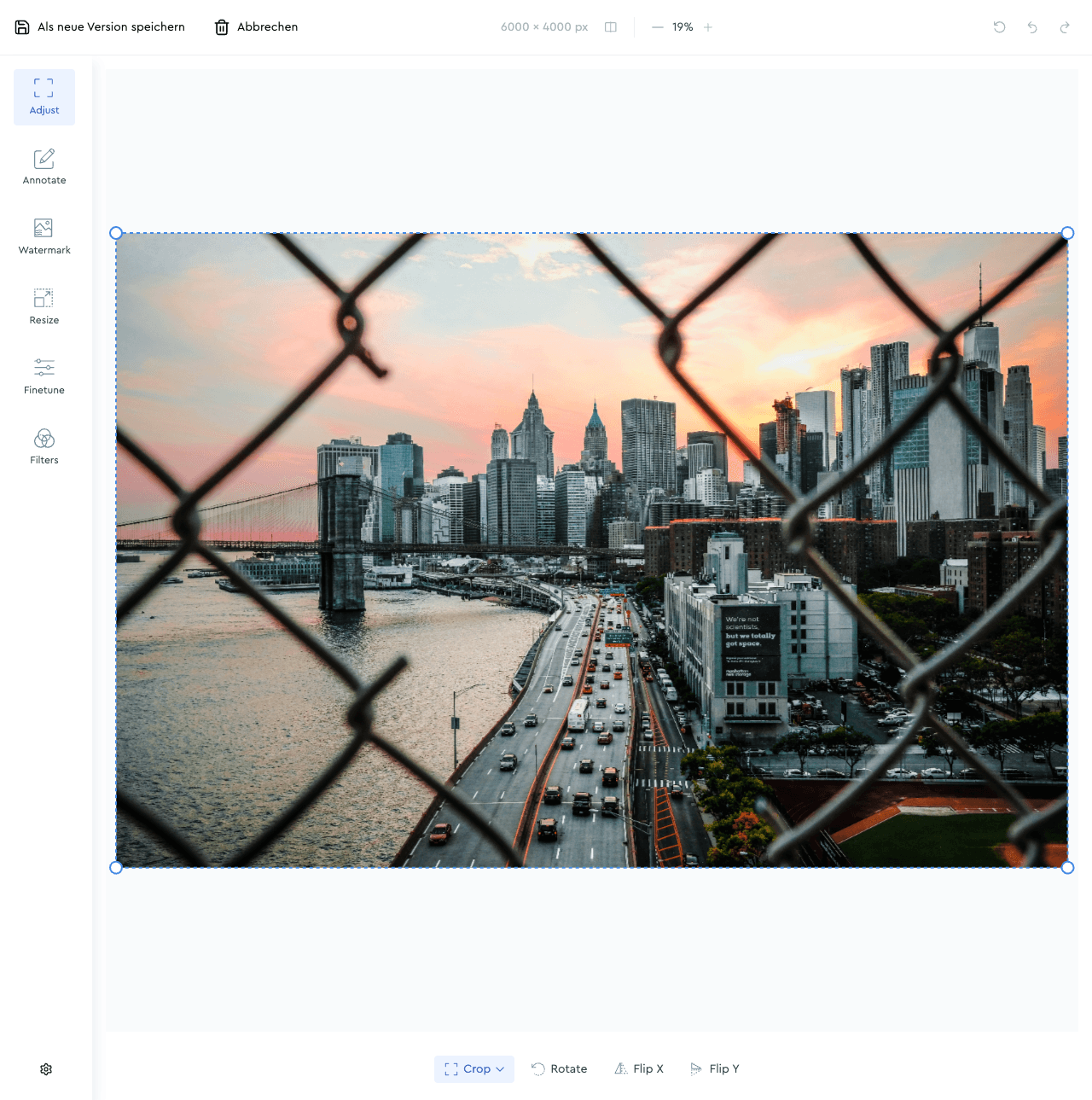
Header

- Save as new version – saves the result as a new file version
- Cancel – closes the editor without saving changes
- Image dimensions in pixels, zoom slider, and undo/redo buttons
The new version keeps the image's descriptive details – for example headline, title, description, description writer, photographer and copyright holder. You don't have to enter them again after rotating or cropping, and required fields that were filled stay filled.
Tools
The toolbar is located on the left side of the editor. The active tool is highlighted in blue. The footer bar adapts its options to the currently active tool.

Adjust

Crop, rotate and flip the image.

The footer bar offers Crop (with aspect ratio selection), Rotate, Flip X and Flip Y.
Annotate

Place labels and shapes directly on the image.

Available elements: Text, Image, Rectangle, Ellipse, Polygon, Pen, Line, Arrow. Set color, font and font size in the top bar.
Watermark

Place an image as a watermark on the photo.
Click + Add watermark to select and position a watermark image.
Resize

Adjust the image size in pixels.
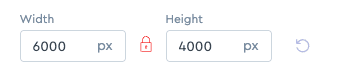
Enter Width and Height in pixels. The lock icon keeps the aspect ratio proportional when changing one value.
Finetune

Adjust tonal values using sliders.
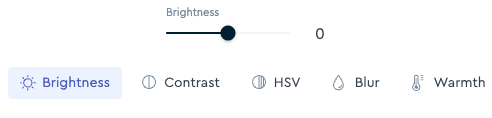
Available sliders: Brightness, Contrast, HSV, Blur, Warmth.
Filters

Apply a preset color filter to the image.

Select a filter by clicking on the preview – including Original, Invert, Black & White, Sepia, Clarendon, Gingham, Moon, Lark and many more.