

Shortcuts
Optimize your workflow with VAULO shortcuts and save valuable time! A single click is all you need to apply star ratings and labels to files or share folders. Now you can create an ExternalUpload, DirectDownload, or a presentation with your desired template with just one keystroke.
Optimize your workflow with VAULO shortcuts and save valuable time! A single click is all you need to apply star ratings and labels to files or share folders. Now you can create an ExternalUpload, DirectDownload, or a presentation with your desired template with just one keystroke.
To set up shortcuts, go to your personal settings by clicking on your Avatar or your Initials at the top of the right sidebar. Then click on the Gear icon next to your name or directly on your Name.
In your personal settings, you will find the Shortcuts item in the left column. Click on it to open the settings.
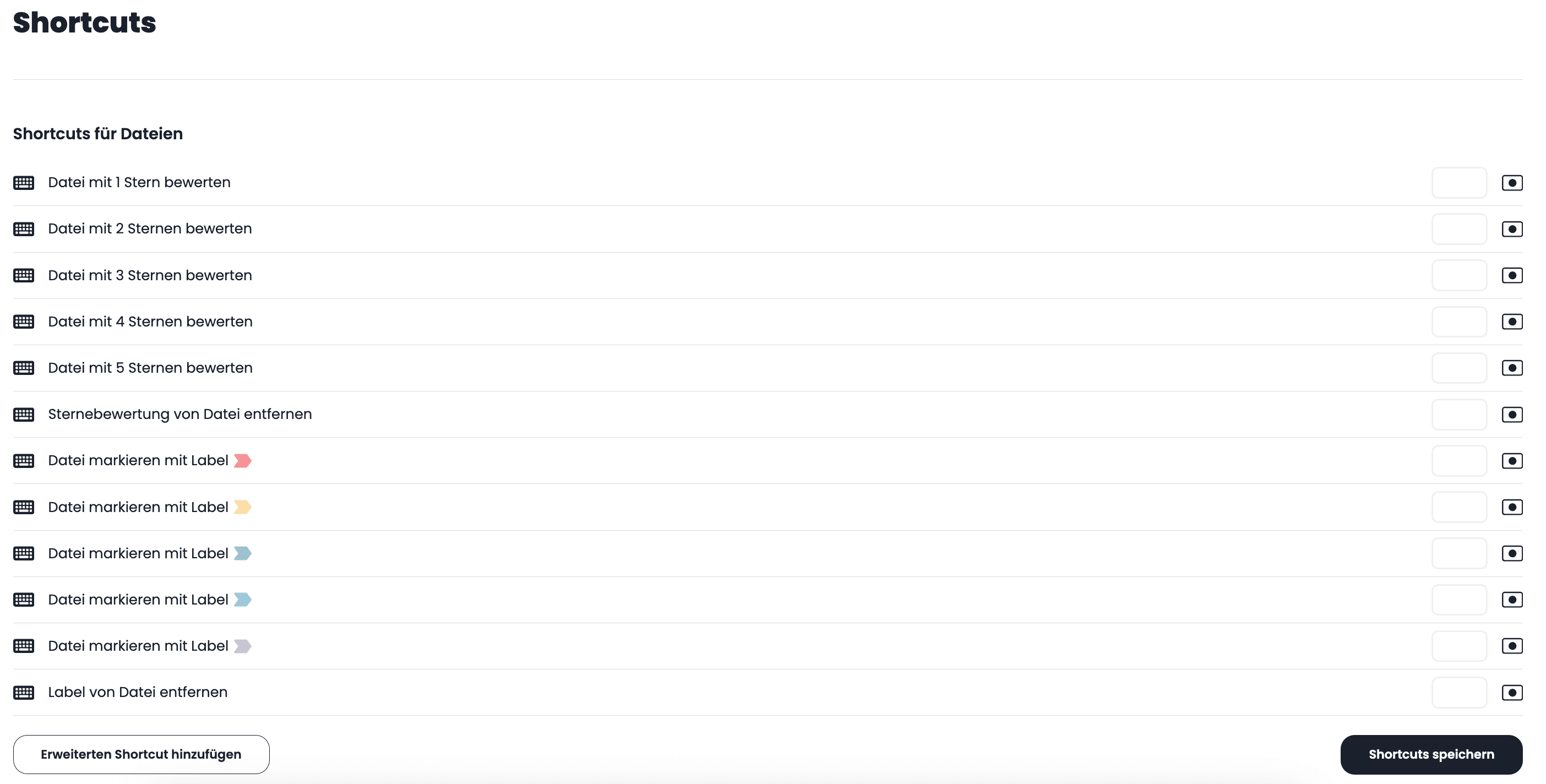
Record a Shortcut
To program a shortcut, click on the (Record shortcut) button next to the desired shortcut function. The following modal opens:
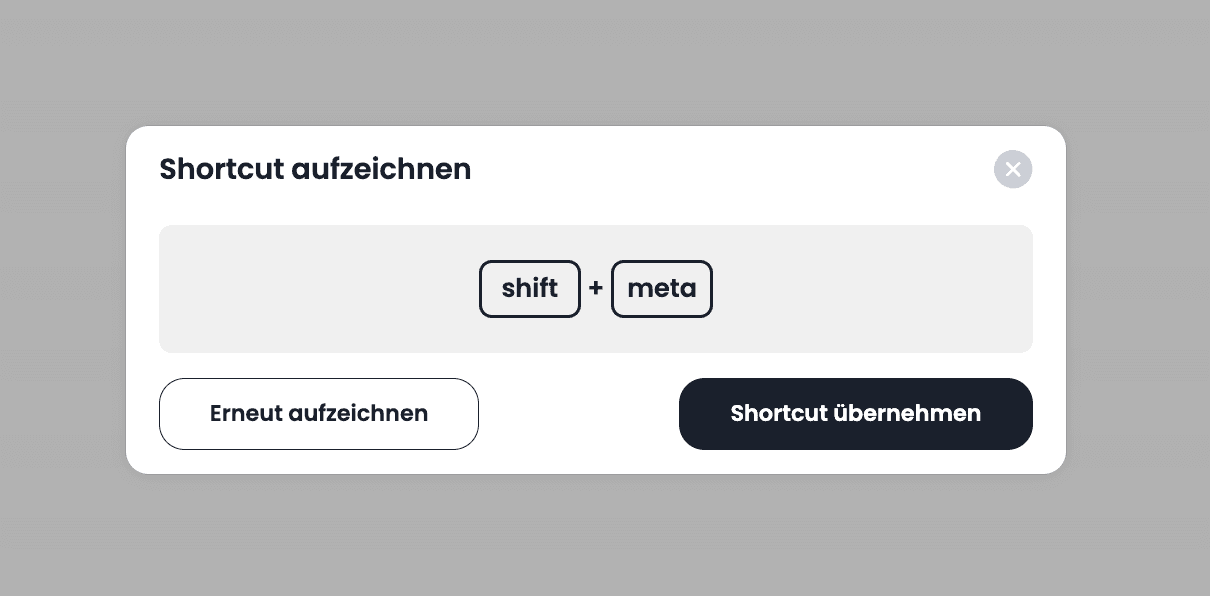
You can now press the desired key combination for the shortcut. A simple number is also sufficient - for example, 1 to rate the media file with one star.
Advanced Shortcuts
In addition to simple shortcuts like rating or labeling, you can also record so-called advanced shortcuts. These currently include the Create share for current folder function. This makes it possible to create a Presentation, a DirectDownload, or an ExternalUpload with just one keystroke in the desired folder.
To do this, click on Create advanced shortcut at the end of the shortcut list. The following modal opens:
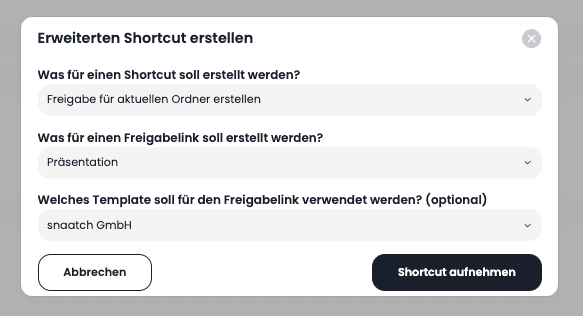
Now select under What type of share link should be created? between Presentation, DirectDownload, and ExternalUpload. If you choose a presentation, you can select in the next dropdown which template should be used. Then click Record shortcut to start recording.
Once you have set up your desired shortcuts, don't forget to click Save shortcuts.
Use a Shortcut
Now go to the folder you want to share and press the shortcut combination you defined. The following modal appears and the link is copied directly to the clipboard:
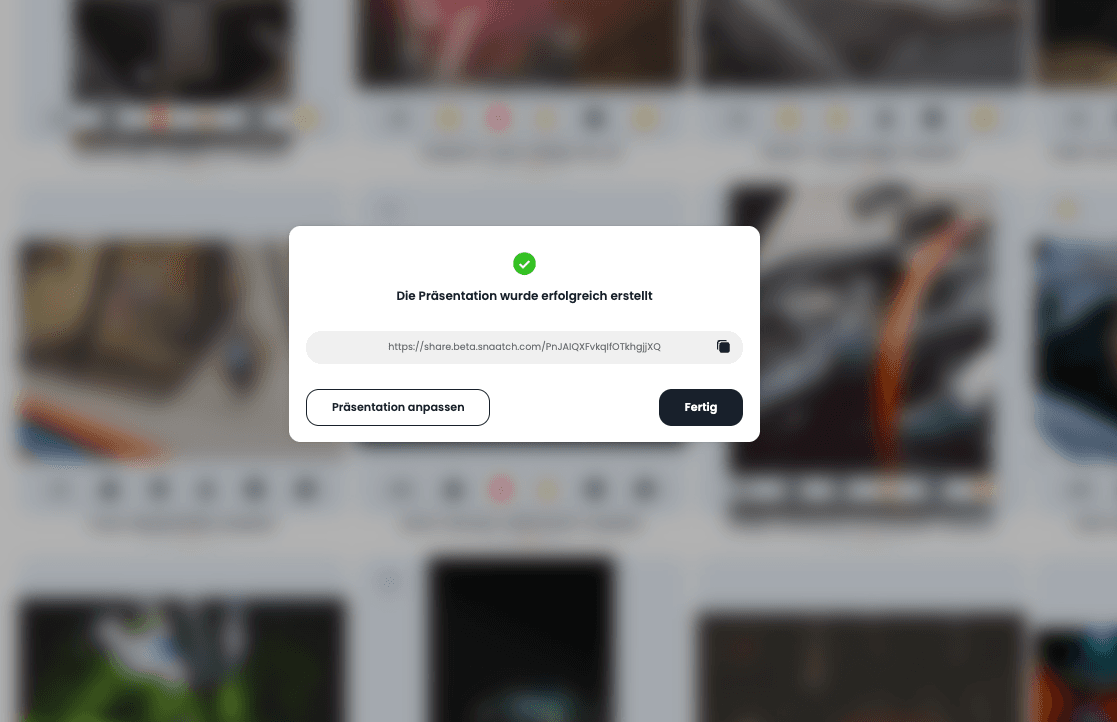
You can now send the link to the desired recipient.
Drawings
Create sketches, floor plans and simple diagrams directly in VAULO and keep editing them later. Every change is saved as a new version, and a shared library keeps recurring elements ready for your whole team.
Creating & Using Format Templates
Learn how to create and use format templates in your Digital Asset Management System. Whether you need to crop images to specific dimensions or apply predefined templates during download, this step-by-step guide walks you through the process.