

Creating & Using Format Templates
Learn how to create and use format templates in your Digital Asset Management System. Whether you need to crop images to specific dimensions or apply predefined templates during download, this step-by-step guide walks you through the process.
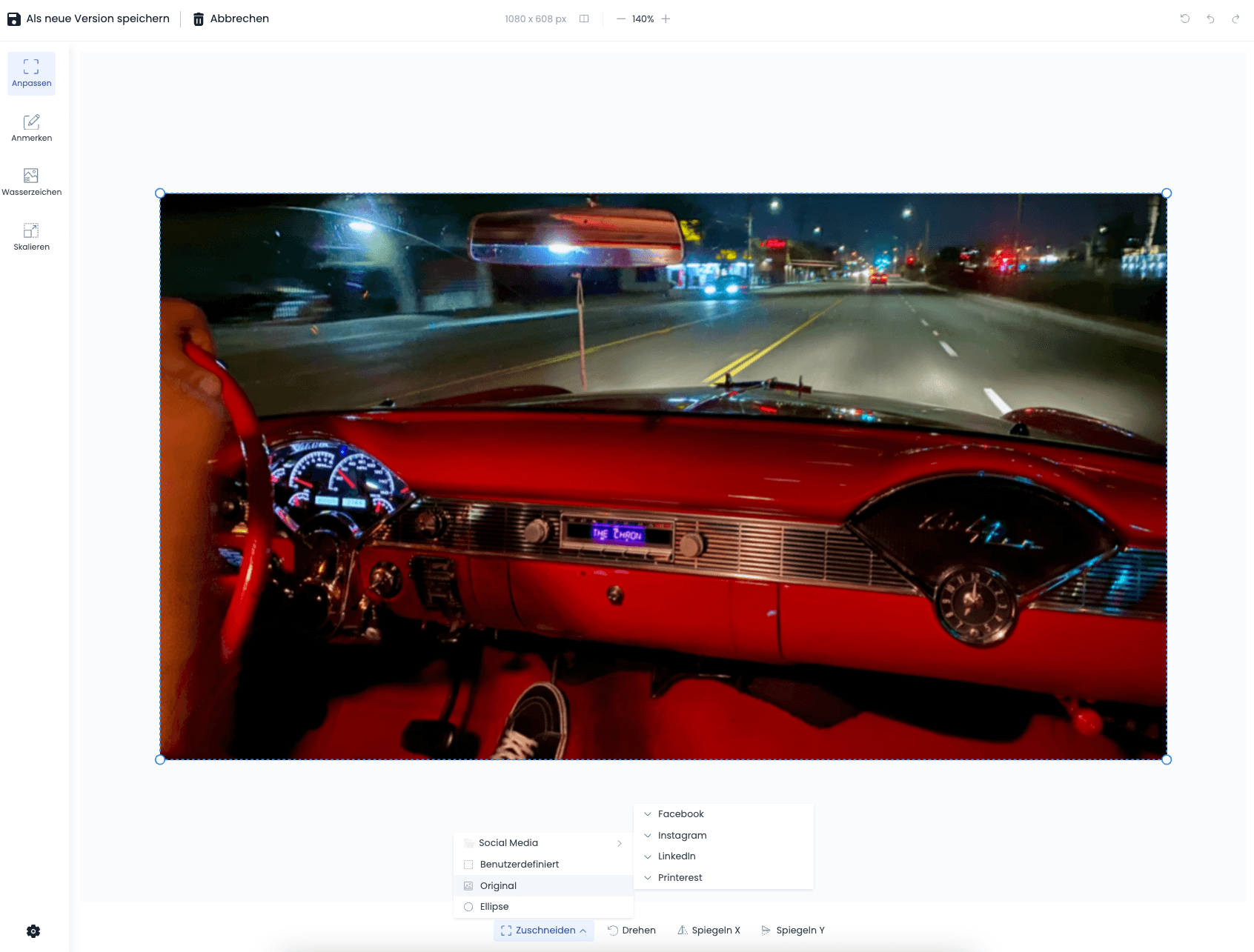
Open the image you want to crop to a specific format in the detail view. Click on Edit in the upper area of the screen. Our image editing tool will now open.
Click on Adjust in the right panel and then on Crop in the lower area.
You can now crop the image to your preferences and Save as new version in the upper area of the screen.
Alternatively, you can also use format templates during download and apply them directly. To do this, proceed as follows:
Start the download for the desired image.
The download dialog opens, where you can select the preset formats. Below that, you will find the Resolution option. Click on the dropdown. You will now find your own templates here, if you have already created some. Select the desired template.
Click on Adjust crop.
The image will now open in a new window. You can now adjust the crop to fit the image.
After adjusting, click Download. The image will now be downloaded with the selected crop.
Shortcuts
Optimize your workflow with VAULO shortcuts and save valuable time! A single click is all you need to apply star ratings and labels to files or share folders. Now you can create an ExternalUpload, DirectDownload, or a presentation with your desired template with just one keystroke.
Experimental Features
Try new VAULO features early – enable and disable experimental features.