

Tour
The key concepts and building blocks – a quick overview before you get started with VAULO.
Before you dive in, it's worth taking a moment to understand the fundamental building blocks of VAULO. This page explains what each element is — without step-by-step instructions. Those live in the Core Skills section.
How data is structured in VAULO
VAULO organises all content in a clear hierarchy:
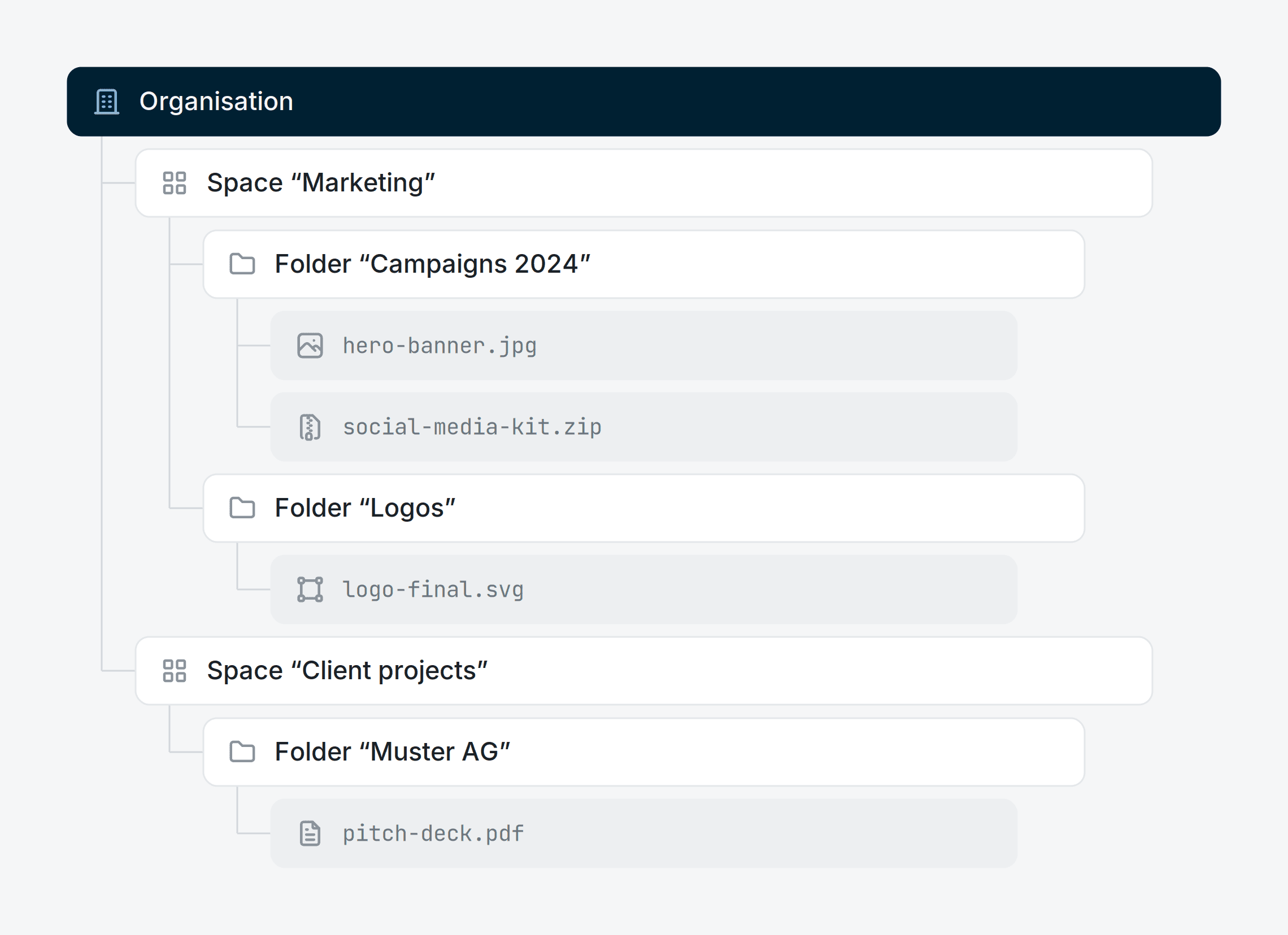
Every file belongs to a folder, every folder belongs to a Space, and every Space belongs to your organisation.
Organisation
Your organisation is the overarching frame for all content, members, and settings. It carries your company name, and everything that happens in VAULO takes place within it.
Who belongs to the organisation and what each member can do is configured in the Organisation Settings.
Spaces
A Space is the top-level container for your content — comparable to a project, a client, or a department. Spaces help you separate content by topic. Common examples: Marketing, Client Projects, or Archive 2023.
All organisation members can access Spaces they have been granted permissions for.
Folders
Within a Space, you organise your files using folders. Folders can be nested to any depth, letting you build a granular structure that matches your workflow.
Folders have their own access settings: you can grant access to a specific folder for individual members or roles without giving them access to the entire Space.
Files
Files are the heart of VAULO. VAULO supports all common formats: images, videos, PDFs, Office documents, ZIP archives, and more. Every uploaded file automatically gets a preview and becomes instantly searchable.
Beyond the content itself, each file carries metadata — such as upload date, file format, file size, and any keywords and labels you assign to it.
The Dashboard
The Dashboard is your home screen after signing in. It gives you a quick overview of your organisation's state: How many files have been uploaded? How much storage is used? What has the team been working on recently?
The top area shows your key metrics. Below that you see the most recently created and updated files — handy for keeping track without having to search.
Search
The global search searches all files in your organisation — across all Spaces and folders you have access to. VAULO searches the filename, assigned keywords, and additional metadata.
Use filters to narrow results further: by file type, Space, upload date, or label.
Sharing
Shares (shared links) let you share files and folders — internally or with external recipients who don't need a VAULO account. VAULO offers three sharing types:
- Direct download — The recipient opens the link and downloads the file directly. Fast and straightforward.
- Presentation — A clean web view with an optional rating or discussion mode. Ideal for client reviews.
- Embed — Embed the share into an external website or CMS.
For every share you can optionally set a password, an expiry date, and a message to the recipient.
Roles & Permissions
Every member of your organisation has a role that determines what they can see and do. VAULO distinguishes between roles at organisation level, Space level, and folder level — enabling very granular access control.
Typical roles include Admin, Editor, and Viewer. You can define custom roles and specify exactly which actions they permit.
Keywords & Labels
Keywords and Labels help you tag and group files thematically — regardless of which folder they live in.
- Keywords are free-form tags you assign to files that significantly improve discoverability in search.
- Labels are colour-coded markers — useful for visualising a review status (In Progress, Approved) or a priority level.
Now that you know the key concepts, it's time to try it out.