

Creating and Editing Folders
Learn how to create and manage folders in your Digital Asset Management System. Whether you need to organize images, videos, or documents by department, client, or topic, this step-by-step guide walks you through the process.
Folders help you bring structure to your data organization. In combination with individual access rights, you can determine who should have access to each folder. Depending on how you use your VAULO account, you can use folders for various purposes. Here are a few examples:
Departments
Use a folder for each department of your company
Clients
Use a folder for each client you manage
Locations
Use a folder for different locations of your company
Topics
Use a folder for different topics
Events
Use a folder for different events
To create a folder, proceed as follows:
Navigate to the Space where you want to create a folder. Then click on Add folder. A window opens where you can set the name of the new folder. The new folder is created after clicking Add.
Creating Subfolders
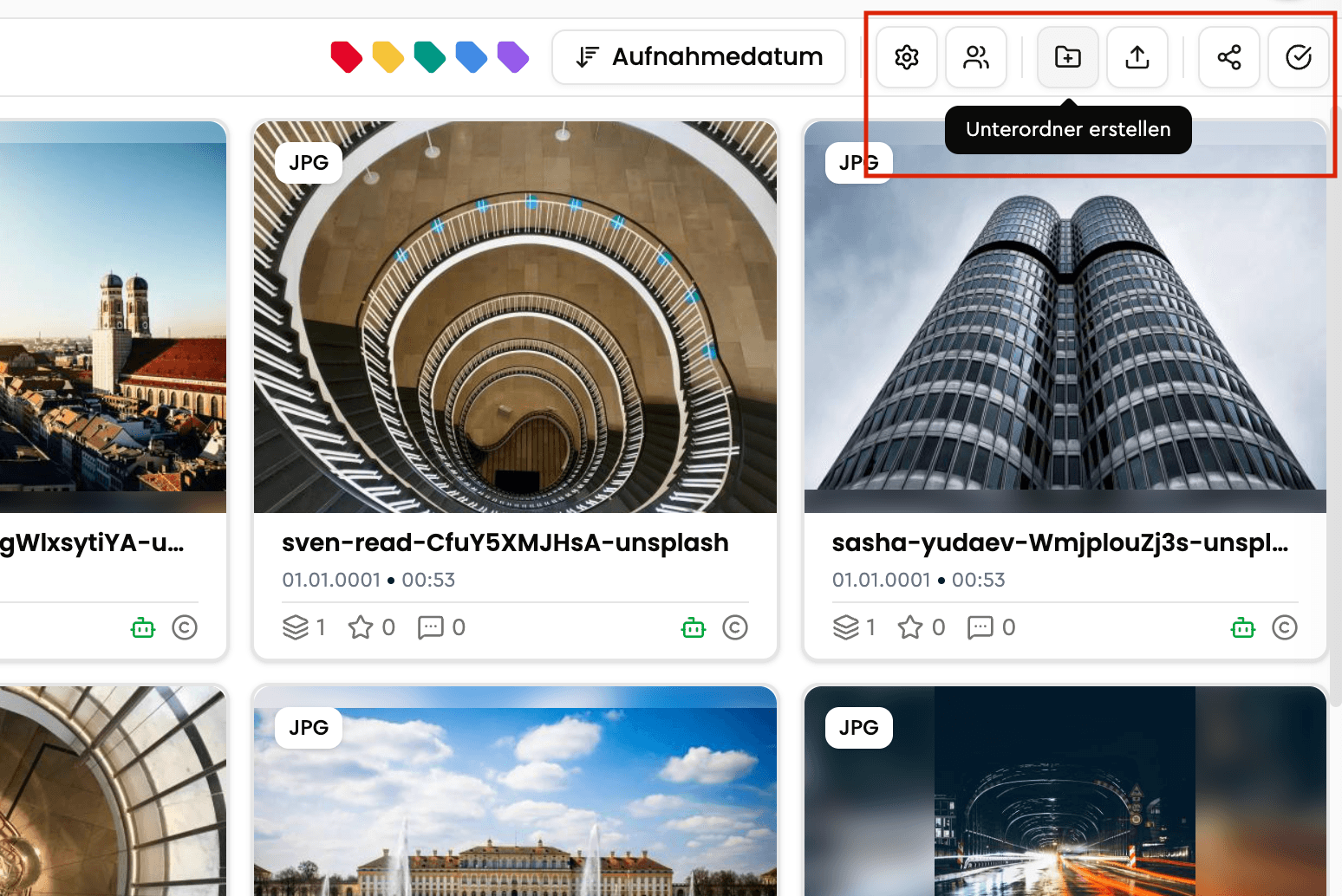
To create a subfolder, click on the folder icon with the plus sign in the upper right corner of the screen. Alternatively, you can also right-click on the folder in which the subfolder should be created.
Editing and Deleting Folders
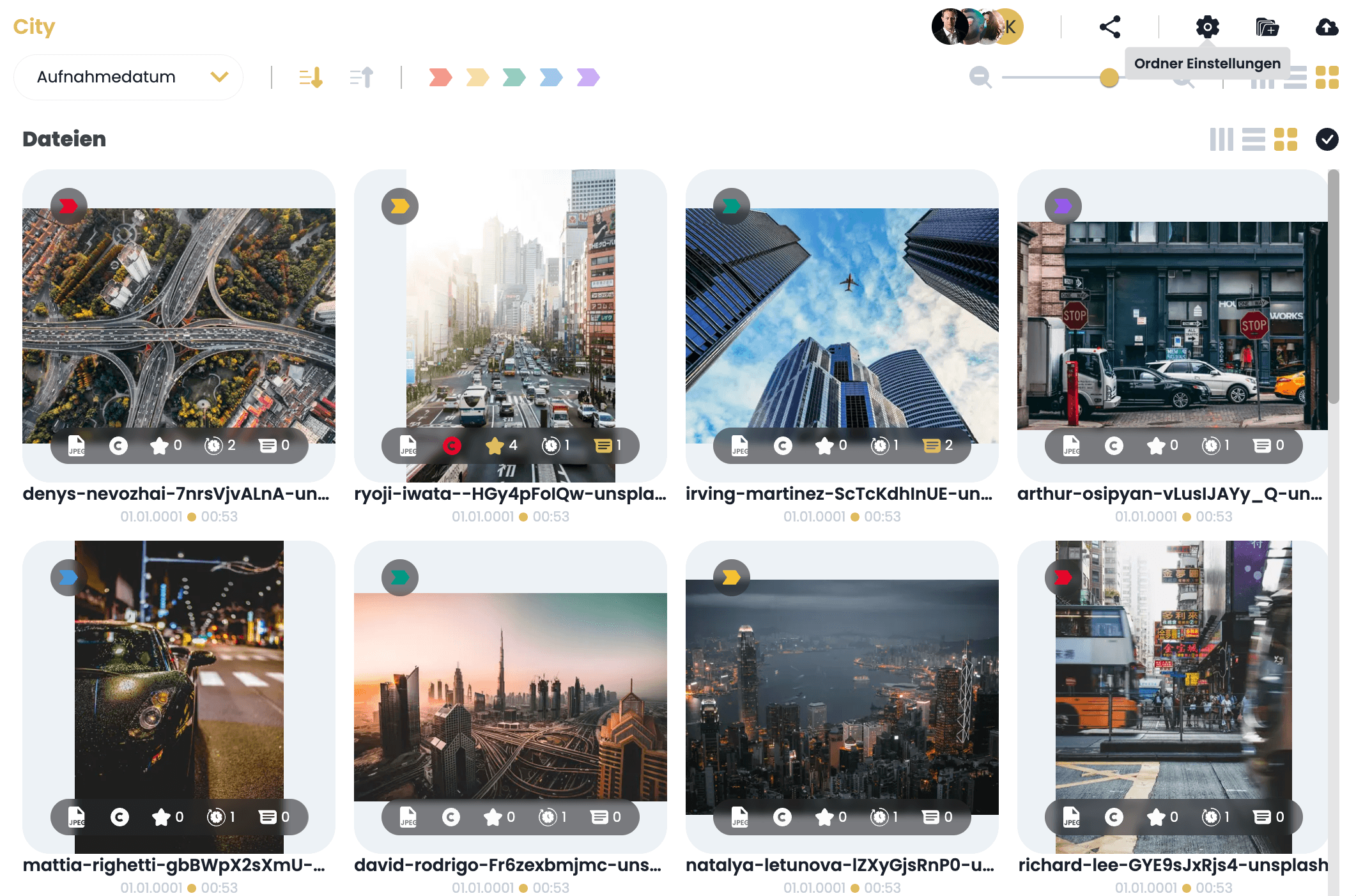
If you want to delete or rename a folder, you must first select it and then click on Folder settings in the upper right corner of the screen. Alternatively, you can also right-click on the desired folder and then click on Rename, Delete, or Folder settings.
When you delete, the Delete folder? dialog asks for confirmation. It names the folder and points out that deleting cannot be undone. The folder is only removed once you click Delete.
Setting a Cover Image for a Folder
Without a cover image, a folder's tiles automatically show its newest files. If you want to decide which image represents the folder – for example for a folder that only contains videos – set a cover image.
Open the Folder settings. In the Cover image section you have three options:
- Choose from folder – pick an image or video from the folder or one of its subfolders. For a video, its thumbnail is used.
- Upload image – upload your own image (JPG, PNG or WebP). It is not stored as a file in the folder, so it appears neither in the file list nor in presentations nor in the file count.
- Remove cover image – the tiles go back to showing the newest files automatically.
It is even quicker from a file: right-click an image or video and choose Use as folder cover image.
The cover image appears on folder tiles once their style is set to Cover image (see below). If the chosen file is deleted or moved out of the folder, the cover image is dropped and the tile shows the newest files again. Anyone allowed to rename the folder can set its cover image.
Whether folder tiles show several images or only the cover image is set in the media view under Folder tiles. In presentations, turn the cover image on at the Folder View block with Use the folder's cover image. If a share of a folder has no preview image of its own, the cover image is used as well.
Highlighting Folders with Labels
Similar to files, you can also assign labels to your folders. This makes them easier to find, sort, and manage. Decide which folders are particularly important to you and mark them in the appropriate color. Learn how this works here: HowTo: Selecting and editing labels
Creating and Editing Spaces
Learn how to create and manage Spaces in your Digital Asset Management System. Whether you need to organize content by department, client, location, or topic, this step-by-step guide walks you through the process.
Managing Files: Copy, Move, and Delete
Learn how to copy, move, and delete files in VAULO - either via drag & drop, through the context menu (right-click), or using the Lightbox for simultaneously editing multiple files from different folders. Basic knowledge of navigating the VAULO Digital Asset Management System is required.