

Batch processing & transferring IPTC data
Set description, keywords, and IPTC fields for multiple files at once, rename files after a metadata field, or transfer the full IPTC data of one file to many others.
If you want to apply the same metadata to many files at once, you don't have to edit them one by one. VAULO offers three ways to do this: batch processing for individual fields, renaming after a property, and copying & pasting IPTC data for the entire dataset.
Setting metadata via batch processing
Select multiple files and click Open batch processing in the Lightbox.
Choose the "Set metadata" action from the dropdown.
Click "Add another field" to pick a metadata field. The list is searchable and grouped: your organization's custom fields (from Data Studio) first, then standard fields such as description, keywords, and IPTC. You can add as many fields as you like.
Enter the desired value for each field you've added.
Click the "Fill … metadata fields in … files" button (the exact field and file counts are filled in automatically) to apply the values to all selected files.
If you're missing the required permission for a particular field on some files, only those files are skipped – you'll see a notice with the number of skipped files. The field is still applied to every other file.
Naming files after a property
The "Set filename from property" action renames many files at once after one of their metadata fields – for example the IPTC headline, the description, or a custom property from Data Studio.
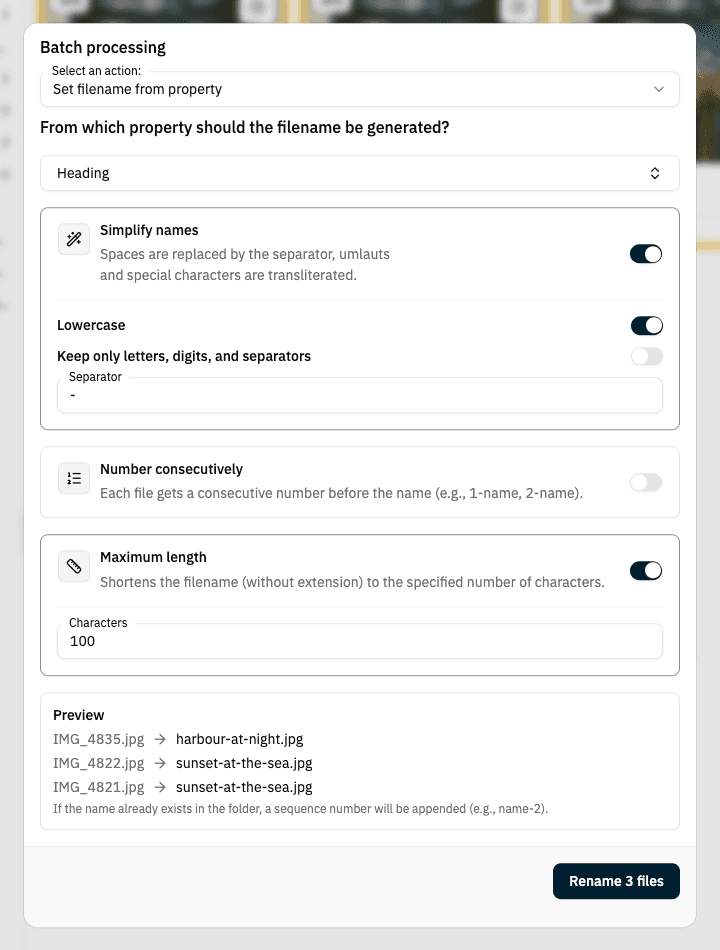
Select multiple files, open batch processing, and choose the "Set filename from property" action from the dropdown.
Under "From which property should the filename be generated?", pick the field. The list is grouped: your organization's custom fields first, then the standard fields in the groups General, IPTC, and EXIF. Heading (the IPTC headline) is preselected.
Decide how the name is built (see below). The preview shows the old and the new name for the first three files before anything changes.
Click "Rename … files". After the run you'll see how many files were renamed.
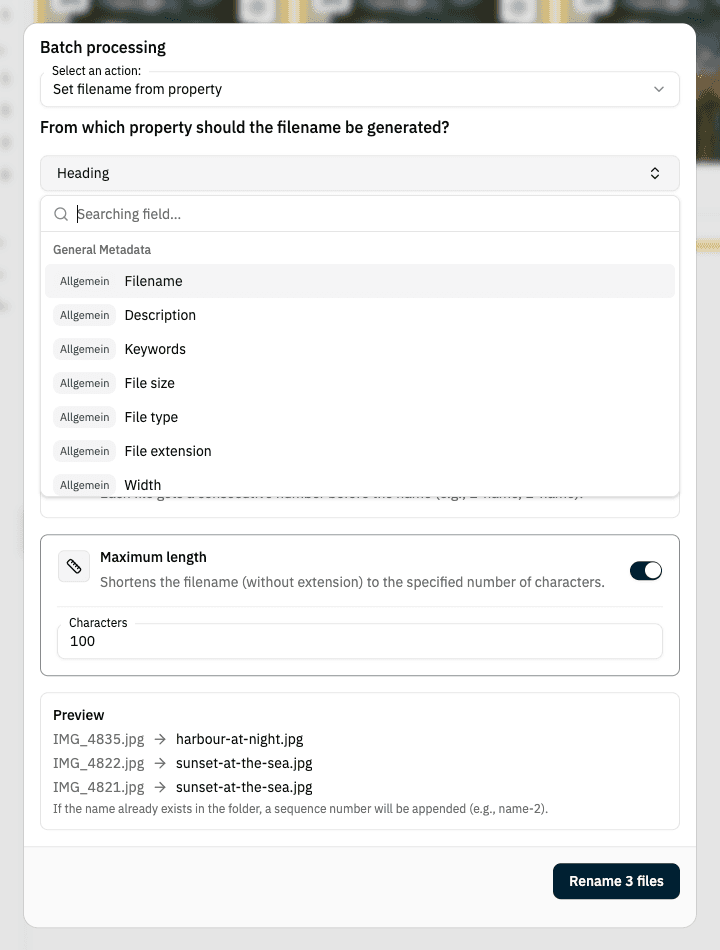
Options
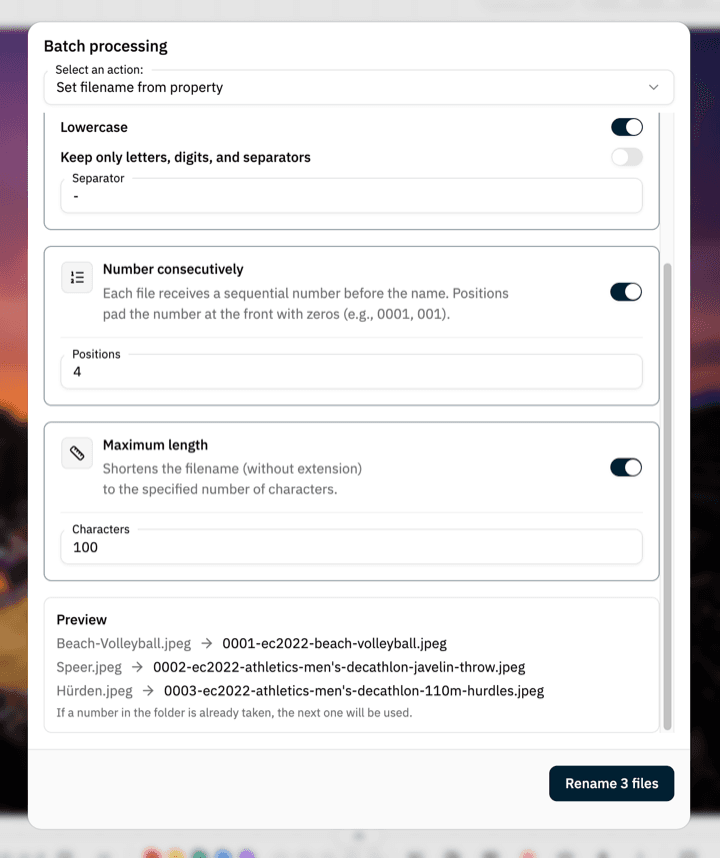
- Simplify names – replaces spaces with the separator (default: hyphen), rewrites umlauts and special characters, and lowercases the name if you like. "Keep only letters, digits, and separators" additionally strips everything else, such as periods or brackets. "Übersicht für Ärzte" becomes
uebersicht-fuer-aerzte. - Number consecutively – puts a running number in front of every file, for example
1-uebersicht,2-uebersicht. Positions pads the number with leading zeros:4gives0001-uebersicht,3gives001-uebersicht. Counting starts at 1 in each folder. - Maximum length – truncates the name to the given number of characters (not counting the file extension).
What happens with duplicate names
If a name is already taken in the folder, VAULO appends a sequence number: uebersicht becomes uebersicht-2, then uebersicht-3. With consecutive numbering, a number that is already taken is skipped. The file extension is always kept – only the name in front of it changes.
Files whose chosen field is empty are skipped, as are files you lack the permission for. You get a notice with the count in each case. A file that already carries the name is left untouched.
How umlauts are rewritten follows the language of your interface: in German "ä" becomes "ae", in English "a".
Transferring IPTC data from one file to many
If you want to transfer not just individual fields but the complete IPTC dataset of one file to several others, use copy & paste:
Right-click the file whose IPTC data you want to reuse and choose "Copy IPTC data".
Then select all the files that should receive the copied data.
Right-click the selection and choose "Paste IPTC data".
The full IPTC data of the source file is now applied to every selected file, overwriting their existing IPTC data.
The "Paste IPTC data" menu item only appears once you've copied a file's IPTC data first.
Managing Files: Copy, Move, and Delete
Learn how to copy, move, and delete files in VAULO - either via drag & drop, through the context menu (right-click), or using the Lightbox for simultaneously editing multiple files from different folders. Basic knowledge of navigating the VAULO Digital Asset Management System is required.
Selecting and Editing Labels
This article explains how to use labels in the VAULO Digital Asset Management System to color-code files and folders and filter them specifically. Learn how to customize label names per Space, assign labels to individual or multiple files simultaneously, and use the label filter to display only relevant content.