

Tagging Media Files
Tagging media files is an important aspect of collaboration and communication within your Digital Asset Management System. Whether you want to tag images, videos, or documents, this how-to guide shows you how to tag your media files most efficiently.
In this how-to guide, you will learn how to tag your media in VAULO using our keyword management system. This makes it easier to find your media files and saves a tremendous amount of time.
If you have already created a keyword catalog, there are several ways to tag individual or multiple media files.
Tagging Individual Media Files
Open the desired file in the detail view. In the right menu bar, you will find the Keywords item.
To see the previously created catalog, click with the mouse in the search field.
You can now check the box in front of the created catalog to select all groups and keywords. Alternatively, you can also expand the catalog to select individual groups or keywords.
You can also type a keyword into the field. If the keyword already exists, it will be shown in the dropdown. If the keyword does not exist, you can add it by pressing Enter.
Pressing Enter saves the keyword to this file only, not to the keyword catalog.
If the keyword should be suggested to everyone from now on, add it to the catalog right away: if it is not in a catalog yet, the suggestions show „Keyword“ is not yet in the catalog. Pick the right group under Group and click Add to catalog. The keyword is then in the catalog and on this file. The group you picked last is preselected next time.
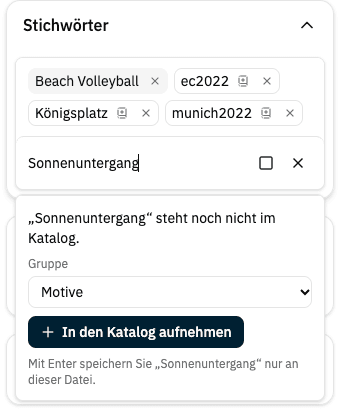
If the catalog already holds the keyword in a different spelling, for example "Nature" instead of "nature", VAULO offers the catalog spelling instead (Use „Nature“). This keeps duplicates out of the catalog.
Only users with the Create keyword catalog permission can add keywords to the catalog. Without it, typed keywords are saved to this file only, as before.
Keywords that are not in any catalog are shown with an outline. Use the small book icon on such a keyword to add it to the catalog later.
If you change your mind and don't want to use already selected keywords, uncheck the box next to the keyword, group, or catalog. The removed keywords will then be deleted.
To accept the selection, click the X in the keyword field or click anywhere else in the browser. The selection will then be applied.
To remove individual keywords, simply click the X next to them.
Tagging Multiple Media Files at Once
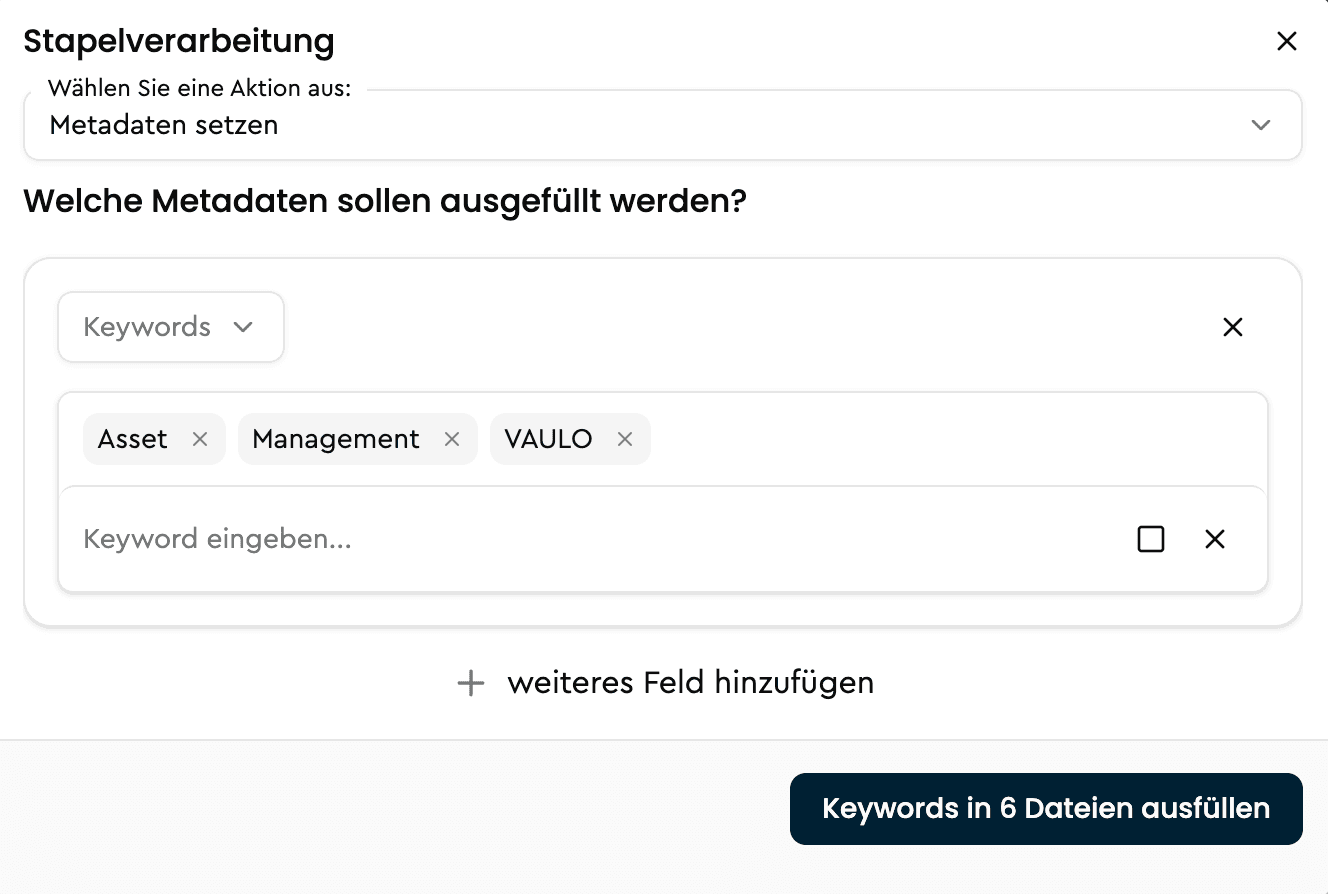
Select the files you want to tag via batch processing.
Right-click on one of the selected files.
Click on Open batch processing.
In the first dropdown, select Fill metadata.
In the second dropdown, select Keywords.
To see the previously created catalog, click with the mouse in the search field.
You can now check the box in front of the created catalog to select all groups and keywords. Alternatively, you can also expand the catalog to select individual groups or keywords.
You can also type a keyword into the field. If the keyword already exists, it will be shown in the dropdown. If the keyword does not exist, you can add it by pressing Enter.
Pressing Enter saves the keyword to the selected files only, not to the keyword catalog.
If the keyword should be suggested to everyone from now on, add it to the catalog right away: if it is not in a catalog yet, the suggestions show „Keyword“ is not yet in the catalog. Pick the right group under Group and click Add to catalog. The keyword is then in the catalog and on the selected files. The group you picked last is preselected next time.
If the catalog already holds the keyword in a different spelling, for example "Nature" instead of "nature", VAULO offers the catalog spelling instead (Use „Nature“). This keeps duplicates out of the catalog.
Only users with the Create keyword catalog permission can add keywords to the catalog. Without it, typed keywords are saved to the selected files only, as before.
Keywords that are not in any catalog are shown with an outline. Use the small book icon on such a keyword to add it to the catalog later.
If you change your mind and don't want to use already selected keywords, uncheck the box next to the keyword, group, or catalog. The removed keywords will then be deleted.
To accept the selection, click the X in the keyword field or click anywhere else in the browser. The selection will then be applied.
To remove individual keywords, simply click the X next to them.