

Selecting and Editing Labels
This article explains how to use labels in the VAULO Digital Asset Management System to color-code files and folders and filter them specifically. Learn how to customize label names per Space, assign labels to individual or multiple files simultaneously, and use the label filter to display only relevant content.
Labels help you keep your VAULO account organized. Five predefined colors are available: Red, Yellow, Green, Blue, and Violet. You can use these colors to mark both folders and individual files.
The label colors cannot be changed. VAULO labels are compatible with programs such as Adobe Lightroom Classic or PhotoMechanic. Files that you label in VAULO are automatically color-coded in other tools as well - and vice versa.
Customize Label Names
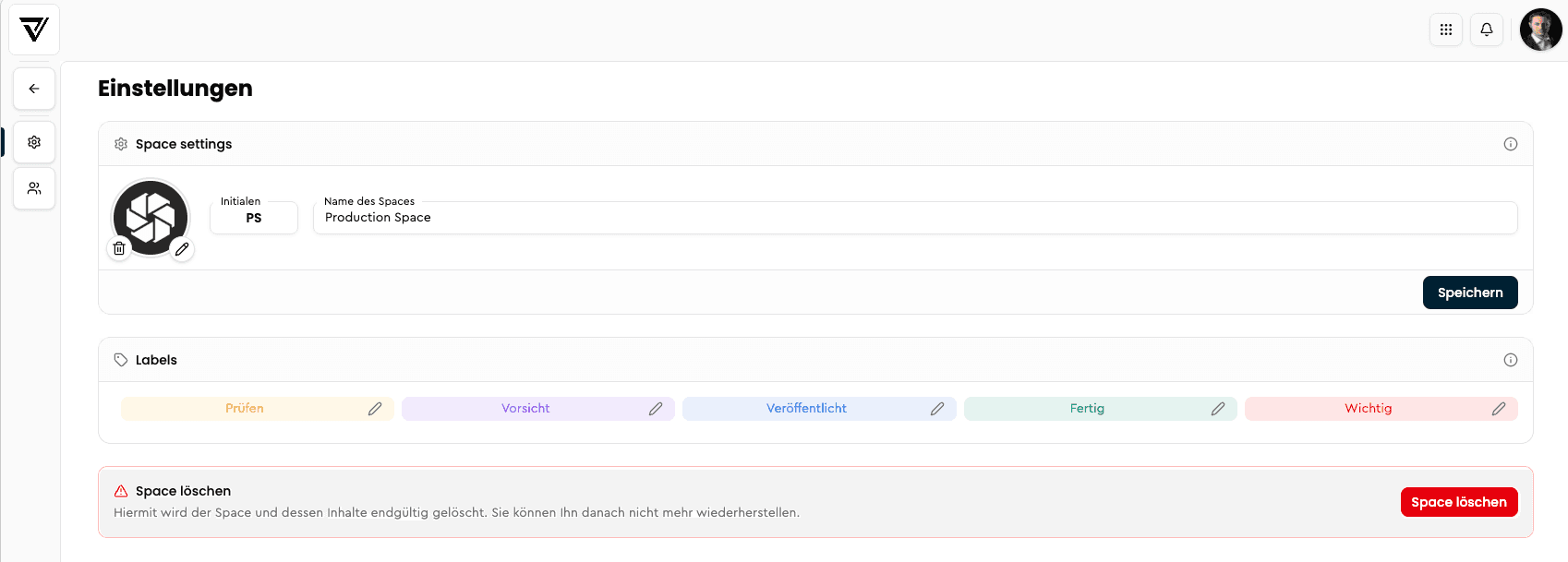
So that you and your team can immediately see what each color means, you can set the names individually per Space. Right-click on the desired Space and open the Space settings. There you will see the five label colors with the predefined names "Published", "Attention", "Done", "Review", and "Caution". Click the pencil icon next to a label to customize the name.
Assign Labels to Folders and Files
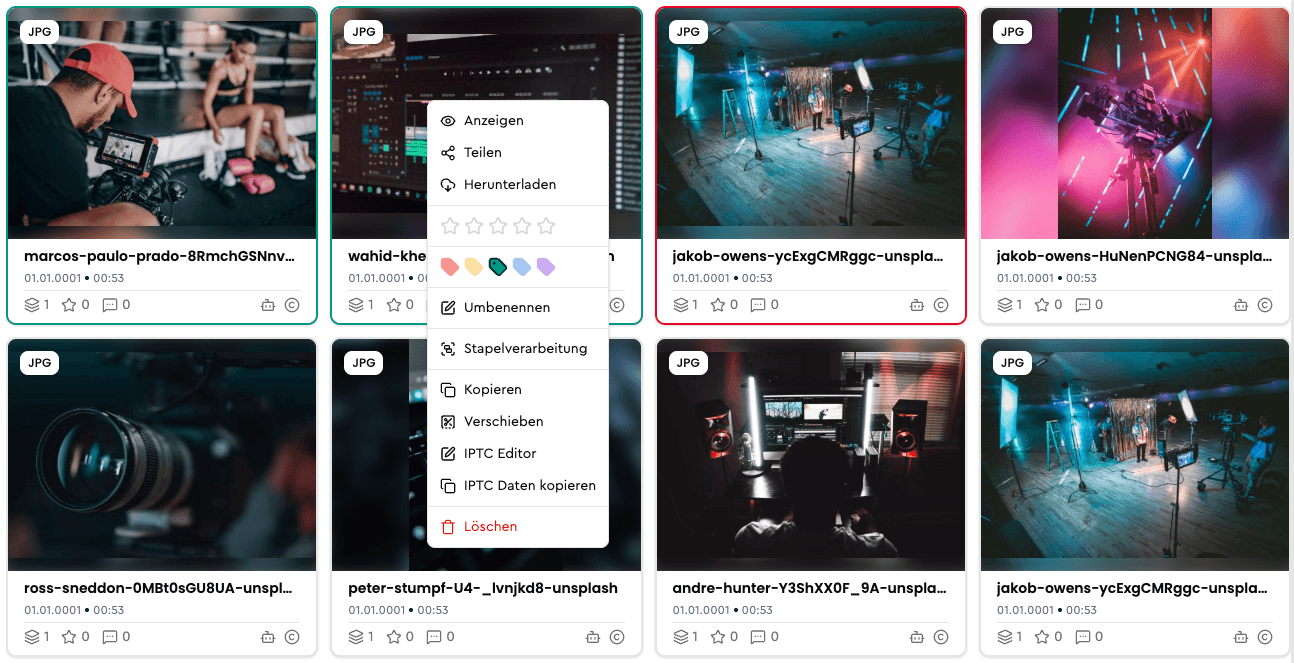
Right-click on the desired folder or file and select the appropriate label. If you want to remove a label, click the same color again.
Label Multiple Files at Once
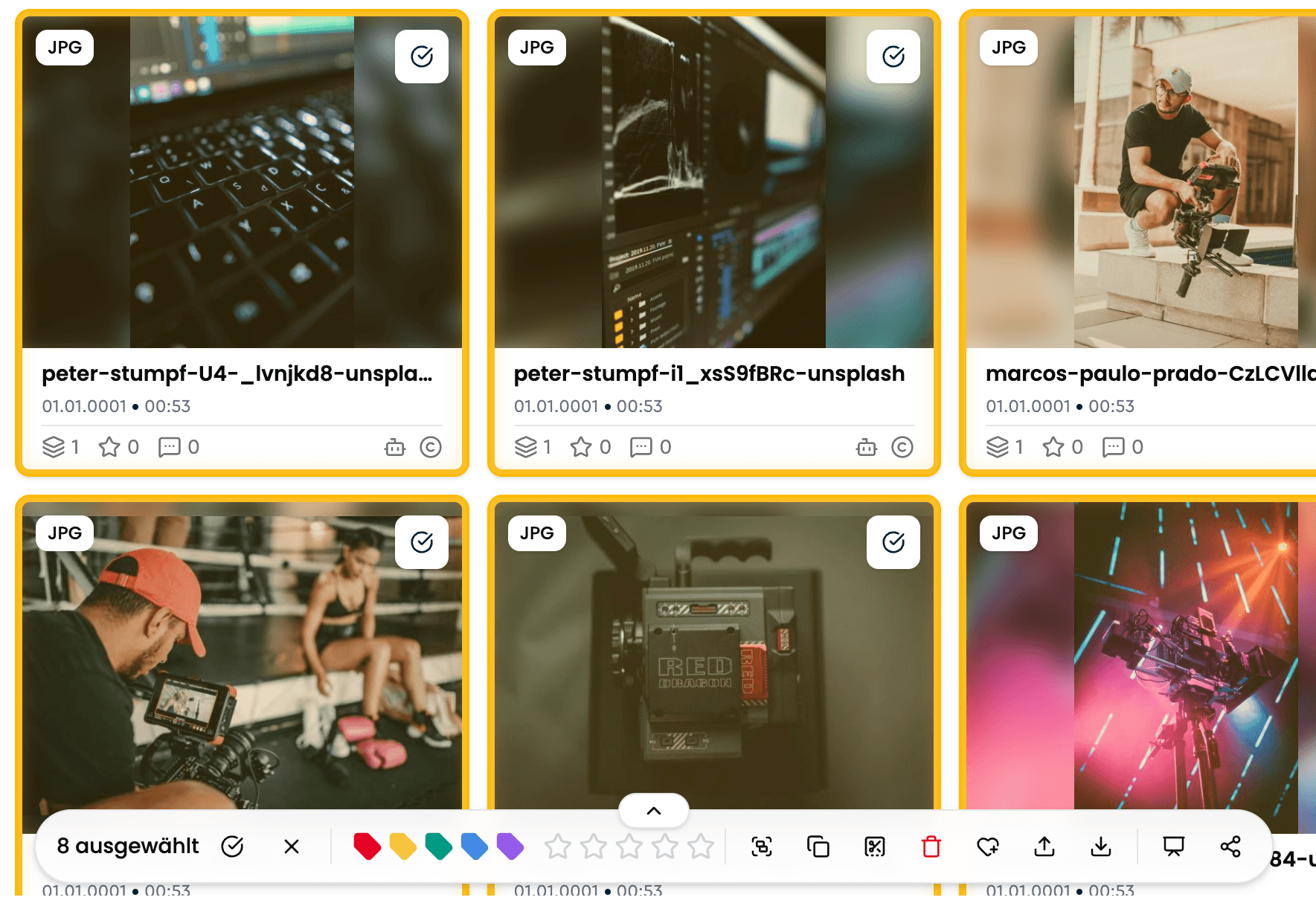
Select the desired files - the Lightbox opens. There you can set a label for all selected files in one step, or remove it by clicking the same color again.
Filter Files by Labels
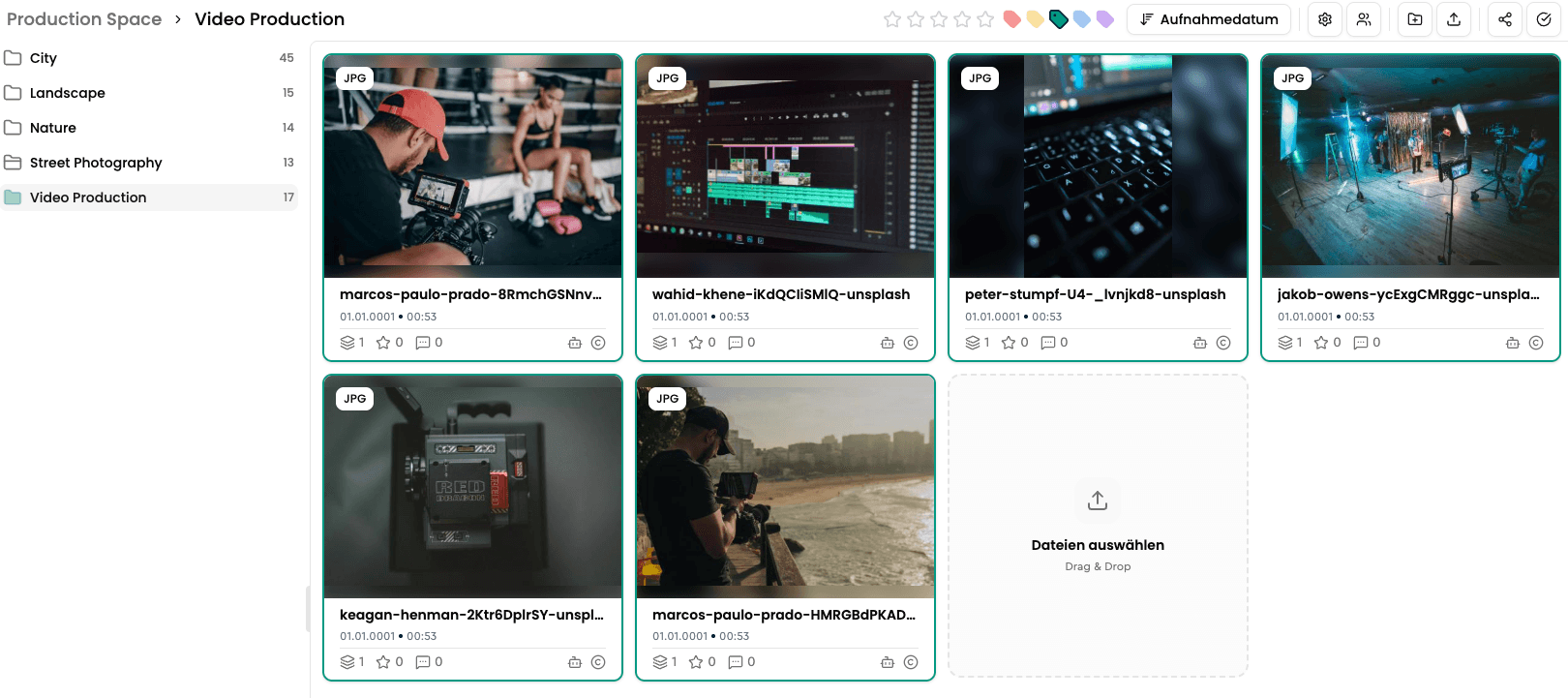
Once files have been labeled, you can filter them specifically. Click on the desired label in the upper area of the view - only the correspondingly marked files will then be displayed.
If the label filter is not visible, please check whether it has been activated. You can find the setting in the "View & Settings" area, which you can access via the gear icon in the toolbar at the top right.
Batch processing & transferring IPTC data
Set description, keywords, and IPTC fields for multiple files at once, rename files after a metadata field, or transfer the full IPTC data of one file to many others.
Keyword Management
Learn how to organize your keywords in VAULO using our keyword management system. This facilitates tagging your media files and makes it easier to find them later.