

Customizing the Media View
Customize the media view in VAULO to your personal preferences – choose between grid, list, table, and gallery view, and configure preview size, display options, and filters.
Customize your media view to match your personal preferences. Click View in the upper area to open the settings panel.
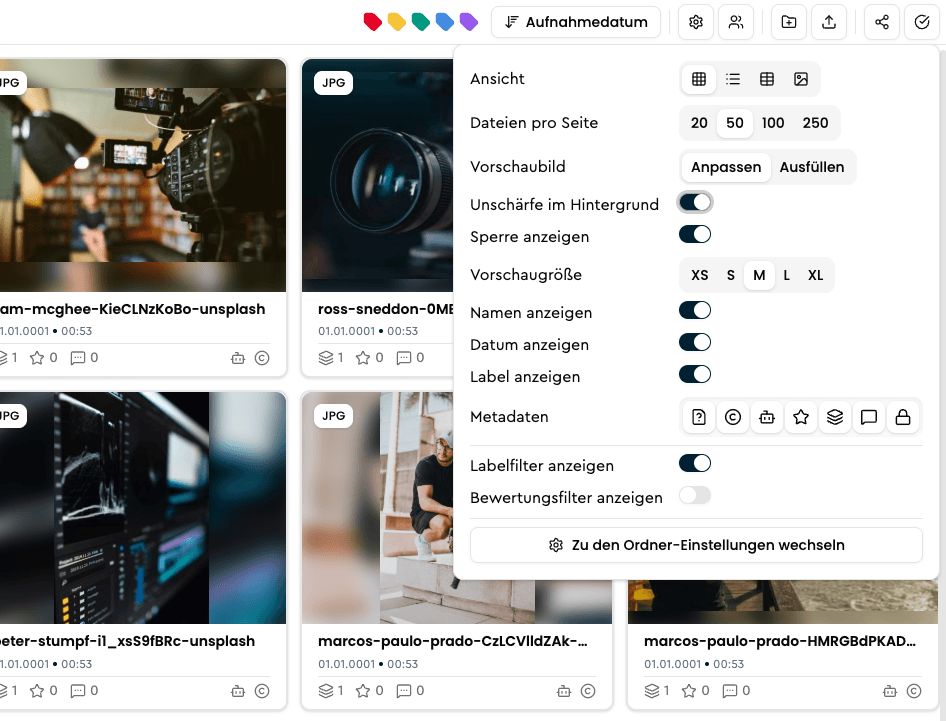
View
Choose between four display modes:
- Grid – tile view with configurable preview size
- List – compact list view with file details
- Table – tabular view of all assets
- Gallery – full-screen photo view with masonry layout
Files per page
Set how many files are loaded at once: 20, 50, 100, or 250. More files per page give you a broader overview at the cost of slightly longer load times.
Thumbnail
Control how thumbnails are scaled within tiles:
- Fit – the image is displayed in its original proportions
- Fill – the image fills the entire tile, which may result in slight cropping
Background blur
Only available with Thumbnail: Fit. When enabled, a blurred version of the image is displayed as a background behind the proportionally scaled thumbnail, making tiles look visually complete regardless of the image's aspect ratio.
Folder tiles
Choose which images folder tiles show:
- Multiple images (default) – up to three images from the folder, its newest files. A cover image is not used here.
- Cover image – exactly one image per folder: the cover image or, if none is set, the newest image in the folder.
Show lock
When enabled, a lock icon appears on the thumbnail of files that are protected against download.
Preview size
Sets the tile size in the grid: XS, S, M, L, or XL. Smaller sizes let you see more files at once; larger sizes let you make out image details directly in the preview.
Show names
Shows or hides the filename below the thumbnail.
Show date
Shows or hides the date below the thumbnail.
Show label
Shows or hides the assigned label on the thumbnail.
Metadata
Choose which metadata icons are displayed directly on thumbnails, such as comments, ratings, versions, or approval status.
Show label filter
Shows or hides the label filter bar above the grid.
Show rating filter
Shows or hides the rating filter above the grid. When active, you can filter files by star ratings.
Go to folder settings
Opens the settings page of the current folder, where you can configure folder-wide options.
Your settings are saved per device. If you switch to a different device, you will need to configure them there once as well.
Special Characters for More Precise Searches
Learn how to use special characters and operators in VAULO search to achieve more precise results. This guide walks you through combining, excluding, and using exact search terms in your Digital Asset Management System.
Customizing the File Detail View: Arrange and Configure Sections
Learn how to arrange and configure the sections of the file detail view in VAULO to your preferences. This guide shows you how to reorder individual menu items via drag & drop through profile settings and define which sections are expanded by default. Note: These settings apply exclusively to your personal account in the VAULO Digital Asset Management System.