

Customizing the File Detail View: Arrange and Configure Sections
Learn how to arrange and configure the sections of the file detail view in VAULO to your preferences. This guide shows you how to reorder individual menu items via drag & drop through profile settings and define which sections are expanded by default. Note: These settings apply exclusively to your personal account in the VAULO Digital Asset Management System.
In this how-to guide, you will learn how to individually configure the sections in the file detail view.
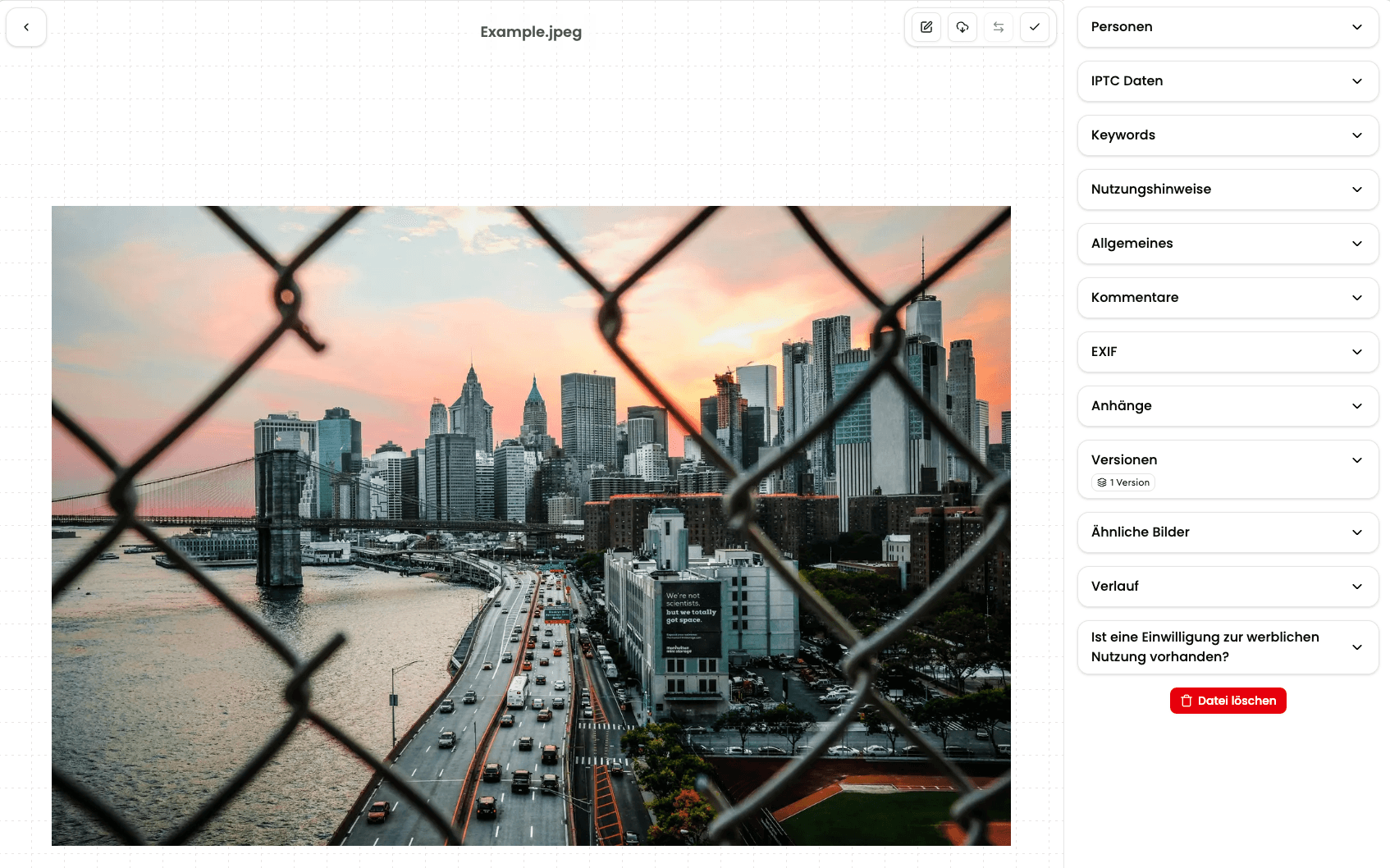
Arrange Sections Individually
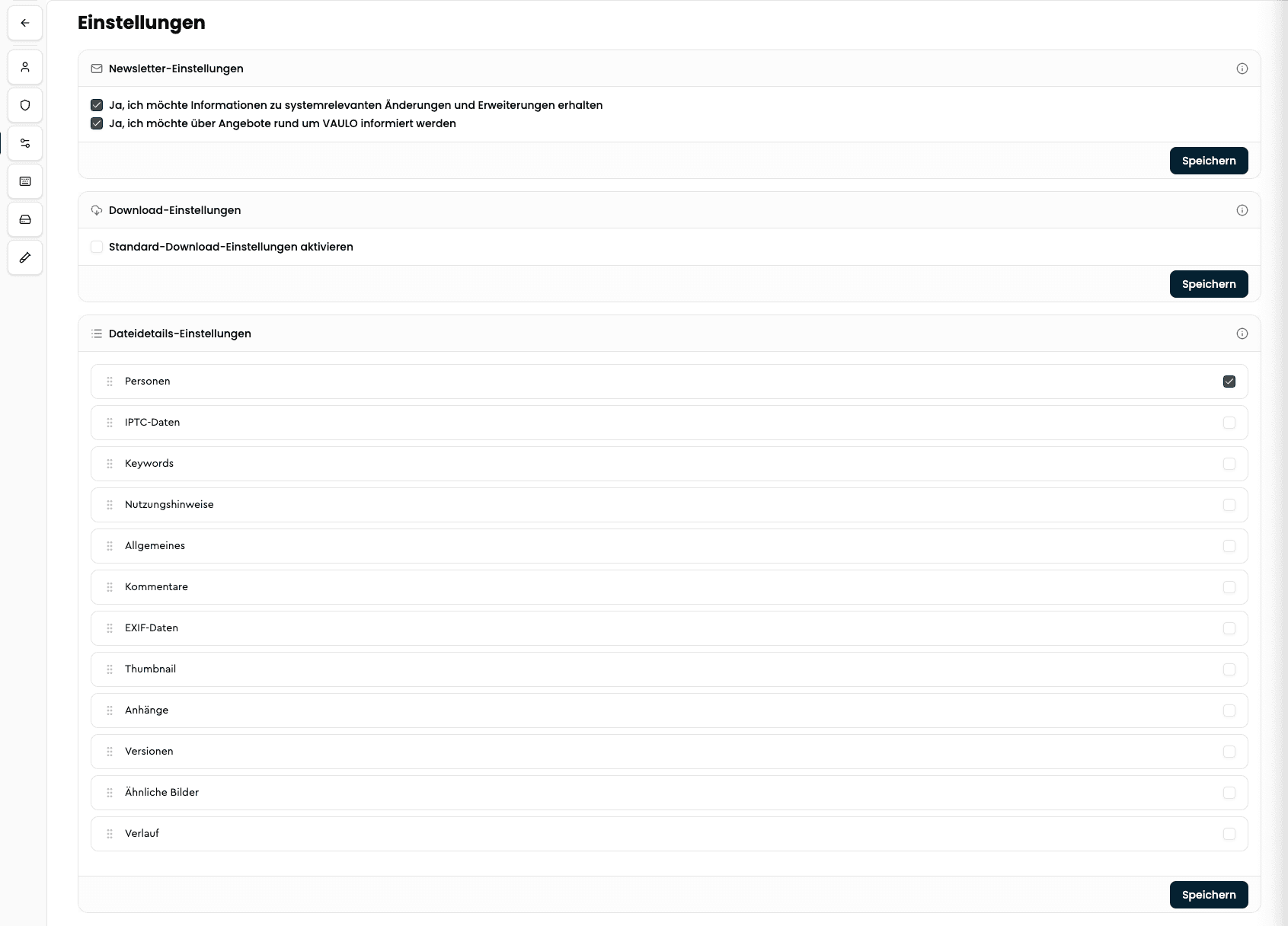
Arrange Sections via Drag & Drop
Under the File detail settings menu item, you can now rearrange the menu items into the desired order via drag & drop. Click on the six dots in front of the respective menu item and, while holding the mouse button, move the menu item to the desired position. If a menu item should be expanded by default, you can activate this by checking the box next to the corresponding item.
Click Save when you are done.
These individual settings apply exclusively to your account.
Customizing the Media View
Customize the media view in VAULO to your personal preferences – choose between grid, list, table, and gallery view, and configure preview size, display options, and filters.
Share & Distribute
Share files and folders, create presentations, and distribute content – all sharing guides for VAULO.