

Sharing Files: Presentation and DirectDownload
Learn how to share individual files or multiple files in VAULO via right-click, quick select menu, or context menu. This guide shows you the available sharing options - Presentation and DirectDownload - as well as managing existing shares. Prerequisite: Access to files in your VAULO Digital Asset Management System.
There are several ways to share one or more files.
The easiest and fastest way to share a single file is to hover your mouse cursor over the desired file. Our quick select menu then appears over the file. Using this menu, you can download or share the file. The icon for the Share function is located on the right side of the file.
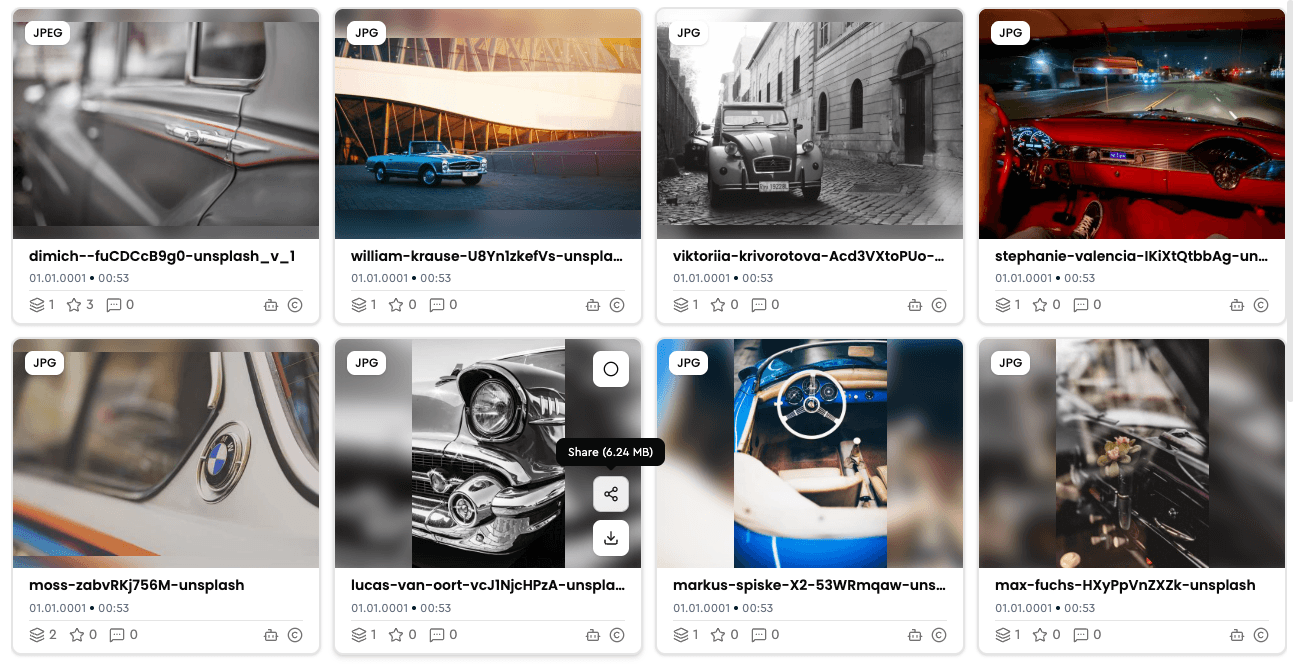
Click on this icon and the share menu opens. Here you now have various options for how to share your selected file:
- Share as a presentation
- Share as a DirectDownload
- Embed
Alternatively, you can also right-click to Share the desired file.
If you want to share multiple files at once, first select all desired files. The files can be in different folders. As soon as you have selected multiple files, the Lightbox opens at the bottom of the screen.
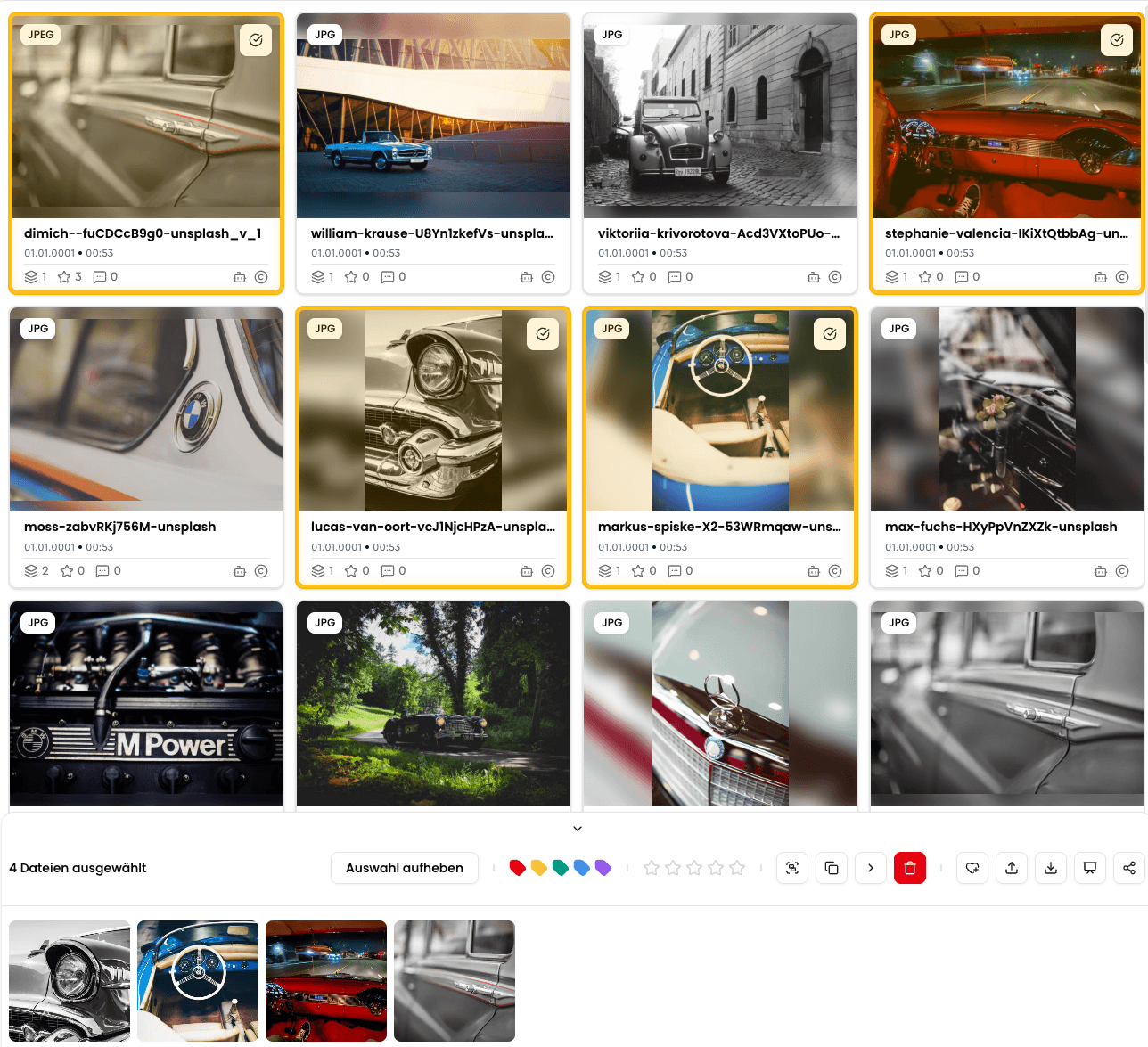
Via the Share selection icon in the Lightbox, you now have the following options:
- Share as a presentation
- Share as a DirectDownload
Share & Distribute
Share files and folders, create presentations, and distribute content – all sharing guides for VAULO.
Sharing Folders
Learn how to share folders in your Digital Asset Management System. Whether you need to share images, videos, or documents with team members or external collaborators, this step-by-step guide walks you through the process of sharing folders seamlessly within your DAM system.