

Sharing Folders
Learn how to share folders in your Digital Asset Management System. Whether you need to share images, videos, or documents with team members or external collaborators, this step-by-step guide walks you through the process of sharing folders seamlessly within your DAM system.
There are two ways to share a folder.
- Right-click on the desired folder and then click on Share.
- Navigate into the folder and click Share in the upper right area (highlighted in red in the screenshot). This refers to the entire folder.
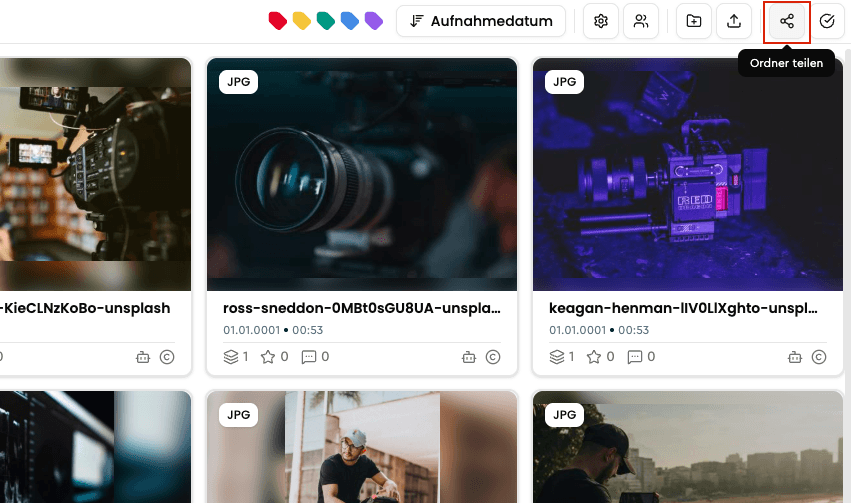
The share menu now opens. Here you have various options for how to share the selected folder:
- Share as a presentation
- Share as a DirectDownload
Additionally, you can view all shares you have already created for this file by clicking on Edit presentations & shares.
Sharing Files: Presentation and DirectDownload
Learn how to share individual files or multiple files in VAULO via right-click, quick select menu, or context menu. This guide shows you the available sharing options - Presentation and DirectDownload - as well as managing existing shares. Prerequisite: Access to files in your VAULO Digital Asset Management System.
DirectDownload: Share Files via Link or Email
Learn how to create and configure a DirectDownload link in VAULO - including password protection, share duration, custom message, and download tracking. This guide shows you how to send the link via email or copy it directly. Prerequisite: Access to the share function in the VAULO Digital Asset Management System.