

Download Photos in Social Media Formats
Learn how to download photos directly in the right social media format from VAULO, saving valuable time. This guide shows you step by step how to select the desired file format and social media format in the download dialog, adjust the image crop, and export the file in the correct resolution. Prerequisite: Access to photos in your VAULO Digital Asset Management System.
Do you work a lot with social media and want to download photos directly in the right format from VAULO? Then use our pre-configured social media formats and save valuable time.
To download a photo directly in the right social media format, proceed as follows:
Hover over the desired photo in the grid – a download icon appears. Click it to open the download dialog.
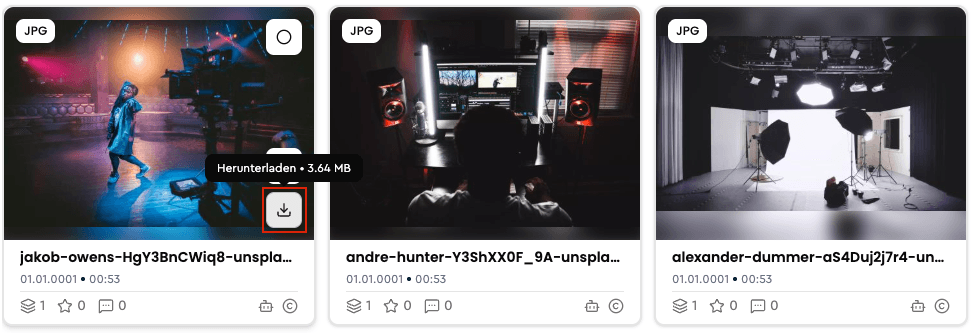
Now choose between JPEG, PNG, or WEBP.
Click on the Dropdown under Resolution.
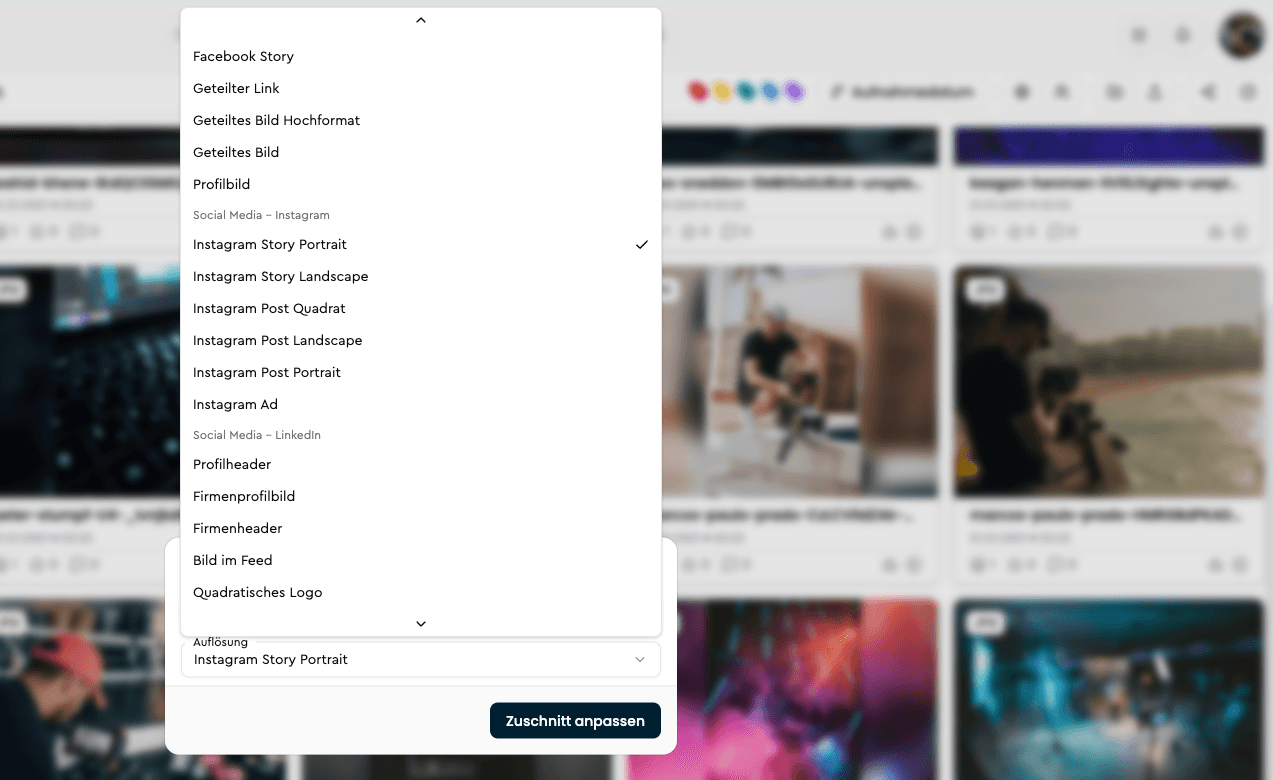
All important social media formats are now available in the dropdown. Once you have made a selection, the button changes from Download to Adjust crop. Click on Adjust crop.
A dialog opens where you can adjust the image crop to fit the selected format. Move the crop area as desired and click Download.
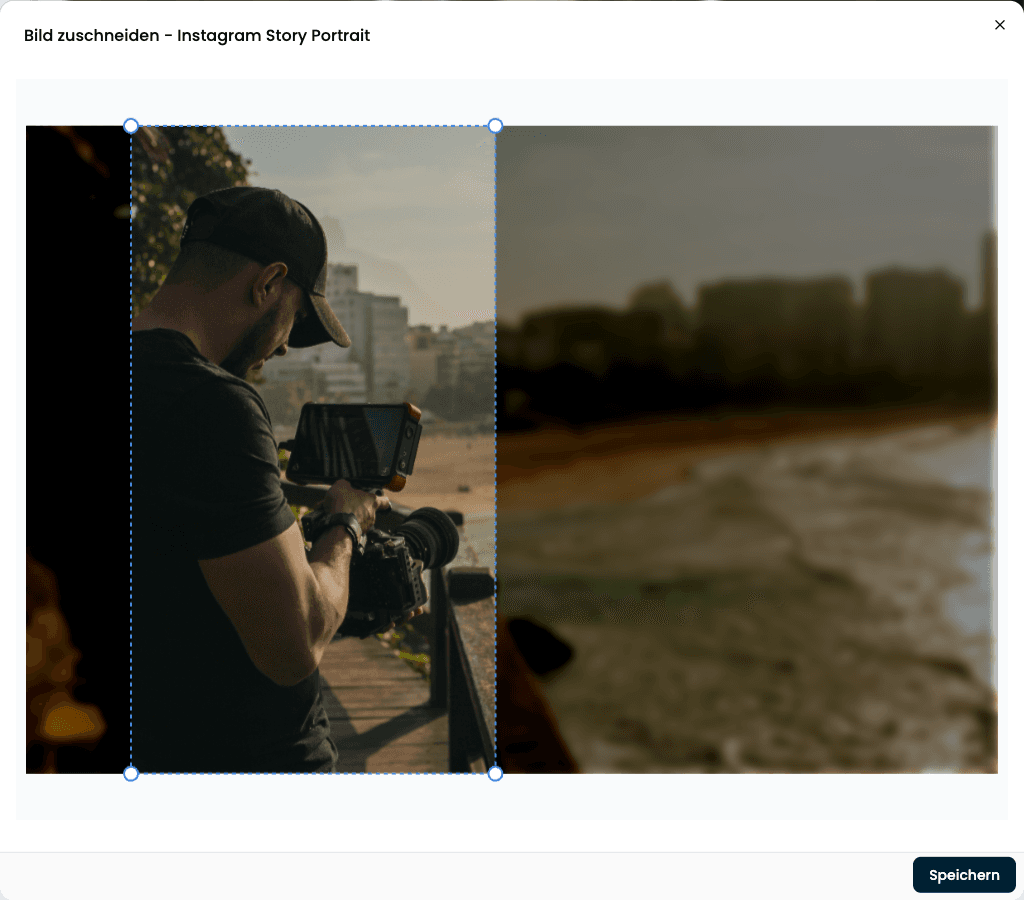
The file will now be downloaded to your computer in the correct format.
Legal texts on shares (Direct download & External upload)
Set organization defaults for imprint and other legal texts in Legal Hub, then override them per Direct download or External upload link — including an optional download consent checkbox.
Shared Folders and Files
Manage and review all your shared content in your Digital Asset Management System. Whether you need to share images, videos, or documents with team members or external collaborators, this step-by-step guide will walk you through the process of managing shared content in your DAM system.