

Legal texts on shares (Direct download & External upload)
Set organization defaults for imprint and other legal texts in Legal Hub, then override them per Direct download or External upload link — including an optional download consent checkbox.
Public shares often need an imprint and other legal texts. With Legal Hub you define organization-wide defaults and can still adjust them when creating a Direct download or External upload link.
What recipients see
- Imprint is always shown on the public page (legally required).
- Additional texts (e.g. privacy policy, terms of use, or custom Legal Hub kinds) appear as optional header links. If more than two optional texts are active, they are grouped under Legal.
- Download requirement (Direct download only): the recipient must accept the selected text via checkbox before the download is unlocked.
1. Set organization defaults in Legal Hub
- Open Legal Hub (waffle menu) and create/publish imprint, privacy, and other texts under Legal content.
- Open Legal Hub settings (add-on settings) and go to Defaults for shares.
- Configure Direct download and External upload separately:
- Imprint – default document (always shown)
- Additional texts (default) – pre-filled for new shares, still overridable per link
- Download requirement (Direct download only) – e.g. “None” or terms of use
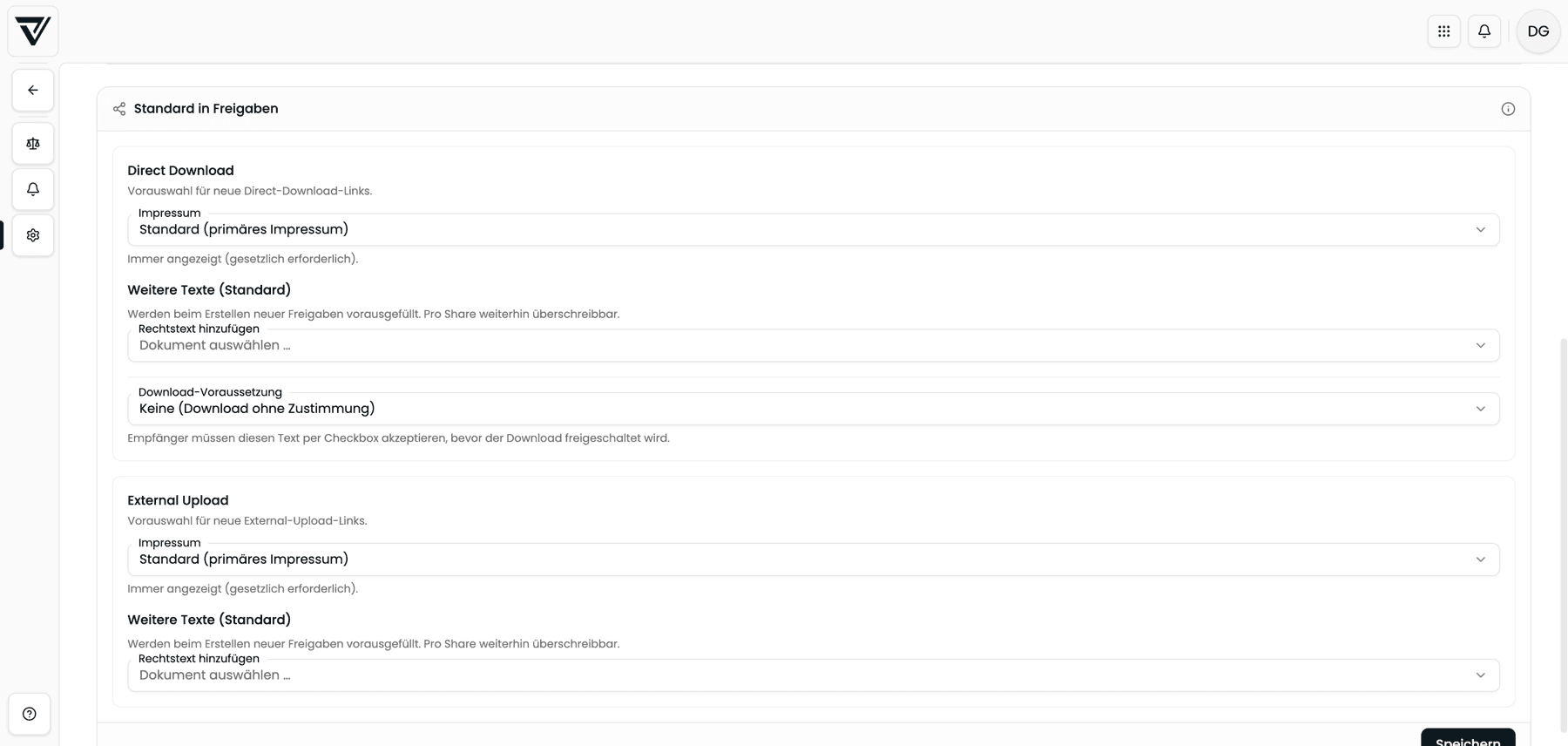
Defaults apply to new shares. Existing links keep the values stored when they were created.
2. Override per share (Direct download)
- Open a folder and click Share folder at the top (next to “Select all files”), or share files via the share menu.
- Select the Direct download tab.
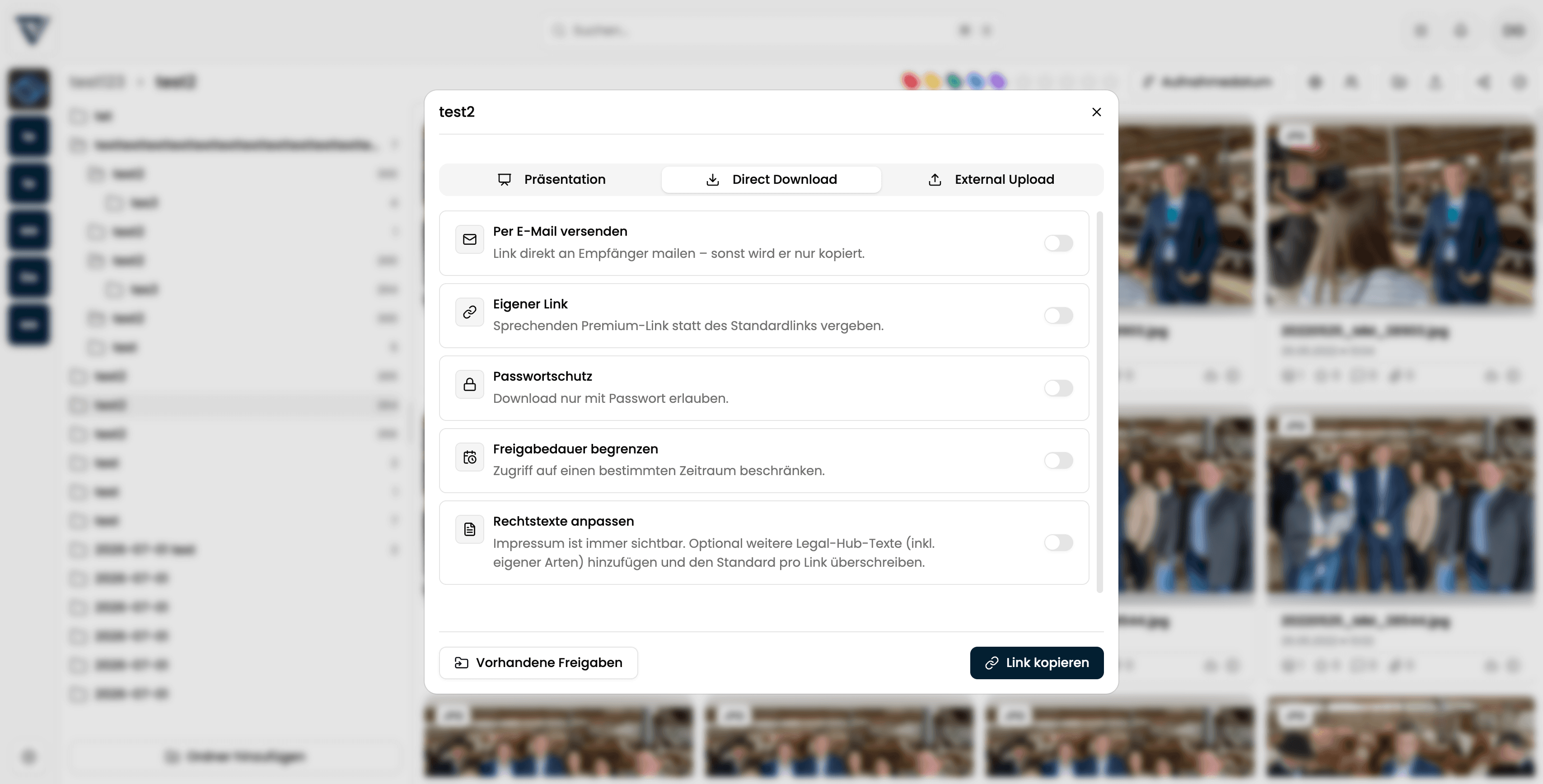
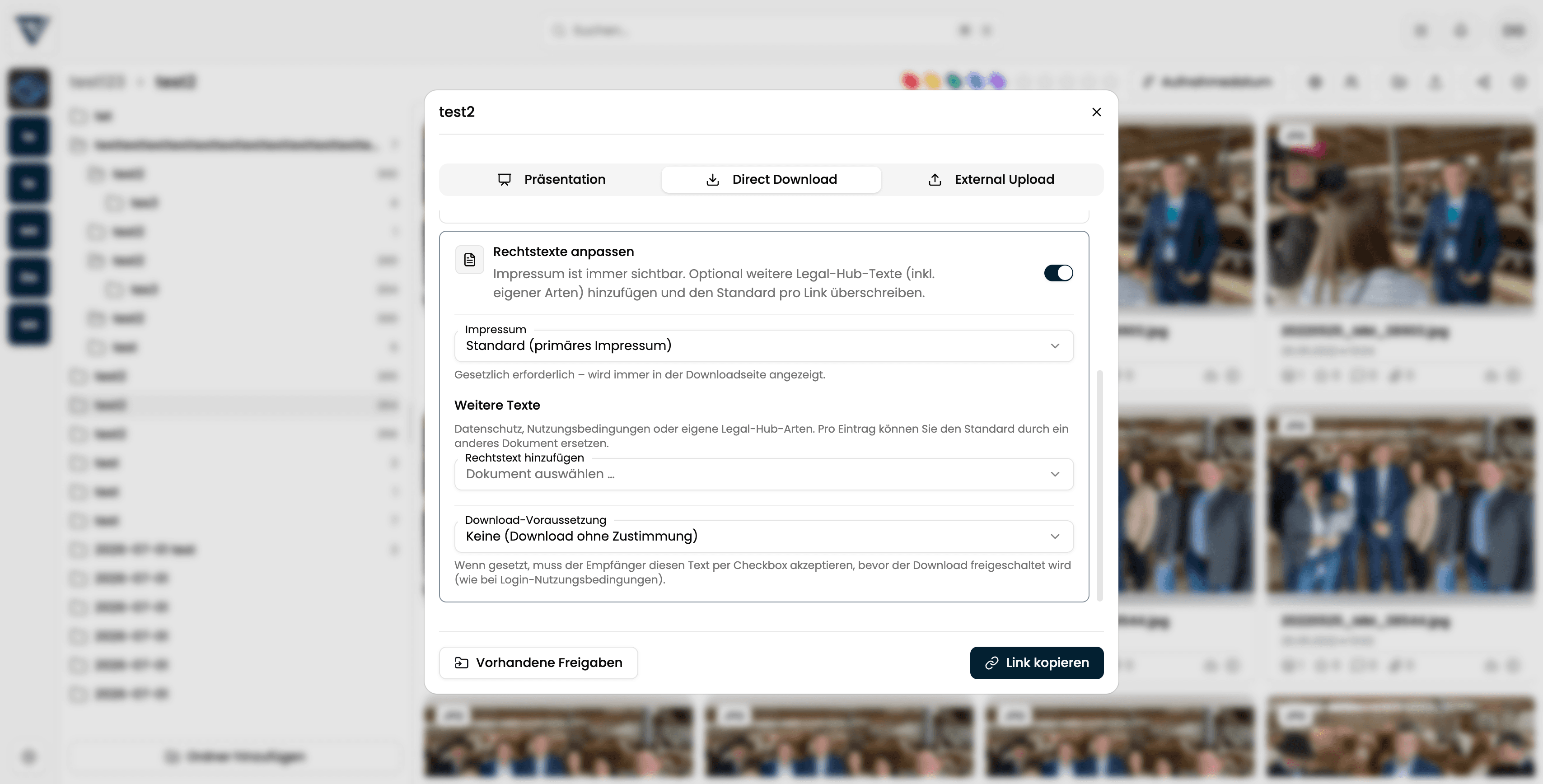
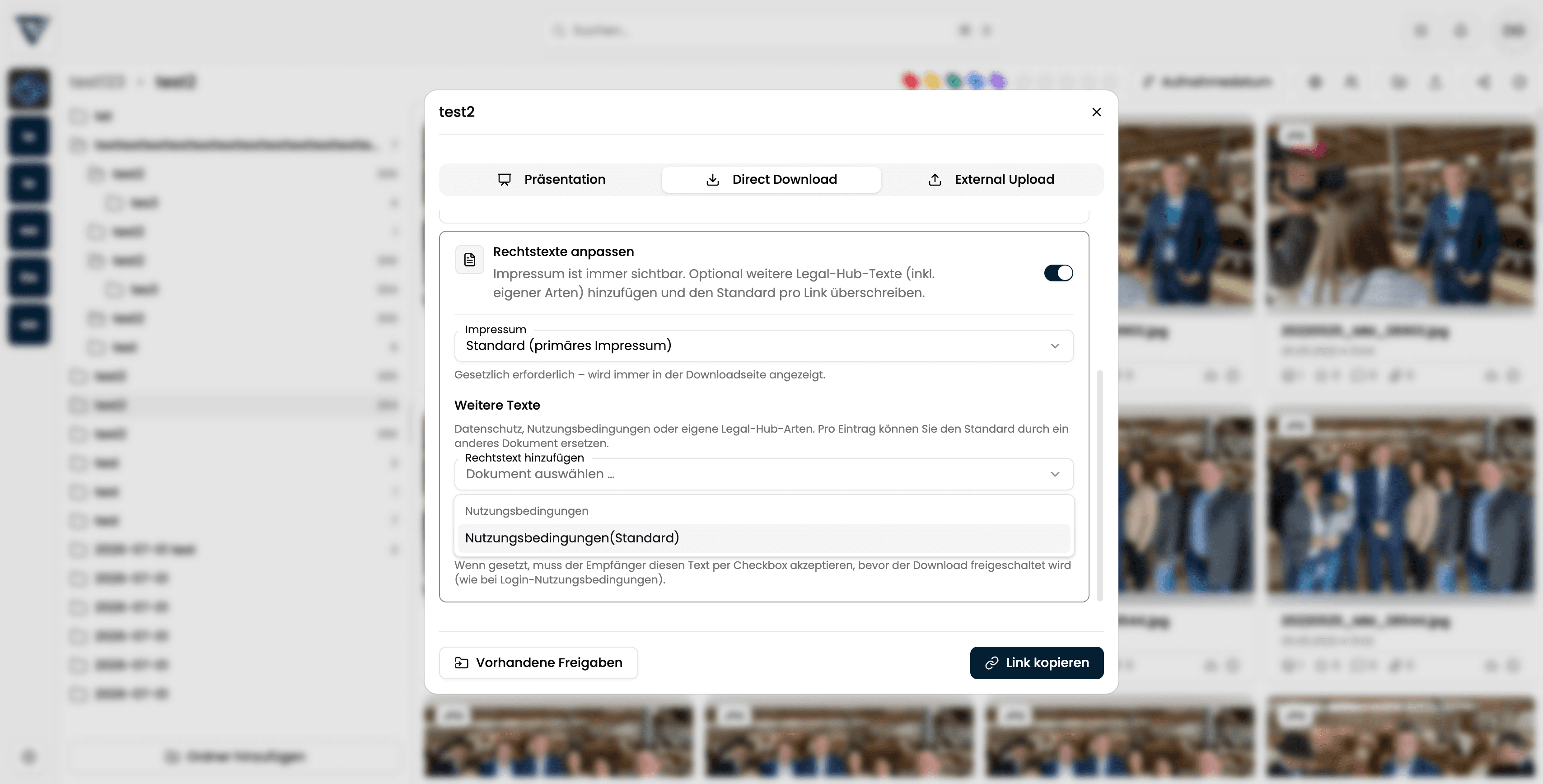
- Enable Customize legal texts. Organization defaults are pre-filled.
- Adjust as needed:
- Imprint – another document instead of the primary default
- Additional texts – add further Legal Hub documents
- Download requirement – require checkbox acceptance before download
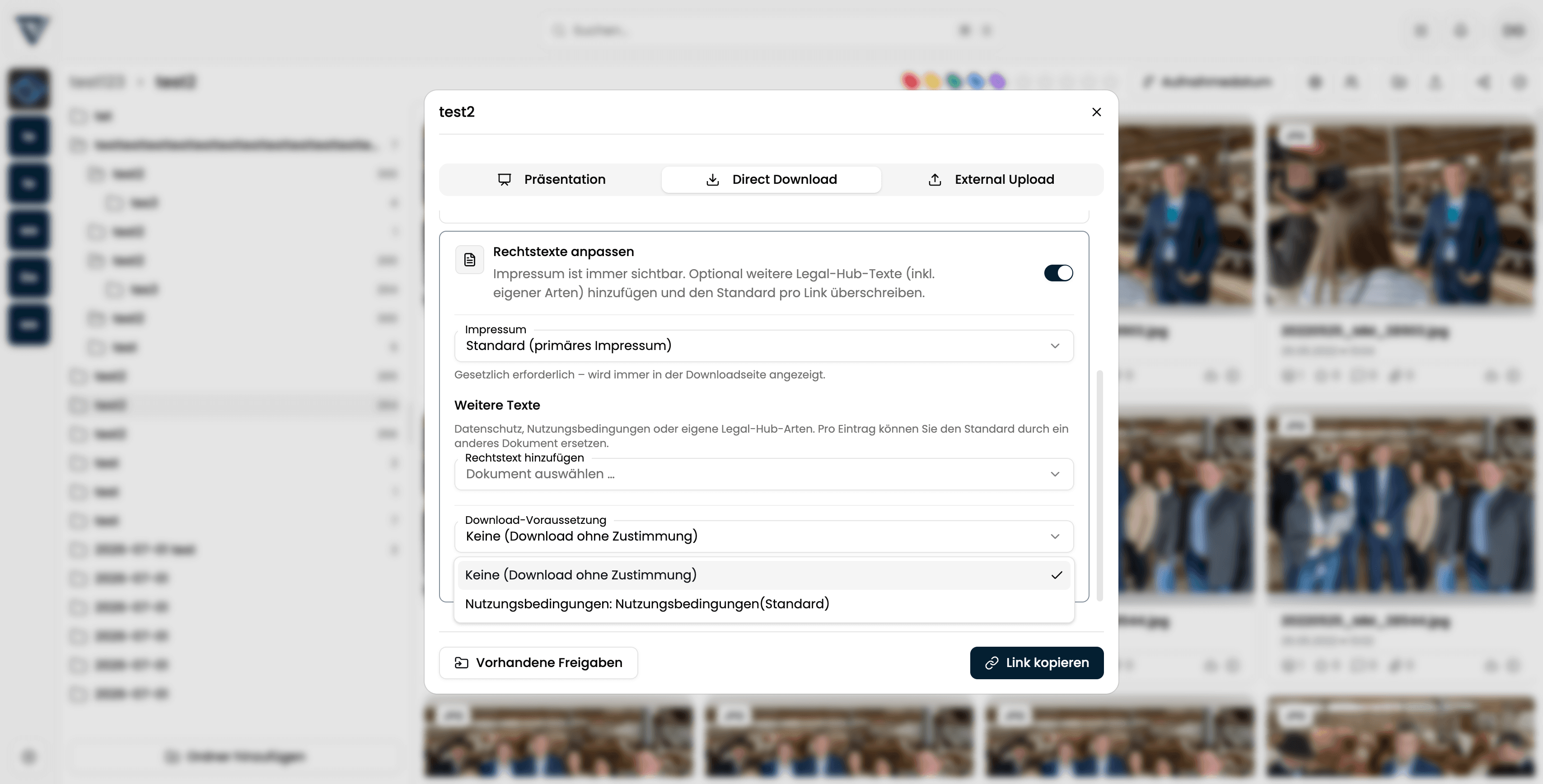
- Send the link by email or copy it.
3. External upload
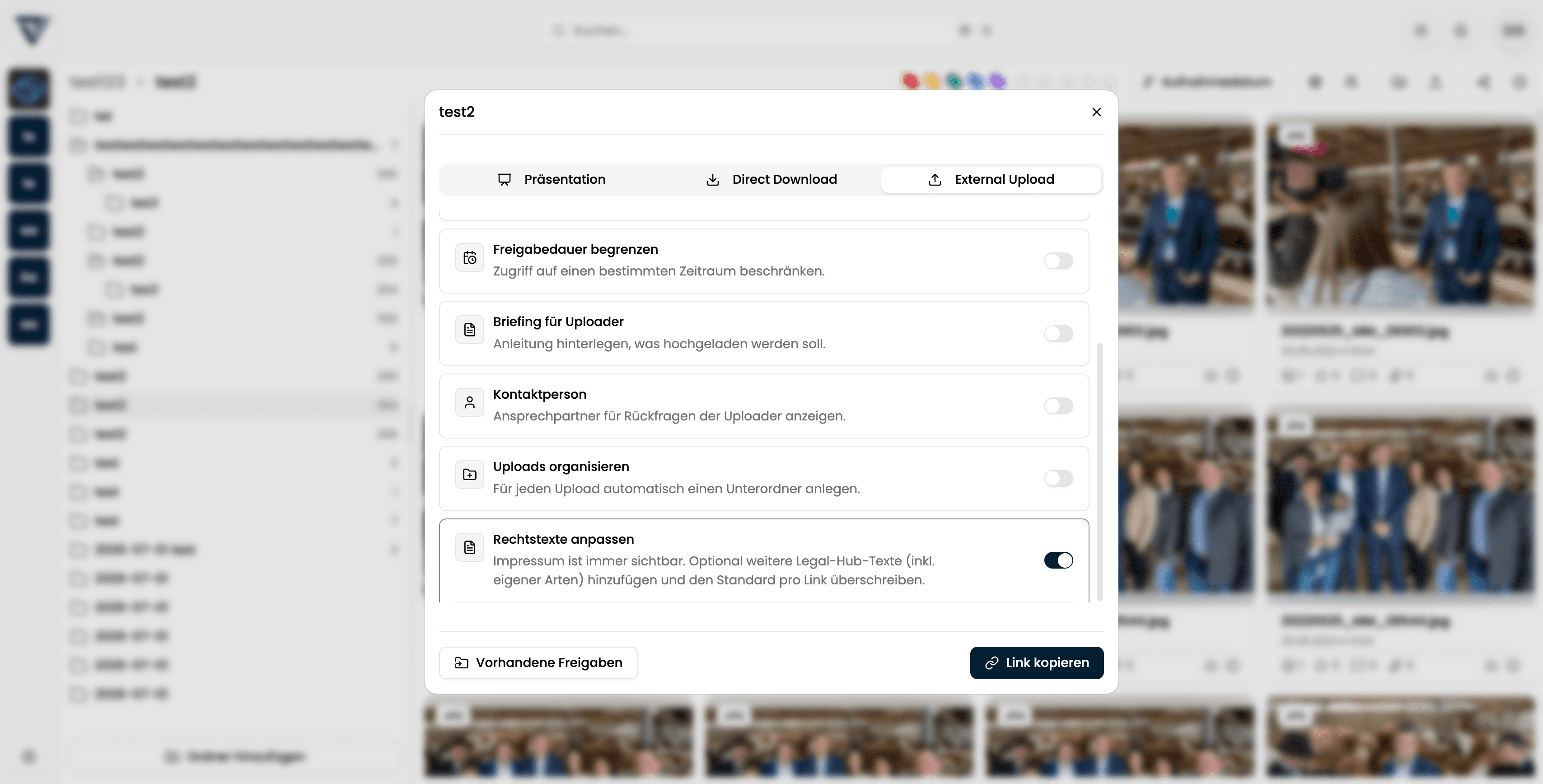
On the External upload tab the same pattern applies: enable Customize legal texts, then set imprint and additional texts. There is no download requirement here — texts appear on the upload page for external contributors.
Tips
- Mark primary variants per kind in Legal Hub (e.g. primary imprint) so they appear as “Standard” in the dropdowns.
- Custom kinds (e.g. “License notice”) are created in Legal Hub settings and can then be used as additional texts.
- If you do not need org-wide extra texts, leave defaults empty and only enable Customize legal texts when a specific link needs them.
Related:
DirectDownload: Share Files via Link or Email
Learn how to create and configure a DirectDownload link in VAULO - including password protection, share duration, custom message, and download tracking. This guide shows you how to send the link via email or copy it directly. Prerequisite: Access to the share function in the VAULO Digital Asset Management System.
Download Photos in Social Media Formats
Learn how to download photos directly in the right social media format from VAULO, saving valuable time. This guide shows you step by step how to select the desired file format and social media format in the download dialog, adjust the image crop, and export the file in the correct resolution. Prerequisite: Access to photos in your VAULO Digital Asset Management System.