

Creating a Presentation Template
Learn how to save reusable presentation templates in Presentation Studio and use them again later.
In this guide, you will learn how to save reusable templates for presentations in Presentation Studio and use them again later.
To learn how to generally share files or folders as a presentation, see the guides Sharing Files and Sharing Folders.
Save a Template in Presentation Studio
Prepare the presentation
Open the presentation that you want to use as a template in Presentation Studio. You can either create a new presentation or continue refining an existing one. Then define the content, structure, and appearance that should later serve as the starting point for other presentations.
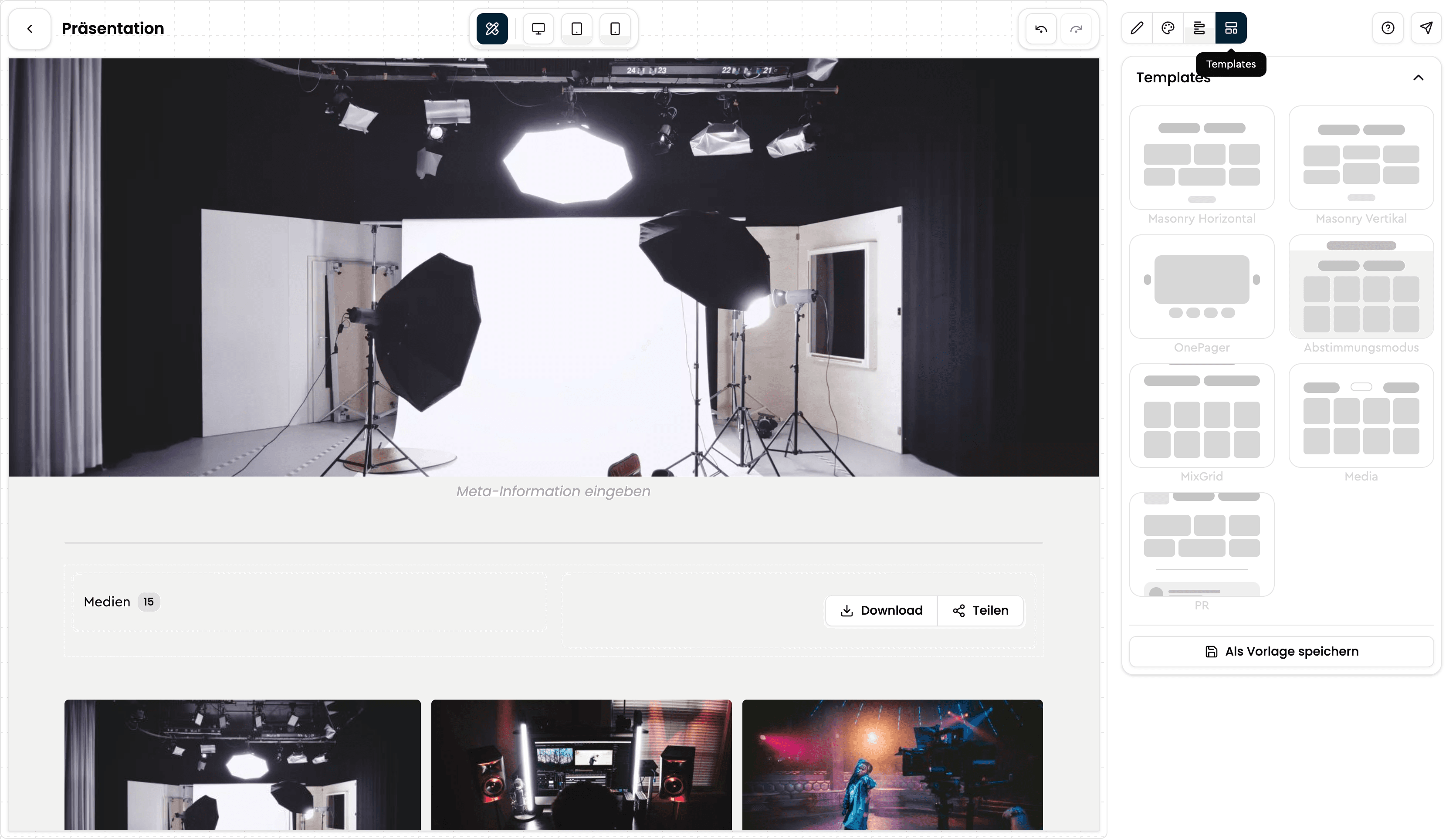
Save it as a template
In Presentation Studio, switch to Templates in the right sidebar using the button and click Save as template at the bottom of the panel. A dialog opens where you can enter a name and description for your template.
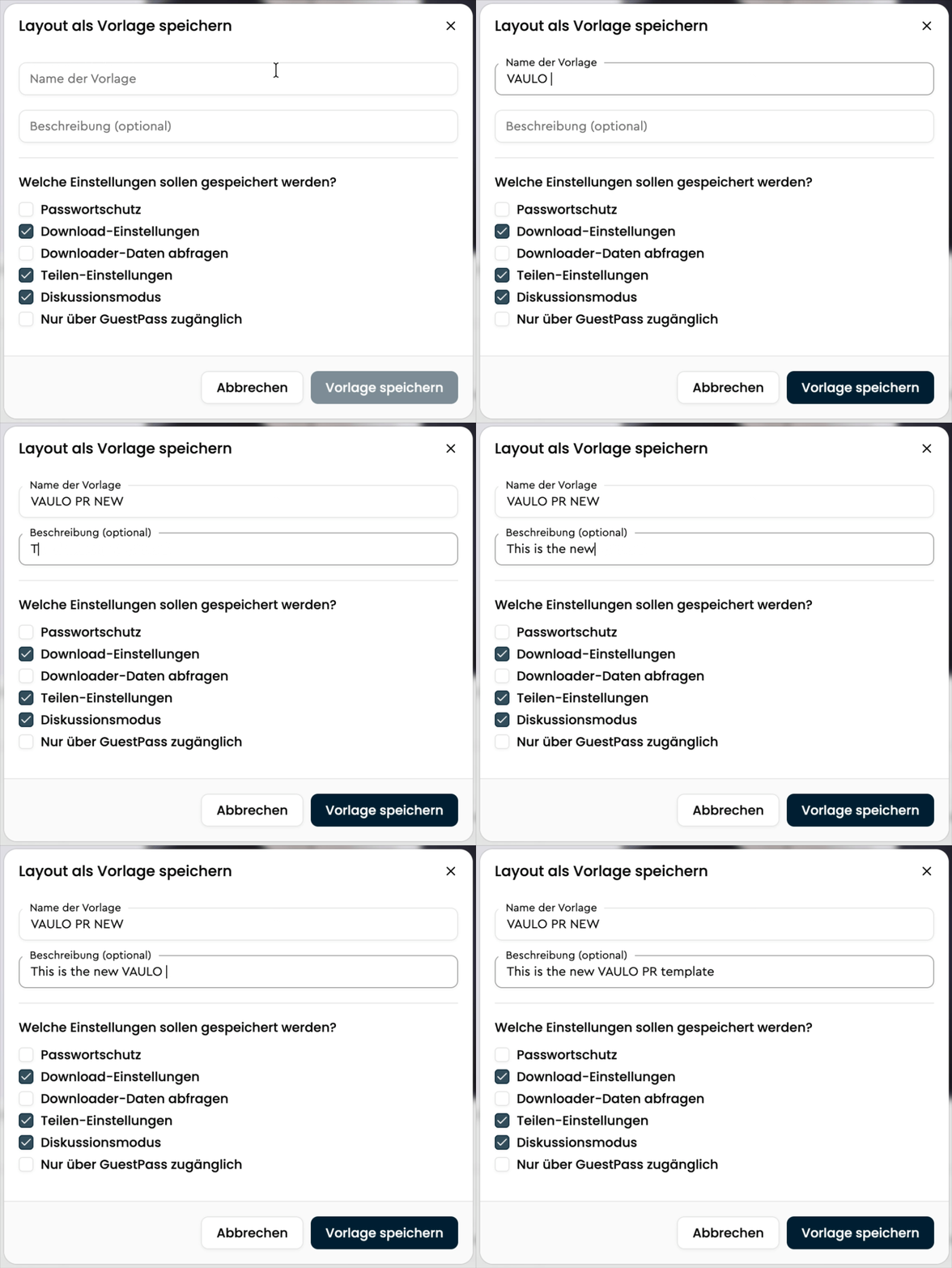
Choose the saved settings
In the dialog, you can also decide which settings should be included in the template. Depending on your needs, this can include Password protection, Download settings, Request downloader data, Sharing settings, Discussion mode, or Only accessible via VisitorHub. Then click Save template to save the current configuration, including the selected blocks and content, as a template.
Use the Template
When you create a new presentation later, your saved template appears in the list of available templates. You can select it directly as a starting point and adjust it further if needed. New templates appear at the end of the list; whether and where a template is offered can be set in the Presentation Studio add-on under Templates.
Presentation: Press Release
Learn how to prepare a presentation in VAULO as a digital press release and then distribute it via FeedPages.
Using the Review Mode: Discuss and Approve Files Together
Learn how to activate the review mode in VAULO to share photos and videos with external agencies or partners. This guide shows you step by step how to share a folder, create a presentation in review mode, and share the link with commenting, sketching, and rating features. Prerequisite: You have access to a folder in your VAULO Digital Asset Management System.