

Templates
Use ready-made templates and save your own designs as reusable templates.
The Templates button in the top right of the studio opens the templates dialog. It lists the built-in templates with a short description of what each is for, and below them your organisation's own templates. Clicking a template replaces the current structure – after a confirmation, because your current layout is lost. Save as template stores the current layout as a reusable template.
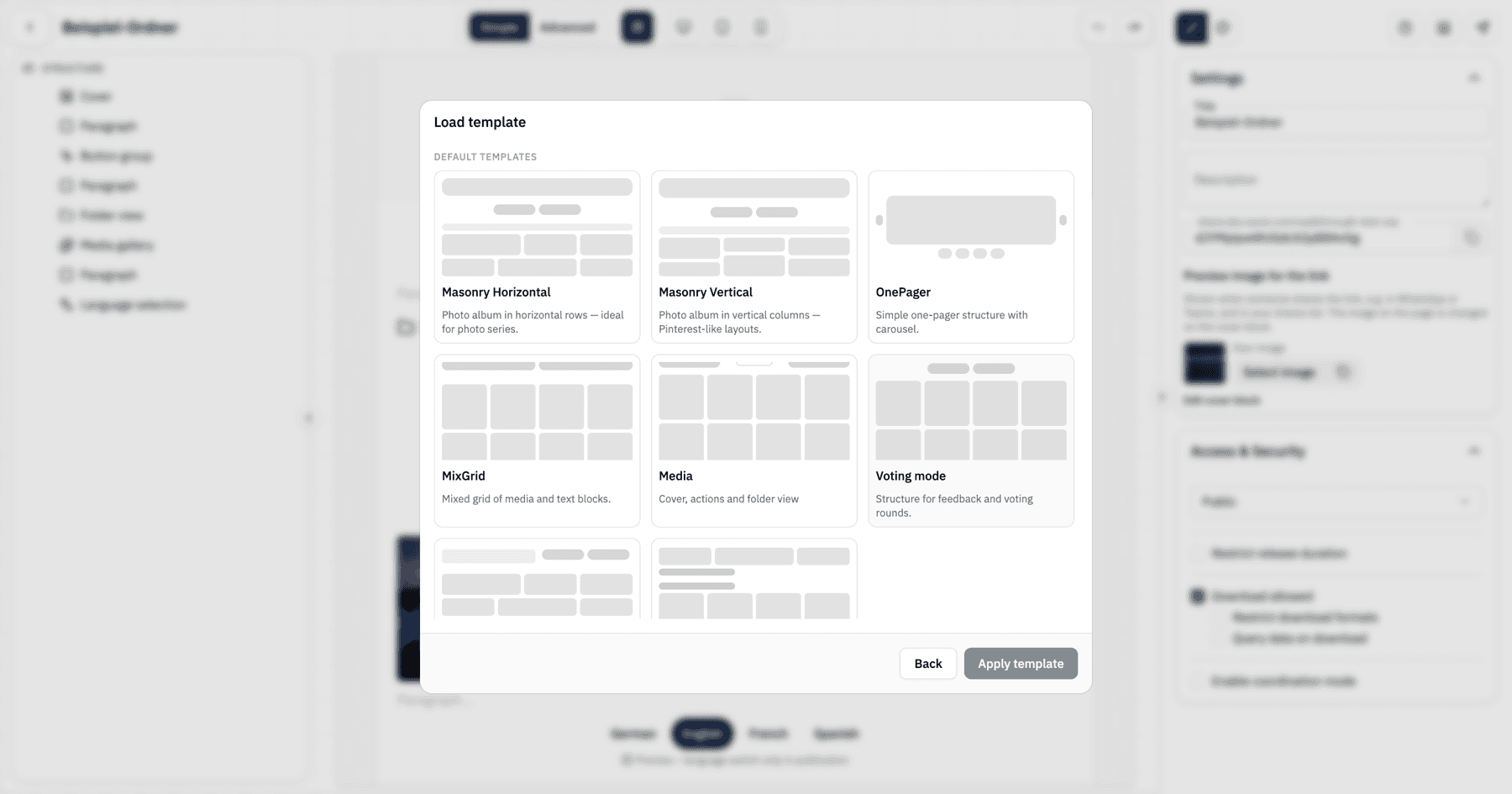
The number of templates you can save depends on your plan. By adding the Presentation Studio, you can save unlimited templates.
Choose and order the templates offered when creating
In the Presentation Studio add-on, the Templates area lets you decide which templates your organization sees when creating a presentation, and in which order. This covers the standard templates, your custom templates and the Blank presentation. The setting applies to the sharing dialog (Presentation tab) and to the template picker in the studio.
- Hide: Every tile has an Offer when creating switch. When it is off, the template is no longer offered. It stays on the Templates page, marked Hidden, so you can switch it back on at any time.
- Reorder: Drag a tile by its handle in the top left to the position you want. Ordering works within each section: standard templates among themselves, custom templates and the blank presentation among themselves.
- With the keyboard: Focus the handle, press Space, move the tile with the arrow keys and press Space again to drop it. Escape cancels.
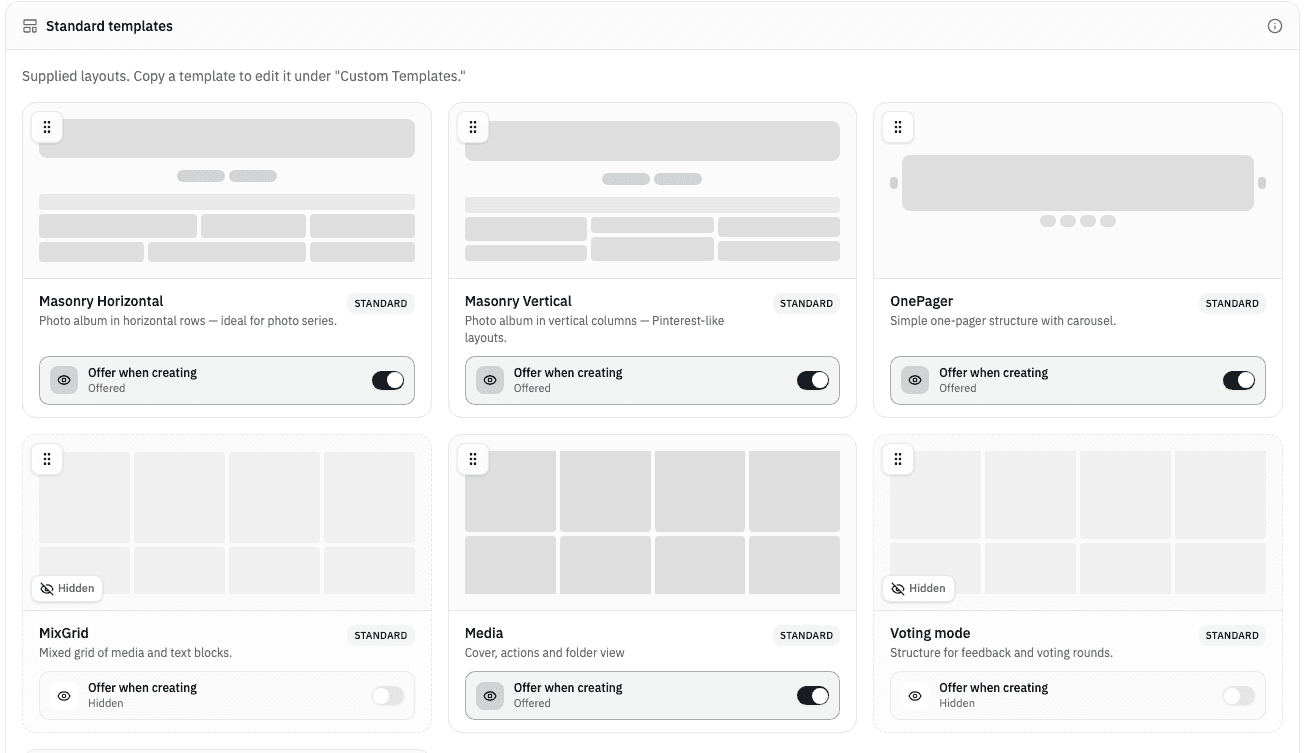
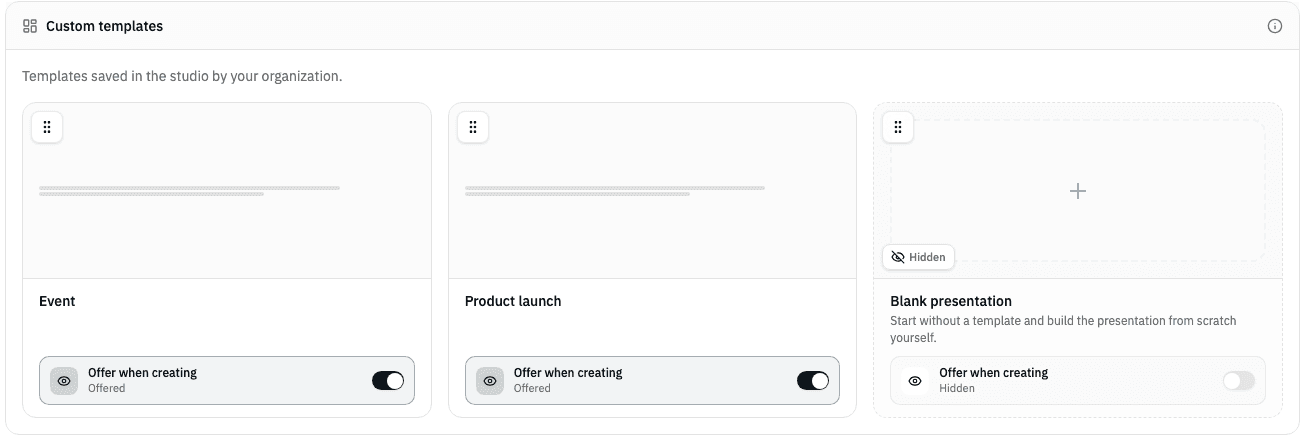
New custom templates are offered automatically and appear at the end of their section. The setting applies to the whole organization and is independent of the VisitorHub Shares switch.