

Apply
Apply the VisionAI workflow to files and retrieve the results in the detail view.
Upload the desired file to your VAULO account.
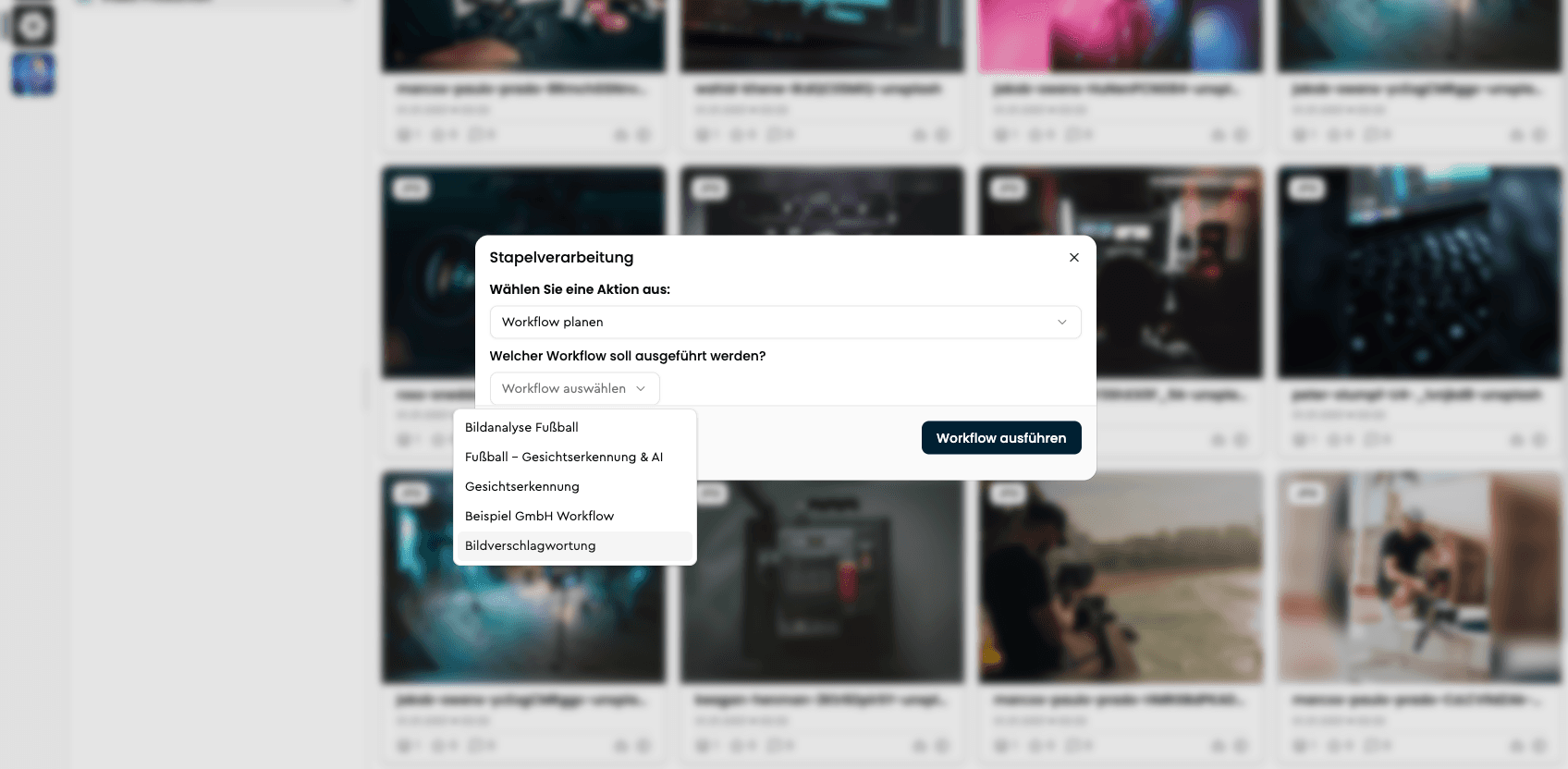
Right-click on the file and select Batch processing.
Under Select an action, choose the entry Schedule workflow.
Select the previously created workflow from the dropdown, e.g., Image analysis.
A robot icon appears in the file's information bar that turns blue - this indicates that the workflow is actively being processed.
Once the icon turns green, the analysis is complete.
Open the file in the detail view to review the result.
The generated description can be found in the Image description field, keywords and headline
in the respective Keywords and Headline fields.
Configure Workflow
Set language, context, headline, description, and keywords for your VisionAI workflow.
Overview
This article explains how to use VisionFace in the VAULO Digital Asset Management System to train your own facial recognition model that is exclusively accessible to your organization. It describes how to train people on files and how VAULO subsequently recognizes them automatically and assigns the stored names. Prerequisite: VisionFace must be activated for your organization.