

Guest login
How people you share with via VisitorHub sign in and register.
When a share is protected with VisitorHub, external viewers first see a sign-in screen when they open the link. Available methods and copy are configured in the portal under Authentication and Settings.
Sign-in flow
Enter email. The person enters their email address and continues.
Choose a sign-in method. Depending on what you enabled, up to three options appear: a sign-in link by email (magic link), password, or a code by email.
Sign in. Depending on the method:
- Password: The person enters their password or resets it via “Forgot password?”.
- Code by email: The person enters the 6-digit code from the email.
- Magic link: The person clicks the link in the email. In the same browser where they requested it, they are signed in automatically. On another device or browser they must confirm sign-in with one more click – so automatic email scanners do not consume the link.
Optional: accept terms. If you require this for new registrations, the person must accept before continuing.
Optional: confirm access request. If self-registration is set to manual approval, the person sends an access request and then sees “We’re reviewing your request” – access only after you approve.
A magic link can be redeemed only once and expires after the time you set (typically 24 hours). If it expired or was already used, the person must request a new link.
What the login page looks like
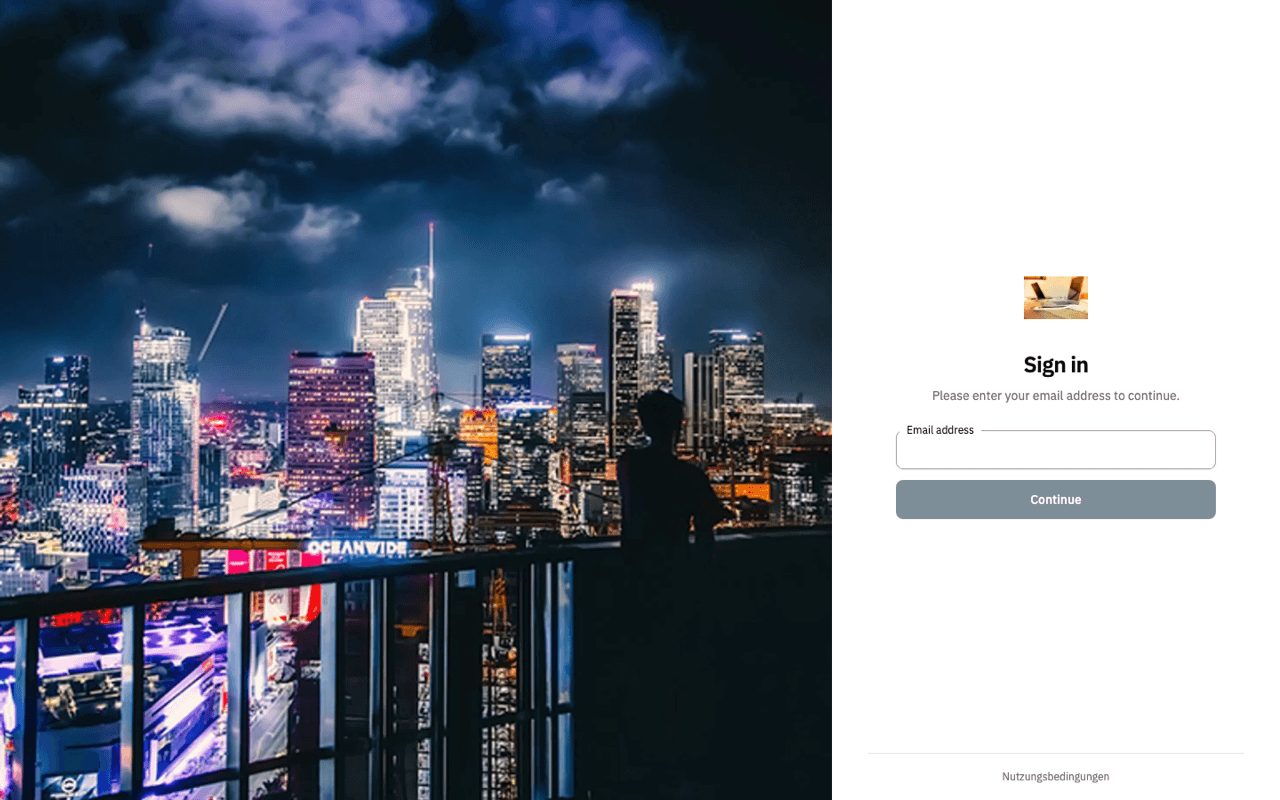
You define the look of the login page per portal under Settings → Login page: centered (default) or two-column with an image on the left, the logo above the form, and a footer with legal links. On a phone, guests see only the form in both cases.
After sign-in
After a successful sign-in, VAULO unlocks My shares and My account for that person:
- My shares – all content distributed to them or their groups
- My account – personal VisitorHub account settings (not your VAULO organization)
Without a matching distribution the list can be empty even though sign-in worked.
Registration modes (admin side)
Whether and how new people can self-register is set under the portal’s Settings:
| Mode | For the guest |
|---|---|
| Automatic approval | Unknown emails get access immediately |
| Manual approval | Request is sent; “We’re reviewing your request” until you approve |
| Disabled | No self sign-up; only pre-created users |
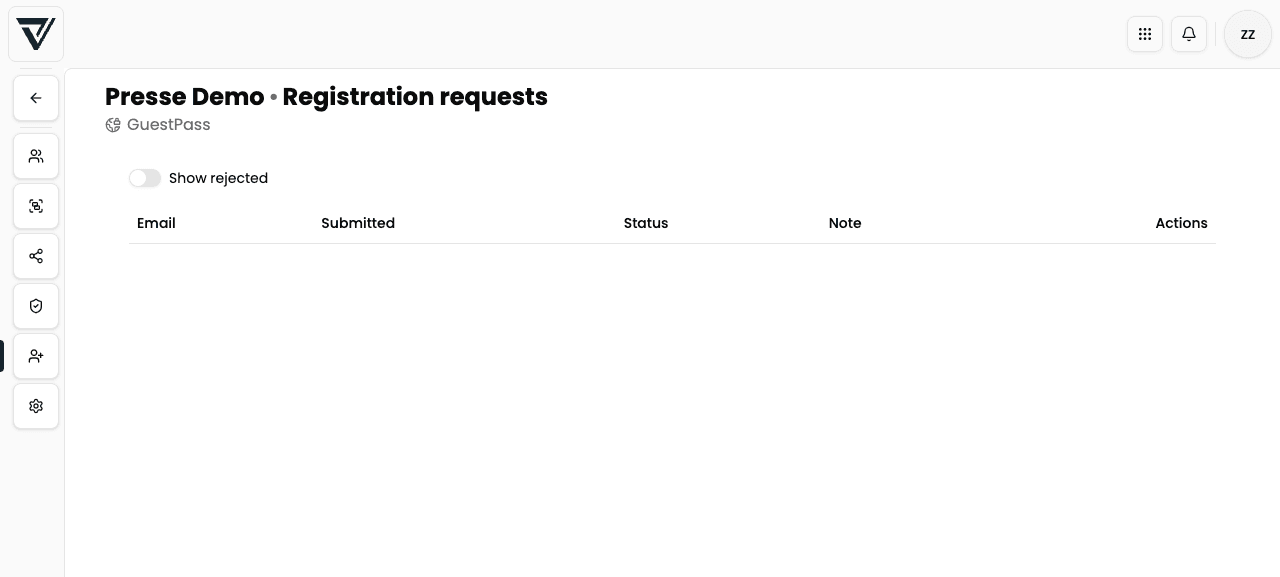
With manual approval you handle requests on the Registration requests tab (approve, decline, show declined).
If you require acceptance of terms, you can attach a legal document from the Legal Hub.
Tips for smooth sign-in
- Enable only the methods your audience actually uses
- For press: magic link or code is often better than password
- Assign groups with domain rules (
@publisher.com) so matching addresses join automatically - Custom SMTP and email templates improve deliverability and trust (from your domain)