

VisitorHub: Protect Shares with a Login
Protect presentations, media portals, and other shares with a dedicated login portal for external viewers.
By default, anyone with the link can access a share. With VisitorHub, you protect presentations, media portals, and other shares behind a login instead: only people who sign in with a VisitorHub account can see the content.
VisitorHub is a paid add-on. Already included in the Platinum Freelancer plan. Available as an option for all Business plans.
Contact SupportA VisitorHub is a standalone, lightweight login portal – for example, one per customer, partner, or press event. People who sign in there never see your actual VAULO organization, only the content that has been explicitly shared with them or their group.
When VisitorHub is worth using
VisitorHub is a good fit whenever a share shouldn't be public or protected by a single shared password, but instead needs to be traceably tied to specific people or groups – for example:
- Press or media portals that should only be open to accredited journalists
- Presentations for individual customers or partners that shouldn't be visible to everyone with the link
- Recurring external recipients who need ongoing access to changing content without getting a new link every time
How VisitorHub works (overview)
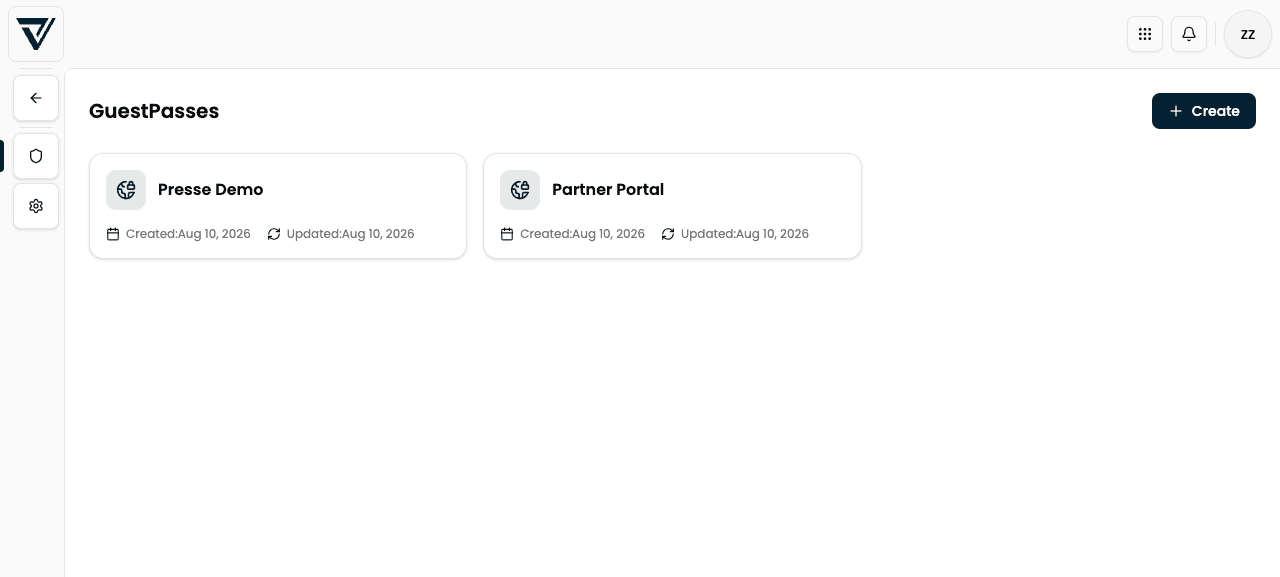
1. Create a VisitorHub portal
2. Maintain users and optional groups
3. Configure sign-in methods and registration mode
4. Distribute shares (e.g. presentations) to users/groups
5. Externals sign in via the link and only see their content
Each portal is managed across these areas:
| Area | Purpose |
|---|---|
| Users | Create, import, ban, and delete people |
| Groups | Bundles for distribution + automatic assignment by email |
| Shared content | Overview of shares accessible through this portal |
| Authentication | Magic link, one-time code, password, language, SMTP |
| Registration requests | Only with manual approval: approve, decline, show declined |
| Settings | Registration mode, email templates (with placeholders), sign-in copy, delete portal |
Quick start
Create a portal. Open VisitorHub and click Create. Give the portal a clear name (e.g. “Press 2026” or the partner’s name).
Configure access. Under Authentication, enable the sign-in methods you want. Under Settings, decide whether unknown people may self-register.
Add people. Create users manually, import them via CSV, or let them register themselves (depending on the mode). Organize them into groups if needed.
Distribute content. When sharing a presentation or via the Distribute dialog, open the VisitorHub tab and assign users or groups.
Share the link. Recipients open the share link, sign in, and see the released content – optionally under My shares all shares available to them.
Once a share has been distributed to specific VisitorHub users or groups, its access level can no longer be switched directly back to Public or Password-protected. Remove the distribution first to reopen the share.
Offer login without locking the share
Not every share should be reachable only for signed-in viewers. If the access level stays Public or Password protected, you can still choose a VisitorHub under Access & security → Offer login. The share remains reachable for everyone; viewers with a VisitorHub account can additionally sign in via the navigation bar or a login block, e.g. for personal content or their own guest shares. If you choose No login, the login block and the login action stay hidden for viewers.
No entry point, no login. On a public or password-protected share with Offer login, VAULO does not open the sign-in page by itself. The page therefore needs at least one way in: a navigation bar (it shows the "Sign in" action) or a login block. Without either, viewers cannot use their VisitorHub account on this share. Only with the access level VisitorHub does the sign-in page appear automatically before the content.
Deleting a VisitorHub portal also irrevocably removes all of its users and groups.
VisitorHub blocks in Presentation Studio
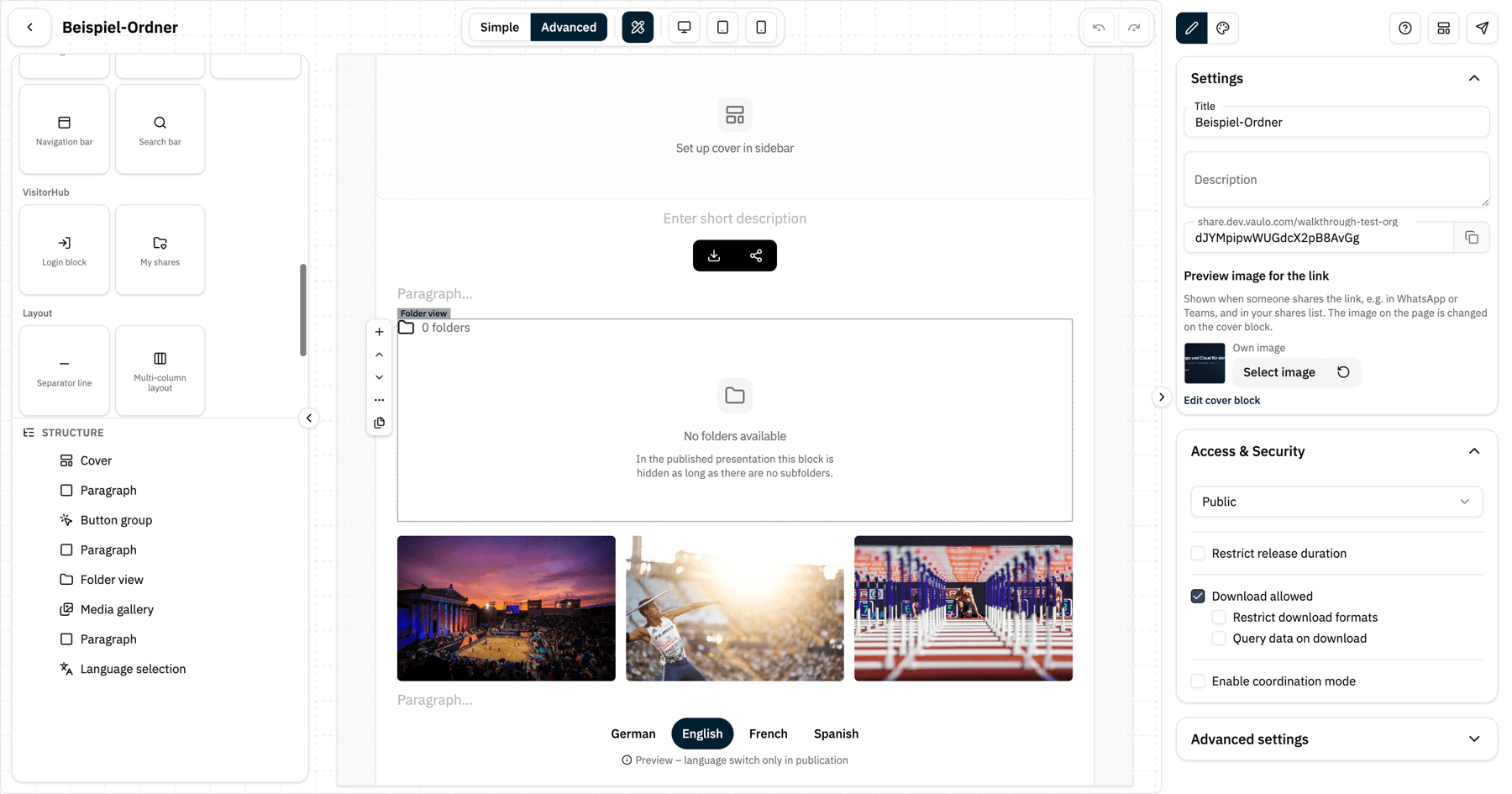
You design the look of a VisitorHub-protected share in Presentation Studio. Its block palette (Advanced mode) offers a dedicated VisitorHub group with blocks that only make sense together with a VisitorHub portal:
Which block for what
| Block | What it does on the published share | When you need it |
|---|---|---|
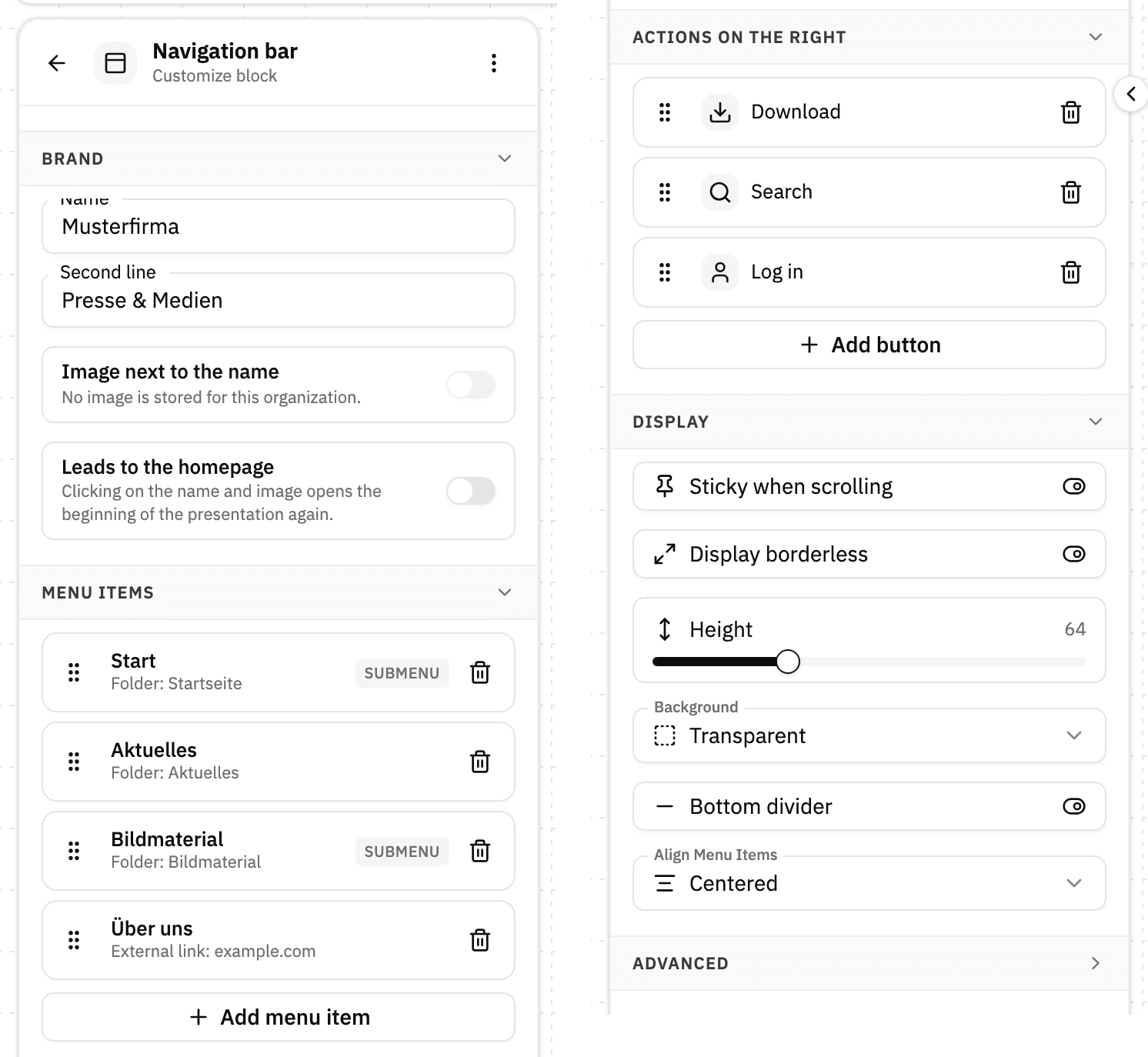
| Navigation bar | Top bar with brand, links and shortcuts. With a VisitorHub selected it shows the Sign in action; signed-in viewers get the account menu with My shares, Manage account and Sign out instead. A menu item or action leading to My shares shows signed-in viewers their shares right below the presentation's header. | On every share with Offer login, unless a login block sits on the page. Also useful on VisitorHub-protected shares so viewers can sign out and switch to their other shares. |
| Login block | Sign-in form in the middle of the page, with its own heading and subtitle, as a card or inline. Signed-in viewers see a short note instead of the form. Without a selected VisitorHub it stays invisible. | When signing in should be a visible part of the page, e.g. as the entry of a landing page, or when you do not want a navigation bar. |
| My shares | Lists all shares distributed to the signed-in viewer or their groups, as a grid or list. Viewers who are not signed in only see a note asking them to sign in; without shares the block disappears, unless you switch on Show even without shares in the block menu. If you switch off Show to visitors who are not signed in, the block does not appear at all for viewers who are not signed in. | When viewers should find their shares right on this page, e.g. on a portal start page. Without the block they reach their shares through the navigation bar's account menu or a My shares menu item. |
So a share with Offer login needs a navigation bar or a login block for anyone to sign in at all; My shares adds the overview on the page itself.
You manage the navigation bar's content – brand, menu items, and actions on the right – in the sidebar: click the block, make the change, done. There is no save step.
For an overview of all available blocks, see Blocks.
The My shares page
Signed-in viewers reach their shares in two ways:
- Account menu: clicking their own name in the navigation bar and then My shares opens the full-page view – the viewer's personal area, without the presentation around it.
- Menu item or action in the bar: if the navigation bar has an entry leading to My shares, the presentation's header stays and only the content below it is replaced by the list, under its own address (
…/p/my-shares). Details in My shares below the bar.
Both show the same lists. The page opens on Shared with me – every gallery this viewer may access. The share they are currently on is not repeated back to them. If they haven't received anything yet, the page reads "Nothing has been shared with you yet."
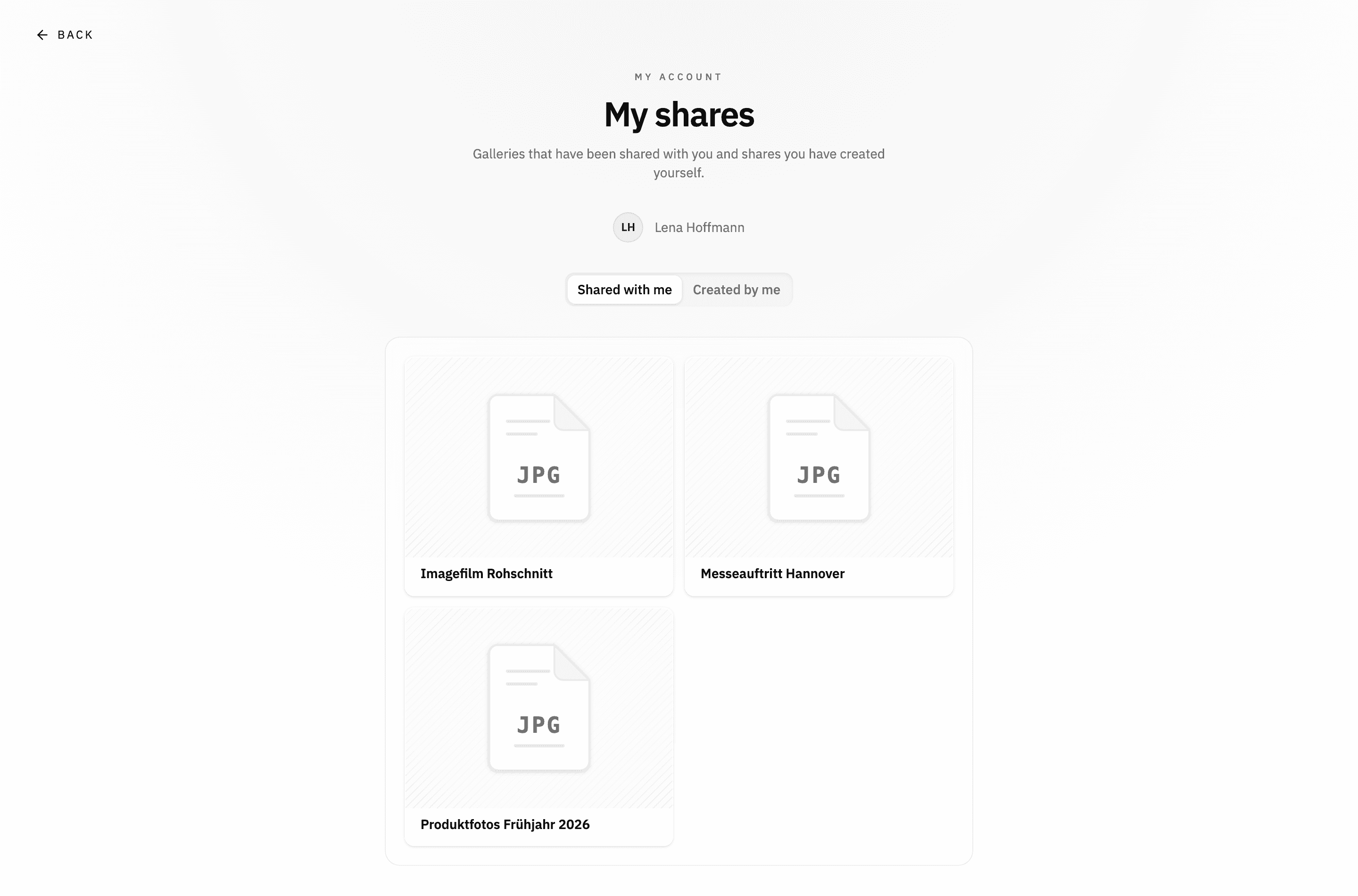
If the viewer may share themselves – role Premium (or a group with member role Premium) and a presentation that allows it – a toggle to Created by me appears above the list. That one holds the guest presentations they shared themselves, with the actions Edit, Open, Copy link, and Delete. Viewers without that permission only see the galleries shared with them, and no toggle at all.
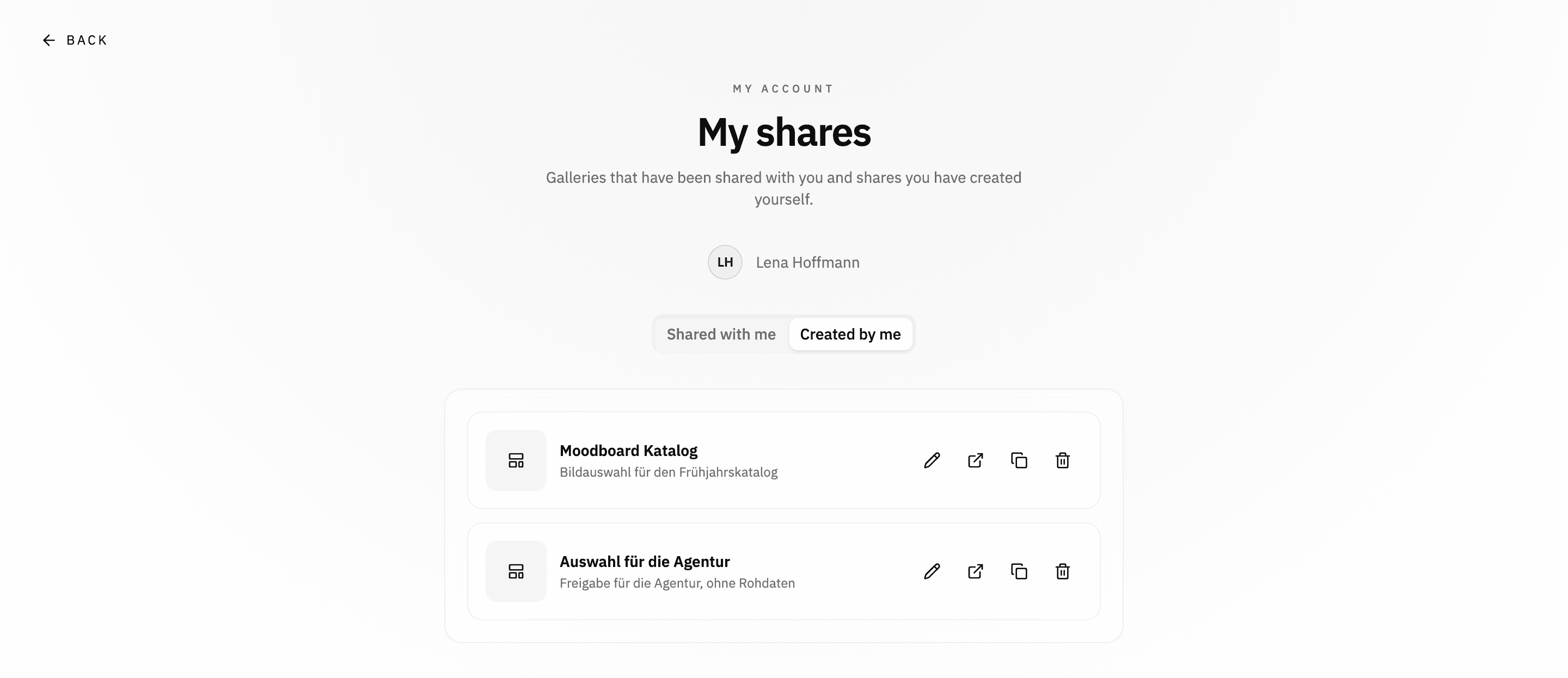
Which list is open is part of the page address: Created by me appends ?view=created. That lets you send someone a link that opens straight on their own shares; without it, every visit starts on Shared with me.
Topics in detail
Open VisitorHub
How to reach portal management in the waffle menu.
Create a portal
Create and name a new login portal.
Users
Create, CSV import, ban, and roles.
Groups
Groups, members, and email rules.
Authentication
Magic link, code, password, language, and SMTP fields.
Settings
Registration, email templates with placeholders, sign-in copy.
Registration requests
Approve, decline, and review declined requests.
Distribute a share
Bind presentations and shares to VisitorHub recipients.
Guest login
What external viewers see and do when they open the link.