

Train
How to train your VisionFace model and assign names to recognized faces.
Ideally, create a new Space and a folder where you will store your future training images.
Upload an image of a person to your VAULO account where the face is clearly visible from the front.

Right-click on the image and click Batch processing.
Select the action Schedule workflow and choose Facial recognition from the dropdown below. Confirm your selection with Run workflow.
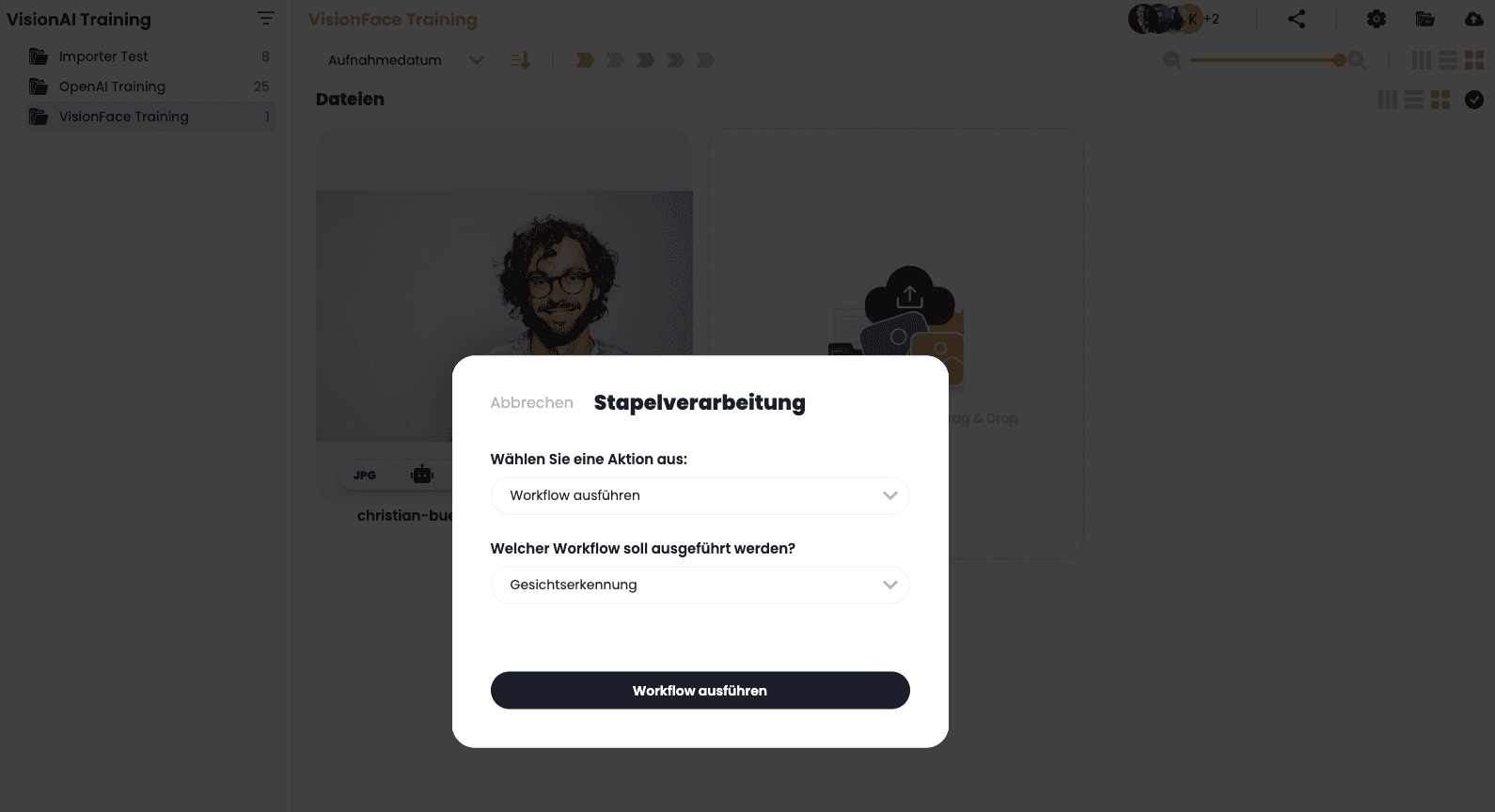
A robot icon appears in the file's information bar that turns blue - this indicates that the workflow is actively being processed.
Once the icon turns green, the analysis is complete.
In the detail view of the image, a golden frame is now visible around the person in the image.

In the right sidebar, under the People section, you will find the recognized person along with a dropdown and a + to the right. If the person has been recognized for the first time, click the + and enter the person's name. You can also enter the person's position in the Info field.
If the person changes their position in the company, you will need to update the position here as well afterward. Therefore, we recommend leaving this field empty by default.
If the person is already in the database but simply was not recognized, you can click on the Select person dropdown and search for the person there. After selecting the desired name, the following modal appears. At this point, you can assign the person's name or additionally add the new face to the training data. This is useful, for example, if the existing image is already several years old and facial recognition is therefore difficult.
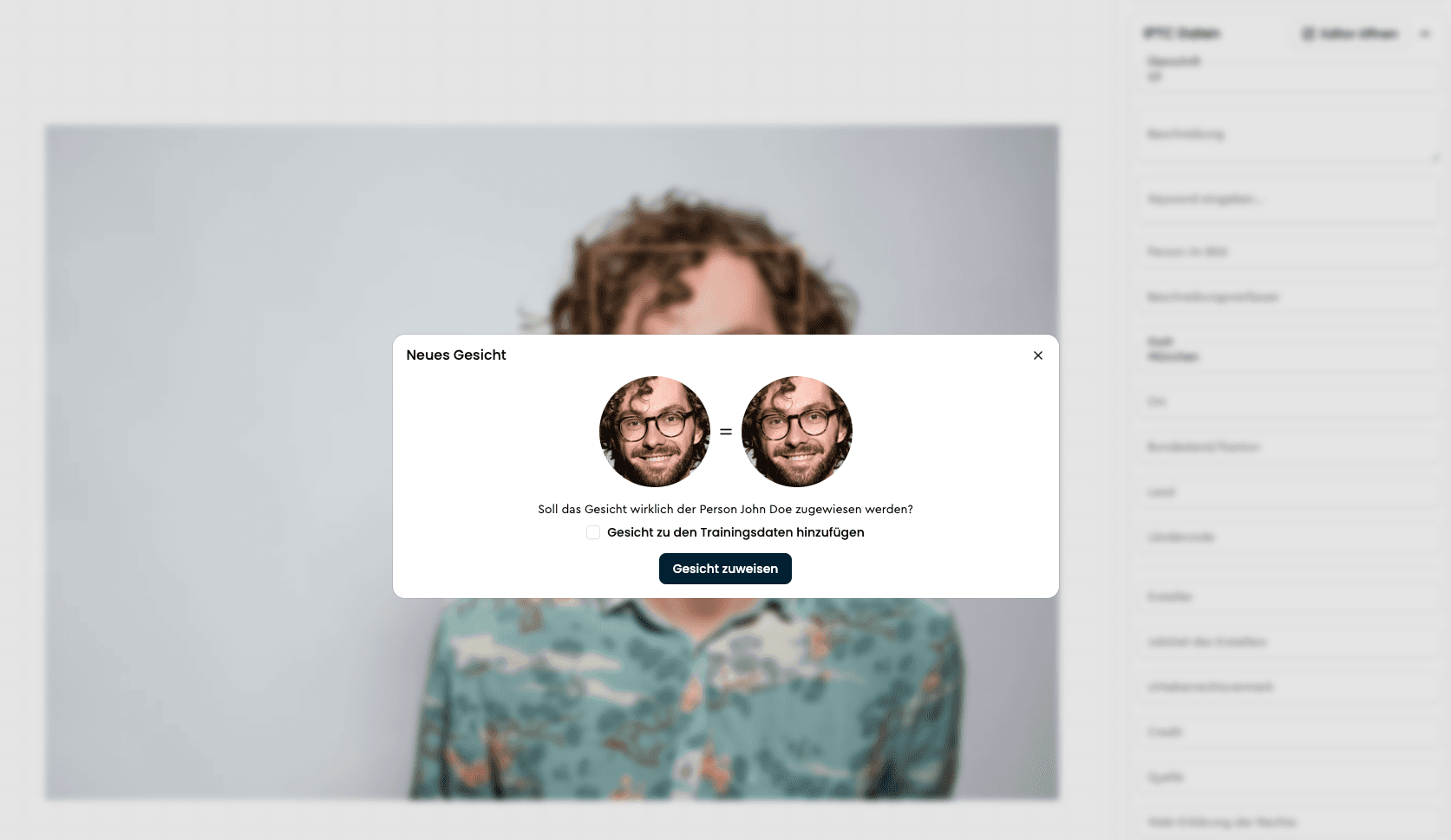
After you have completed the training, all images in your organization that show the person will immediately be updated with the person's name in the Person in image field.