

Registration requests
Approve or decline VisitorHub registration requests and review declined ones.
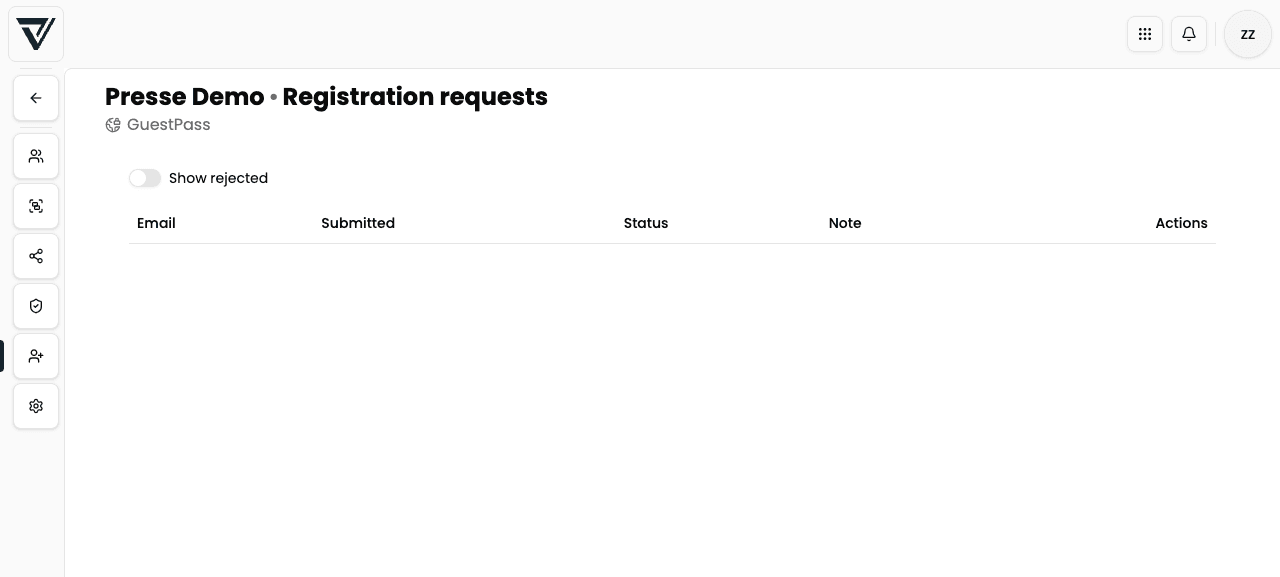
The Registration requests tab is only visible when registration mode under Settings is set to Manual approval. Here you handle access requests from people who are not yet users of the portal.
What triggers a request
- An unknown email opens a VisitorHub-protected share or the login.
- Depending on sign-in methods and copy, the person sees Send request?
- After submit: guest status such as “We’re reviewing your request”; optionally they receive the Request received email.
- Optionally admin recipients are notified.
Table and view
| Element | Meaning |
|---|---|
| Requesting address | |
| Submitted | Time of the request |
| Status | e.g. pending |
| Note | Optional decline reason (after decline) |
| Actions | Approve / Decline |
| Show declined | Toggle: shows declined requests instead of open ones |
Approve a request
Approve creates or unlocks the user and typically sends a magic link by email (template Request approved). Link validity matches the sign-in link validity on the Authentication tab.
After approval, the person only sees content if there is also a distribution to them or their group – group email rules may apply on the next sign-in.
Decline a request
Decline opens a dialog:
- Optional: Note / reason (for your records in the table)
- After decline, the request appears under Show declined
The person usually gets no access; they may request again later if self-registration stays on manual approval.
Tips
- Respond promptly – otherwise guests only see the waiting message
- Configure admin recipients under Settings so requests are not missed
- For domains that should always get access: prefer a group with
@company.complus distribution over many one-off requests
See also
- Settings – registration mode and email templates
- Guest login – guest perspective