

Configure Workflow
Set language, context, headline, description, and keywords for your VisionAI workflow.
First, set the Language in which the results should be output.
Enter Context information about the files to be analyzed.
Context information helps VisionAI understand connections that are not immediately
apparent from the image. Example: This is a photo taken during the Munich Security Conference.
In the Headline field, define how VisionAI should summarize the image content.
Example: Summarize the content of the image in the form of a headline. Optionally, you can
add fixed text at the beginning or end of the headline.
In the Description field, describe what kind of image description you want.
Example: Describe what you see in the image and provide an image description of no more than 300 characters. Note that the image was taken at the Hotel Bayerischer Hof in Munich. Here too, you can add fixed text at the beginning or end.
In the Keywords field, specify the criteria for generating keywords.
Example: Create keywords for all relevant things visible in the image. If logos or lettering are recognizable, please also create keywords for those. Additionally, you can set fixed keywords that are always added.
Click Save workflow.
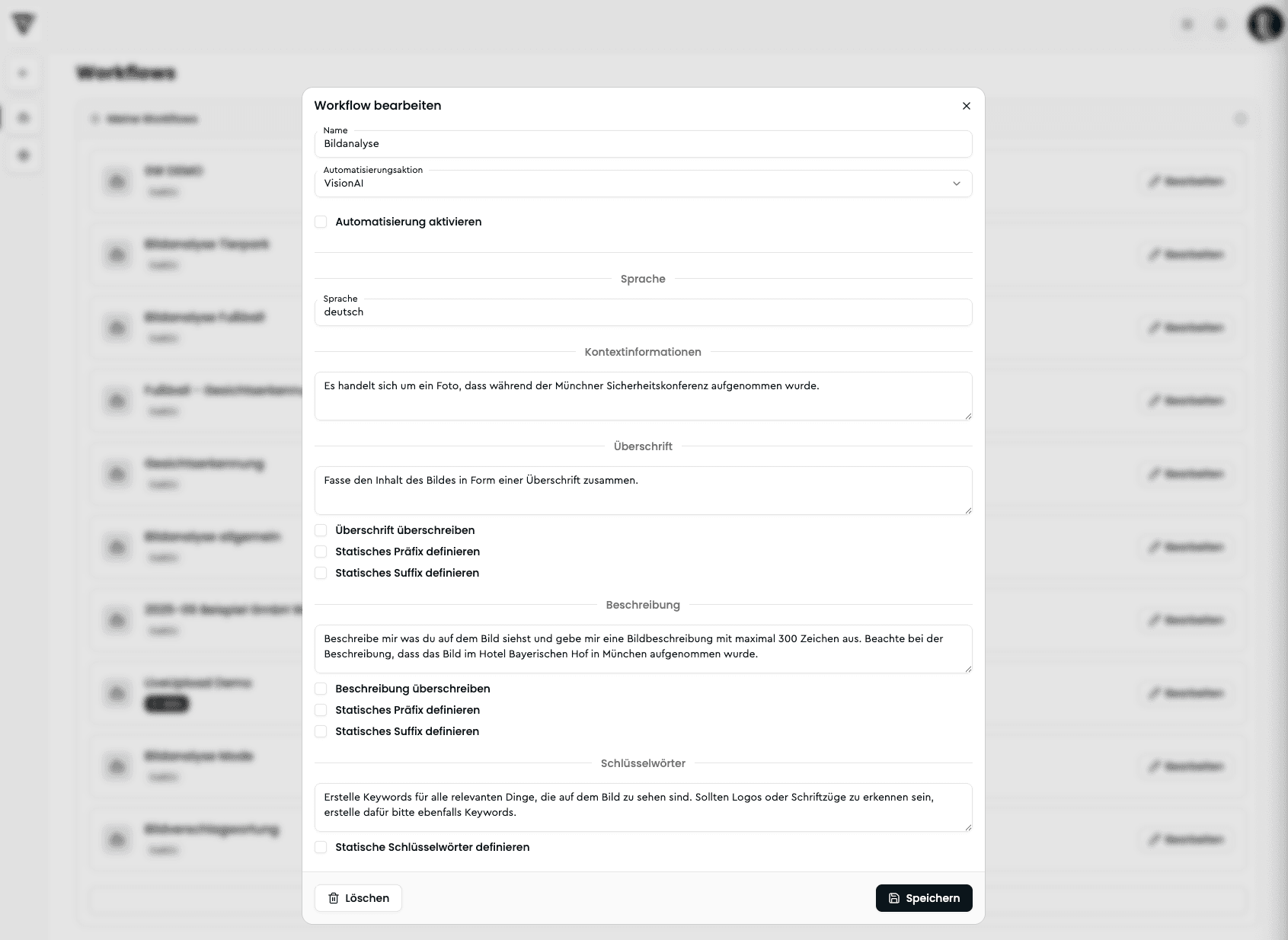
Already labeled files are not automatically overwritten by VisionAI. If you want to
replace existing data, activate the options Overwrite headline and
Overwrite description.