

Manage groups
Create VisitorHub groups, assign members, email rules, and merge groups.
On the Groups tab you bundle users so you do not have to distribute every share person by person – e.g. “Editorial”, “Partner Agency X”, or “Journalists Event Y”.
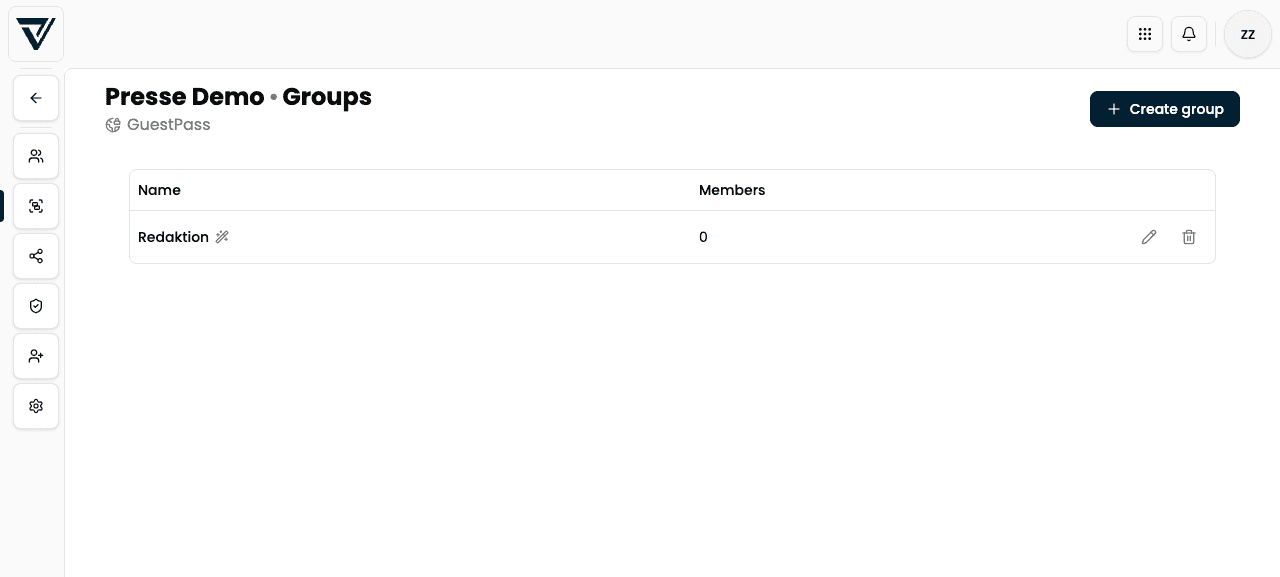
Create a group
Click Create group.
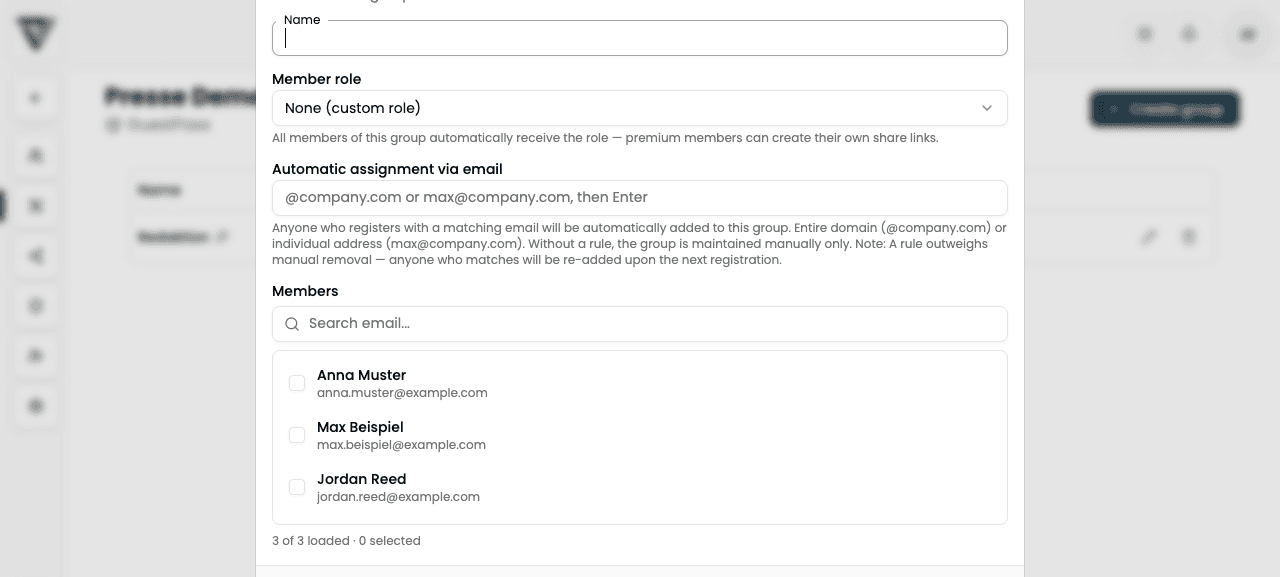
Enter a name.
Optionally set the member role:
- None (individual role) – each member keeps their own role (Basic/Premium)
- Premium – every member of this group automatically gets Premium (may create own share links)
Optionally set automatic assignment by email and pick members with checkboxes (depending on dialog version, on create or when editing).
Confirm with Create.
Edit a group
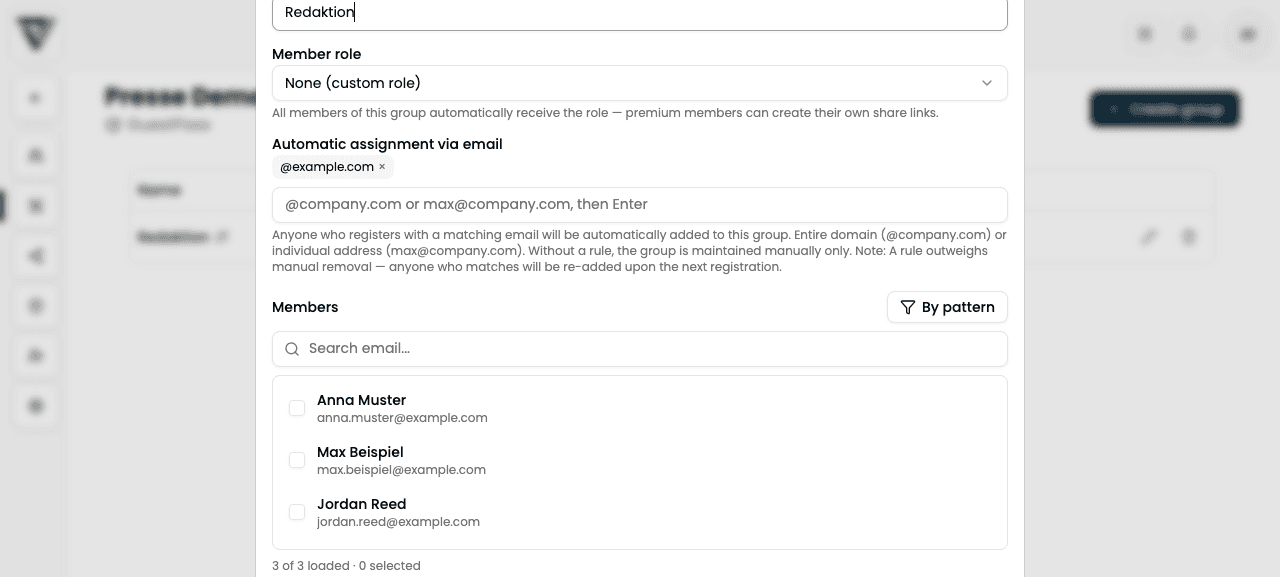
Use the pencil icon to open Edit group:
- Change the name
- Set the member role
- Select members with checkboxes
- By pattern – add members via email pattern (see below)
- Automatic assignment by email – rules evaluated at sign-in
By pattern: find and add members
The By pattern button (in the edit dialog) searches all portal users – not only those currently loaded in the list.
| Operator | Example | Effect |
|---|---|---|
| Contains | press | Email contains the text |
| Starts with | editorial@ | Email starts with that |
| Ends with | @partner.com | Email ends with that |
| Regex | ^max\+.*@company\.com$ | Regular expression (case-insensitive) |
After Search you see matches (new vs. already selected) and add them to the group selection in one click. Then save the group.
Automatic assignment by email
Instead of adding every person manually, you can define rules (Enter confirms a rule):
| Example rule | Effect |
|---|---|
@company.com | Any address on that domain |
max@company.com | Exactly that address |
Anyone who signs in with a matching email is automatically added to the group – before distribution is checked.
An email rule beats manual removal: anyone matching the pattern is re-added on the next sign-in.
If you combine Premium as the member role with domain rules, every matching address receives Premium rights (including own shares when enabled). Treat domain rules as access-control decisions – especially when self-registration is set to automatic approval.
Merge groups
When at least two groups exist, Merge groups appears:
Select the groups to merge (at least two).
Choose the target group (name is kept) – its name remains; members of the other selected groups move into it.
Confirm with Merge.
The other groups are removed after the merge; members end up in the target group.
Groups and distribution
When distributing a share you can pick individual users, whole groups, or both. A member of a distributed group sees the share even if they were not selected individually.