

Create Workflow
How to create a VisionFace facial recognition workflow and optionally automate it.
Open My Add-Ons via the waffle menu in the top toolbar.
Click on Create new workflow.
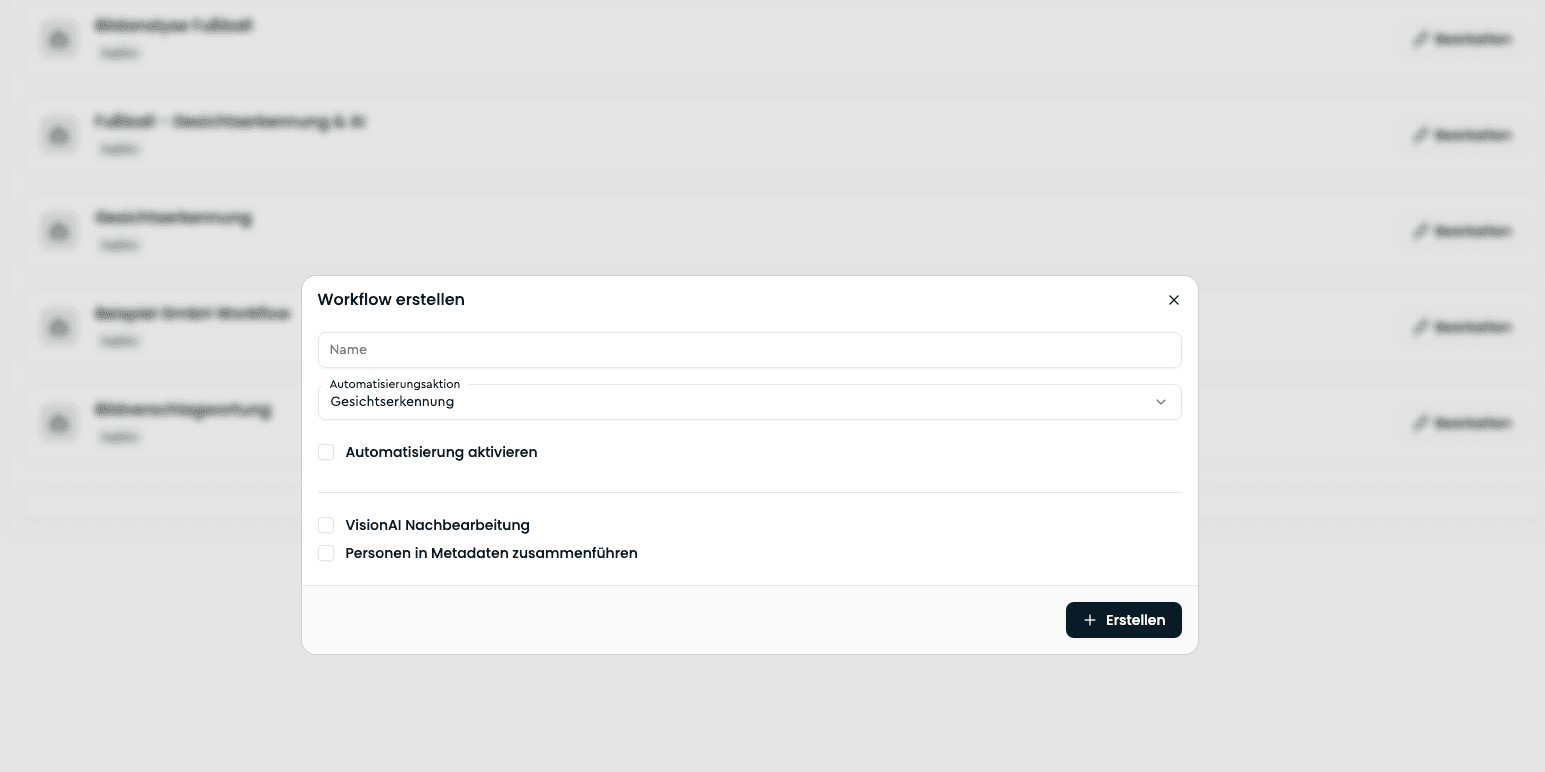
Enter a name for the new workflow. For example, Facial recognition.
Select the Facial recognition menu item from the dropdown.
If you want the workflow to run automatically with every upload to your VAULO account, check the box next to Enable automation. Additional selection options will then appear, allowing you to restrict the workflow to specific Spaces or folders.
You can then have an automated image analysis performed. This must also be activated beforehand in the add-ons.
You can have recognized people inserted directly into the IPTC field People in image by checking the Merge people into metadata afterward option.
Click Create.
Only add frontal images to your facial recognition model where both eyes are visible. Do not use images for your training model where a person is seen from the side. Make sure the image is sharp and not blurry. Otherwise, errors may occur in future facial recognition.