

Event folders: photos and files right at the event
Give every event its own folder automatically – with a fixed location and name pattern, a subfolder per session and uploads straight from the event.
Otherwise, photos and files of an event end up wherever the person uploading them happens to be – and someone sorts them by hand afterwards. With event folders, every event gets its own folder in a fixed place with a consistent name, for example 26-07-04-Summer Party. Your team uploads straight from the event, optionally even into a separate subfolder per session.
Events is a paid add-on. Already included in the Platinum Freelancer plan. Available as an option for all Business plans.
Contact SupportHow it works (overview)
1. Set in the settings where event folders are created and how they are named
2. Create an event – the folder is created automatically
3. Create sessions or import them from CSV/ICS – optionally with their own subfolder
4. Upload photos and files straight from the event, the staff view or the session
Set the default for all events
Open Events from the waffle menu and switch to Settings in the left-hand bar. In the Event folder section you define:
| Setting | Meaning |
|---|---|
Create a folder for new events | New events propose a folder automatically when they are created. |
Storage location (Space) and Create in | The space and the parent folder event folders are created in. Directly in the space creates them at the top level. The folder list can be searched. |
Folder name | The name pattern with placeholders (see below). Right below, you see what a folder would be called. |
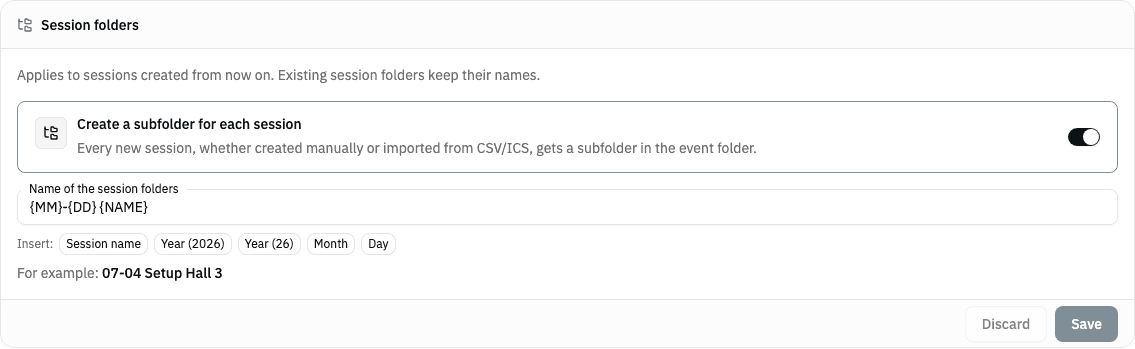
Create a subfolder for each session | New events propose a subfolder in the event folder for each session (see below). On by default. |
Name of the session folders | The name pattern for session folders, {MM}-{DD} {NAME} by default – the year is already part of the event folder. |
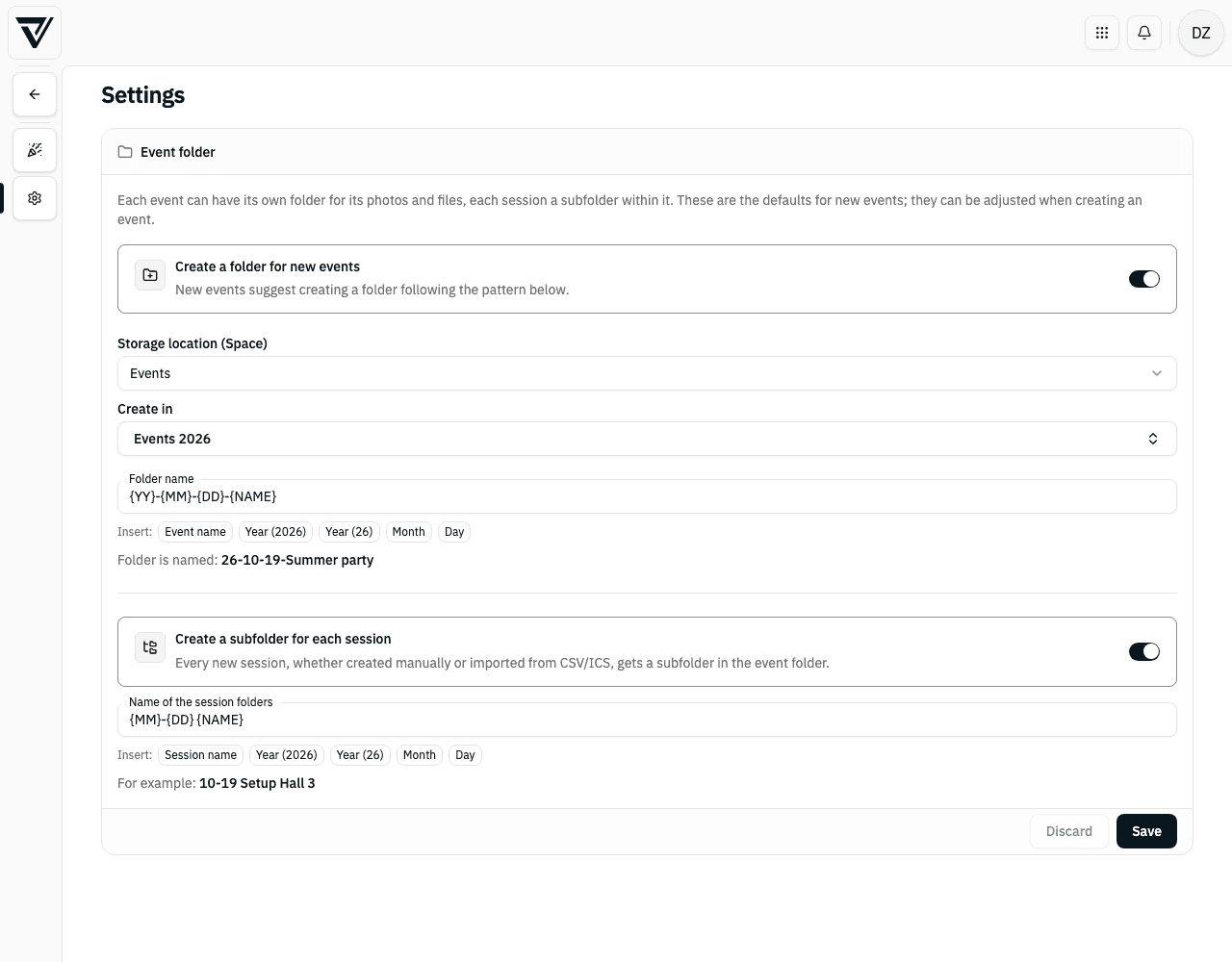
The default can be changed by anyone allowed to edit the organization profile. The storage location grants no rights of its own: folders are always created with the rights of the person creating the event.
Placeholders for the folder name
Click a placeholder below the field to insert it at the cursor position:
| Placeholder | Replaced by | Example |
|---|---|---|
{NAME} | Name of the event (or session) | Summer Party 2026 |
{YYYY} | Year, four digits | 2026 |
{YY} | Year, two digits | 26 |
{MM} | Month | 07 |
{DD} | Day | 04 |
The date is always the start of the event or session. {YY}-{MM}-{DD}-{NAME} therefore becomes 26-07-04-Summer Party 2026. Plain text stays as it is – only placeholders in curly braces are replaced.
Create an event with a folder
In the Create new event dialog, the second step (after the start and end date) contains the Folder for photos and files section. It is filled in from your default, but you can change it for this one event:
Create new folder– theFolder namefield is filled with a name from your pattern, for example26-07-04-Summer Party 2026. You can simply overwrite it and change the location as well.Link existing– pick a folder that already exists.No folder– the event gets no folder (for now).
Below that, in the Session folders area, you decide whether the sessions of this event get their own subfolders and how they are named. Your default is proposed; you can change the pattern for this event or turn the switch off. The preview "For example: …" shows the name for an example session on the event's start day.
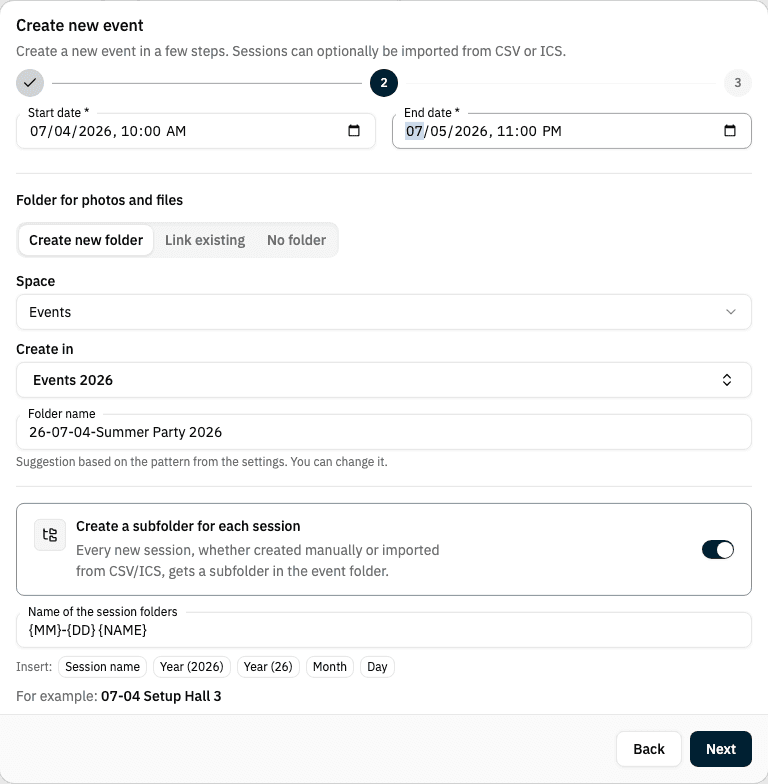
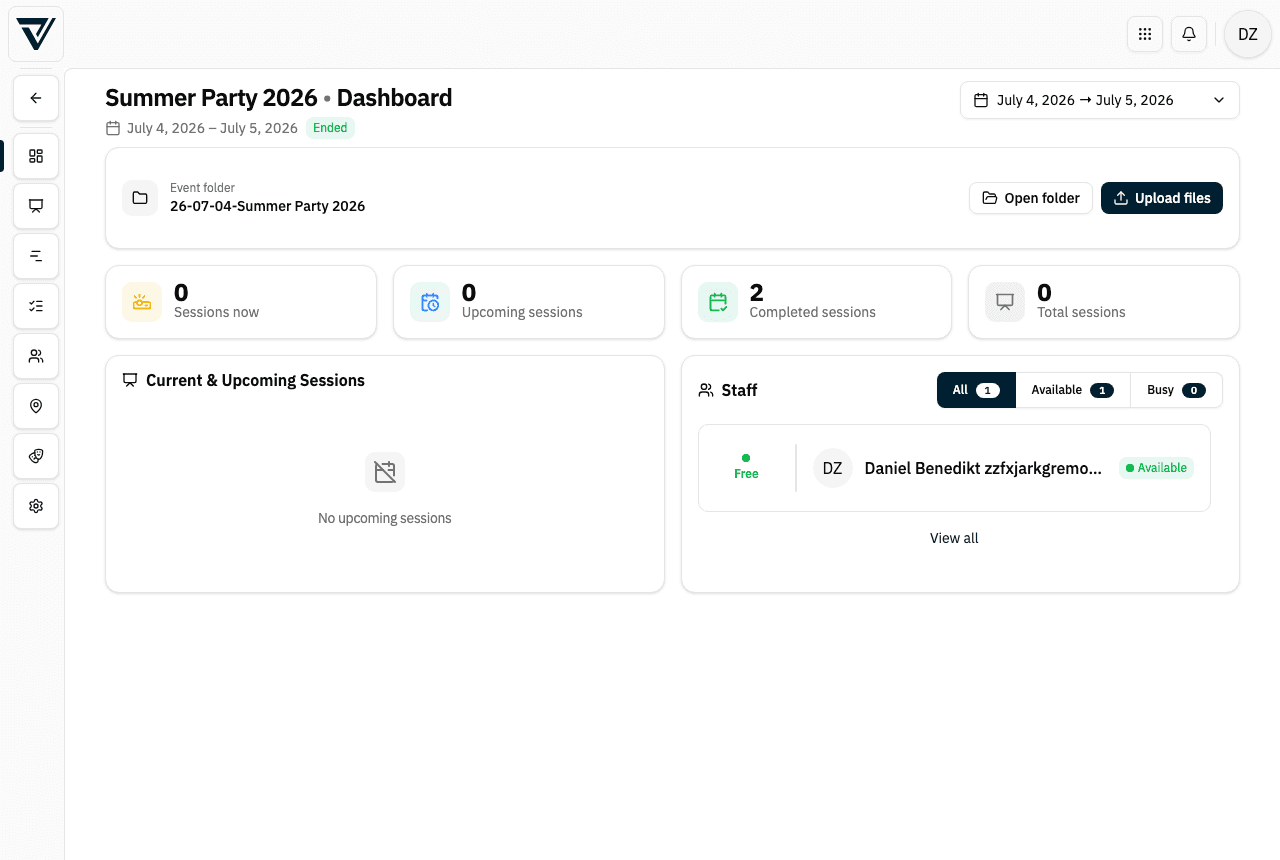
Once created, the event's dashboard shows the event folder with Open folder and Upload files.
Subfolders for sessions – also when importing a CSV
When the event has a folder and session folders are turned on for this event, every new session gets a subfolder in the event folder. It is named with the event's session pattern, filled with the session's name and start date:
Events 2026/
  26-07-04-Summer Party 2026/      ← event folder
    07-04 Setup/                   ← session on 4 July
    07-05 Concert/                 ← session on 5 July
This applies to sessions you create by hand just as much as to sessions you import from a CSV or ICS file, when creating the event or later.
Each event keeps its own pattern. If you change the default in the settings, it only applies to events created afterwards.
Subfolders are only created for new sessions. Existing sessions do not get a folder afterwards, and existing session folders keep their names when you change the pattern.
Set up or change the folder later
If an event has no folder yet, click Set up folder on its dashboard. In the dialog you create a new folder from your default or link an existing one.
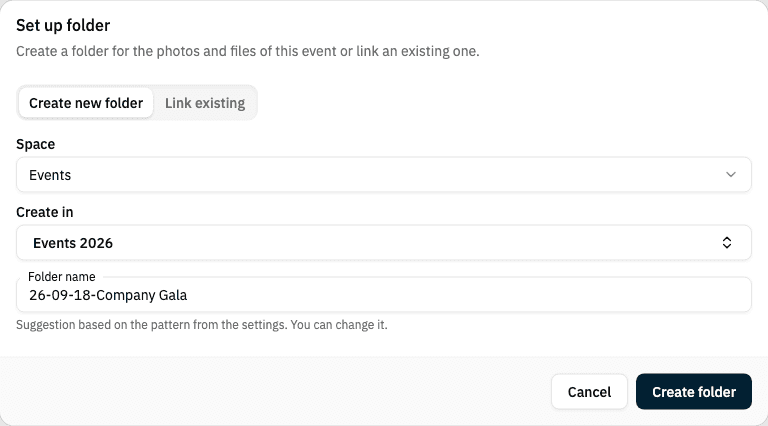
The event's Settings contain the Folder section:
Choose another folder– create or link a different folderUnlink– the event no longer shows the folder. The folder and its files are kept.
Below, in the Session folders area, you turn the subfolders for this event on or off and change their name pattern. This applies to sessions created from then on. If the event has no folder yet, the setting takes effect as soon as it gets one.

An event folder is only linked. Renaming the event keeps the folder's name; deleting the event keeps the folder. If the folder was deleted, the event shows "Folder no longer available" – you can then link a new one.
Upload files
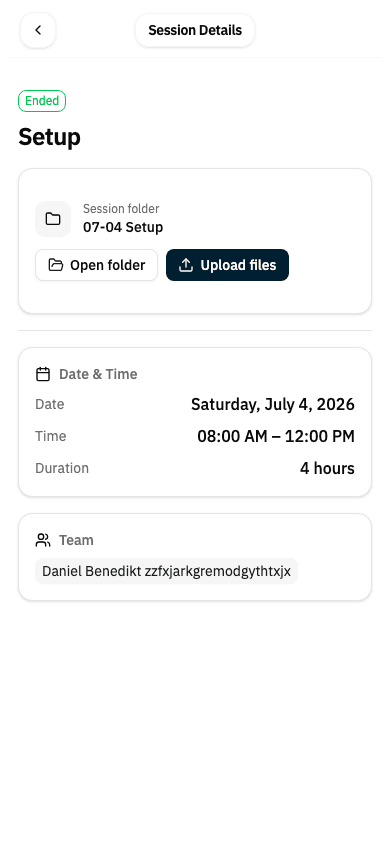
Upload files opens the familiar upload dialog; at the top you see which folder the files go into. You find the button
- on the event's dashboard,
- in the staff view under "My Sessions" – on the computer and on the phone,
- in the session view for the session folder.
Working on an event grants no rights on its folder. Only people allowed to add files to the folder see Upload files. To let your team upload, give them the matching role on the folder (or a parent folder).