

Downloads: Ask for Details Before a Download
Set up download tracking, define the fields to ask for, and decide per share whether downloaders enter their details before downloading.
The Downloads add-on shows who downloaded which files from your shares. With download tracking, you can also ask downloaders to enter some details before they download, for example their name, company, or intended use. These details are called downloader data.
Whether the data is requested is decided per share. In the add-on settings, you only define which fields are requested and whether new shares start with the request switched on.
Set up download tracking
Click the grid icon (My add-ons) at the top right and choose Downloads. Then open Settings with the gear icon in the left bar.
Turn on Enable download tracking. The other sections only appear once it is on.
Under Notification settings, you can enter an email address that receives notifications about downloads.
In the first Additional downloader data section, set a Headline and a Description. Downloaders see both above the input fields. Briefly explain what you need the details for. The Fetch downloader data by default for new shares option is in the same section (see below).
In the second Additional downloader data section, use Add field to create up to five fields. Give each field a name, for example "First and last name". Required field means the field must be filled in before the download starts; Multiline allows longer answers. Use the trash icon to remove a field.
Click Save.
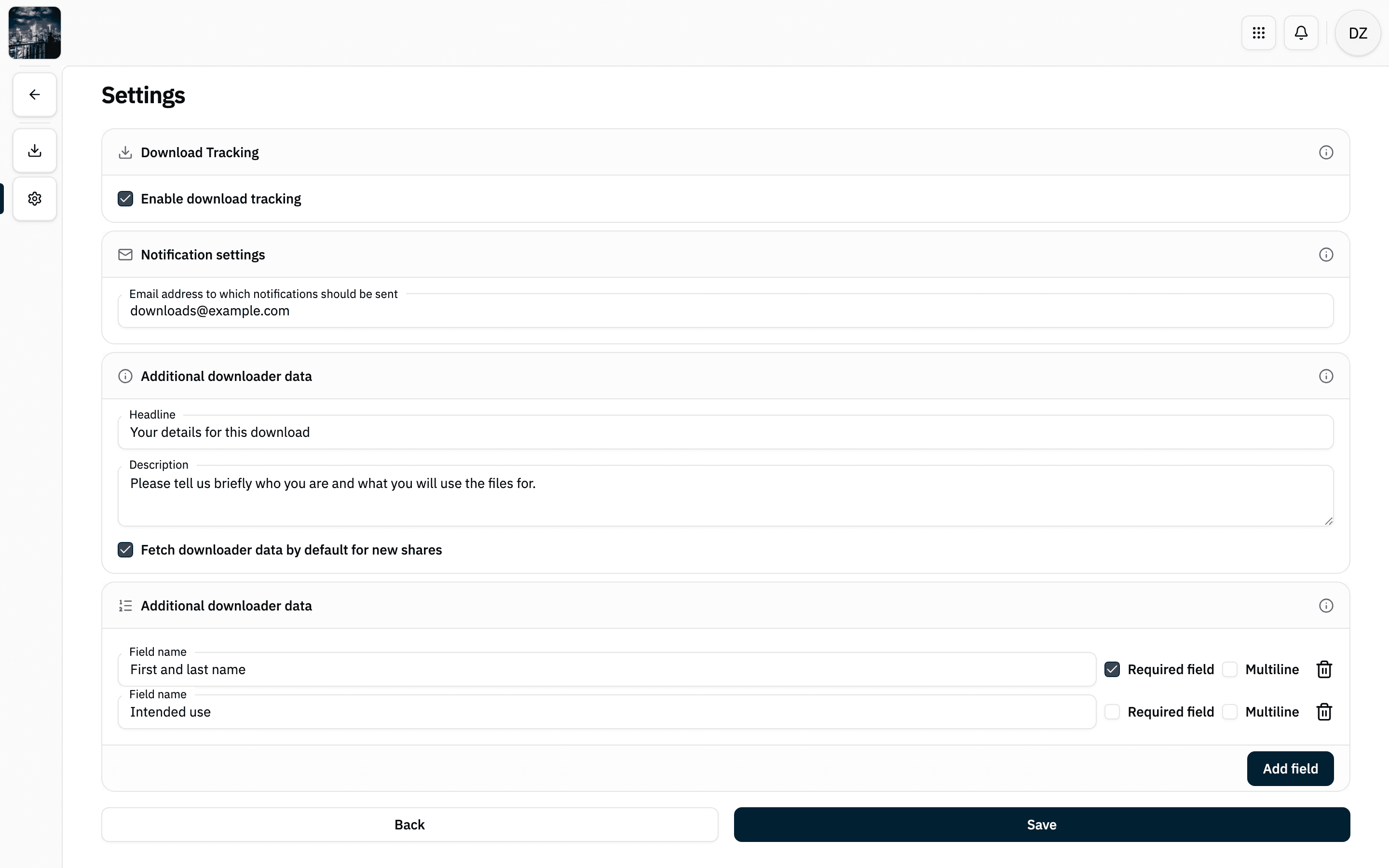
Default for new shares
The Fetch downloader data by default for new shares option only decides whether the request is already on when you create a share (presentation or direct download).
- Existing shares don't change.
- You can switch the request on or off in any share at any time.
- The default does not apply when you send via filepush or apply a presentation template (see below).
If you only want to ask for data on certain shares, leave this option unchecked and turn the request on in those shares.
Switch the request on or off per share
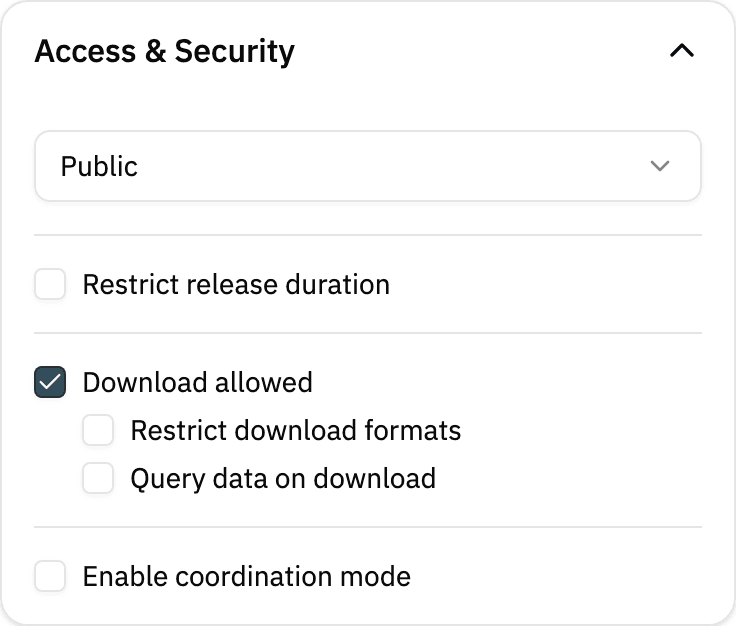
Open the share (presentation) in the editor. You find the Access & Security section on the right.
Turn on Download allowed. Query data on download appears below it.
Check or uncheck Query data on download. The change is saved right away.
When the request is on, downloaders who click download first see your headline, the description, and the fields. Required fields are marked with *. The download continues after they click Continue. If you haven't created any fields, downloaders only see the headline and description, for example your terms of use, and confirm with Accept.
The request only works while Enable download tracking is on in the add-on settings. If you turn download tracking off, no share asks for data anymore, even if the option is checked in the share.
Other places with the same option
- Direct download: When you create a direct download share, there is a Query downloader data option. It only appears when download tracking is enabled, and it starts with your default.
- filepush: When sending via filepush, you can select Query downloader data. It always starts unchecked there.
- Presentation templates: When you save a template, you can include Query data on download in it. When you apply a template to a share, the share takes the template's value. If the option was not saved with the template, the request is switched off.
View downloads
You find all downloads from your shares in the Downloads add-on via the download icon in the left bar, including the details downloaders entered.