

ExternalUpload: Receive Files from External Partners
Learn how to provide external business partners without their own account with a personalized upload page in VAULO. This guide shows you how to create, customize, and secure an ExternalUpload - including briefing, contact details, password protection, and time restrictions. Prerequisite: Access to the folder sharing function in your VAULO Digital Asset Management System.
Are you expecting data from an external business partner who does not have access to your VAULO account?
With just a few clicks, provide them with a personalized ExternalUpload web page. Through this ExternalUpload page, data can be uploaded directly into your system without granting access to your system and its content.
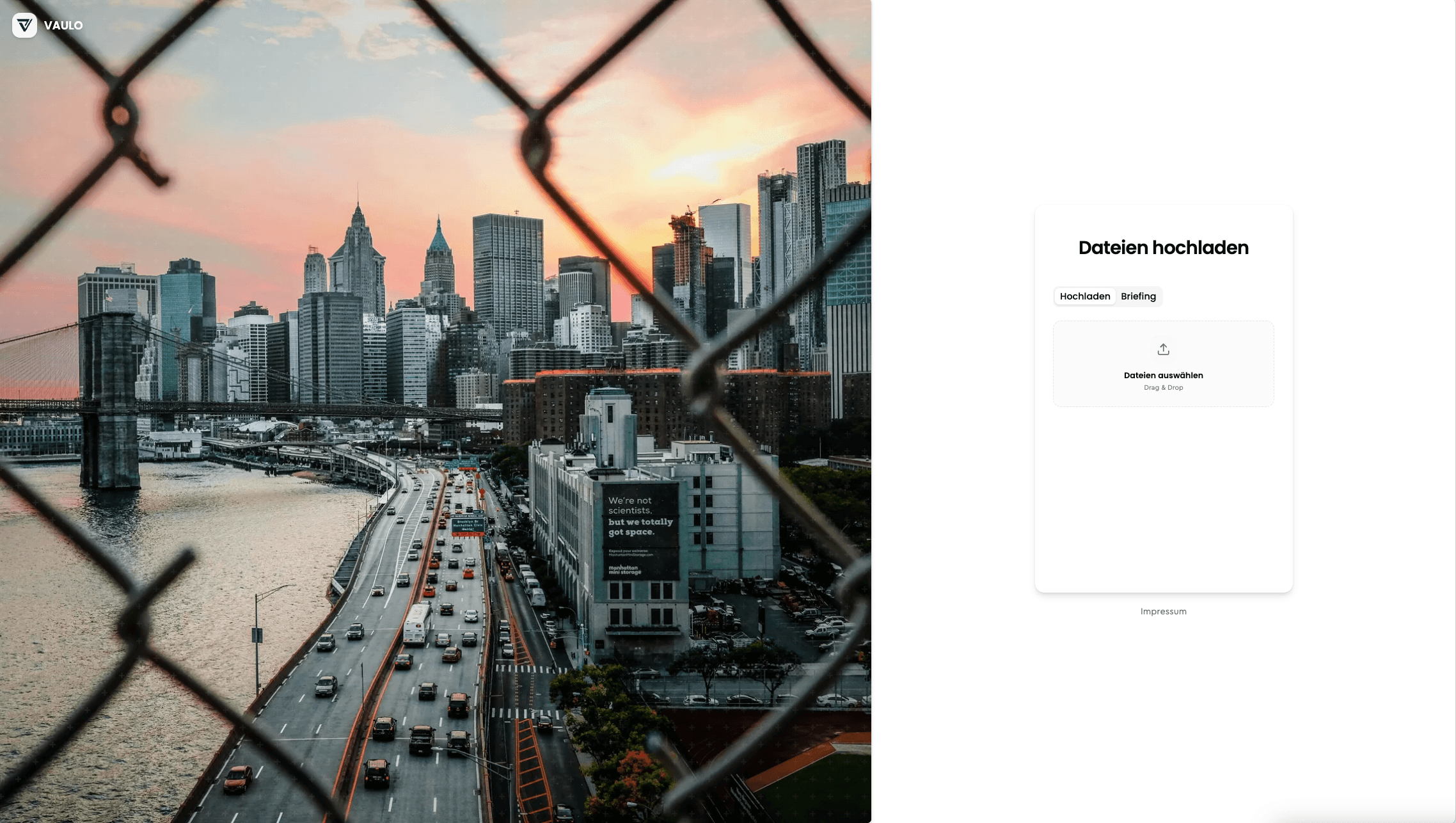
Create ExternalUpload
Go to the folder you want to share for ExternalUpload and first click on Share folder, then on External upload. Alternatively, you can right-click on the folder you want to share for upload.
Customize ExternalUpload
You can now enter an optional message that the recipient will find in their email.
You can protect the ExternalUpload page with a password or restrict access to a specific time period if needed.
You can add a briefing that will be displayed to the recipient on the ExternalUpload page. This briefing is intended so that the supplier or uploader always has all relevant information at hand.
You can additionally enter contact details for the contact person so that the supplier or uploader always has the appropriate contact information readily available.
Send the link by entering the email address of the recipient to whom you want to share the folder for upload.
You can share the folder for upload with multiple people at once. However, the briefing remains the same in this case. If you need different briefings, repeat steps 1 through 5 to create an individual share for each supplier.
Customize legal texts
Enable Customize legal texts to control the imprint and optional Legal Hub texts for this upload page. Organization-wide defaults live in Legal Hub under Defaults for shares.
More: Legal texts on shares
LiveUpload
Learn how to upload data directly from your photo or video camera to VAULO using the LiveUpload feature. This step-by-step guide walks you through the process of setting up and using LiveUpload seamlessly within your DAM system.
filepush: Send Files Quickly and Easily
Learn how to use filepush in VAULO to send files to colleagues or business partners without archiving them in your VAULO account. This guide shows you step by step how to upload files, add recipients, and start sending. Please note: The sent data is deducted from your data volume and the filepush link is automatically deleted after four weeks.