

Adjusting images
Adjust exposure, white balance, contrast and more directly in VAULO – in full quality from the original. Save your settings as a template and use it when downloading or for many images at once.
With Adjust image you change the exposure, colours and contrast of your photos directly in VAULO. VAULO calculates the result from the original file in full quality – including RAW photos, HEIC and TIFF. The result is saved as a new version; the original stays as the previous version.
Adjust image is an experimental feature. Turn it on under Experimental features → Editor 2.0 (see Experimental features). Only then do you see the Adjust image button, the Image adjustment option when downloading and the Apply image adjustment action in batch processing.
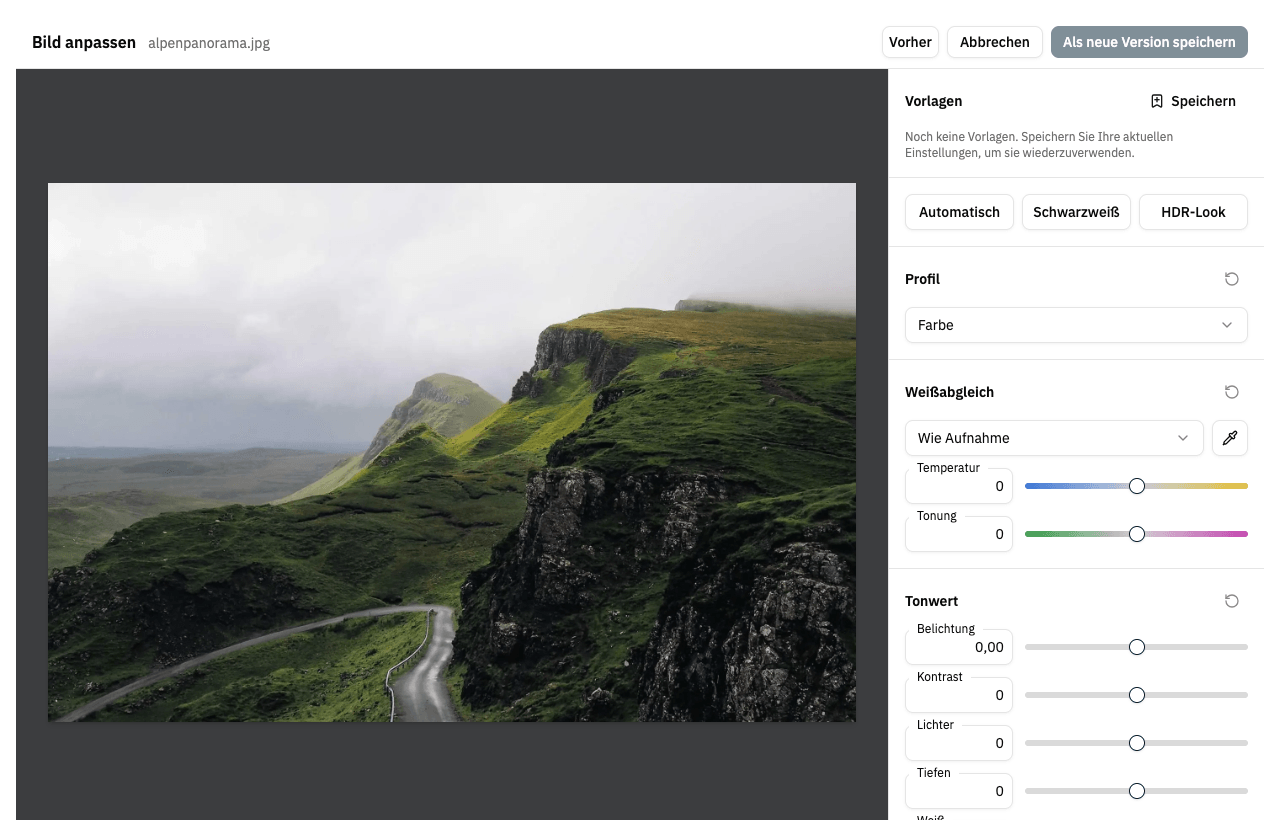
Opening the view
Open a photo in the detail view and click Adjust image in the header. The image is on the left, the settings are on the right.
You only see the button if you may create new versions in this folder. Vector graphics (SVG, EPS) and images with more than 60 megapixels cannot be adjusted.
Settings
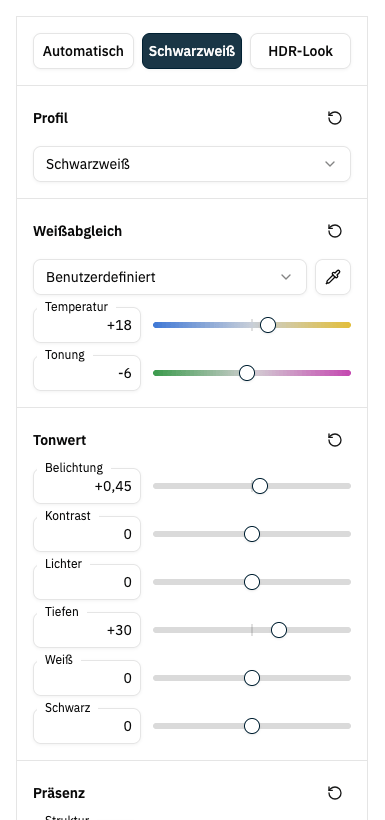
- Automatic – suggests suitable values for exposure, contrast, highlights, shadows, whites and blacks. You can keep adjusting them afterwards.
- Black and White – turns the image black and white. When it is on, the button is filled; a second click turns it off again.
- HDR look – brightens dark areas, recovers detail in bright areas and strengthens local contrast.
- Profile – the basic look of the image: Color, Black and White, Vivid, Neutral, Landscape or Portrait.
- White balance – As shot, Automatic or Custom. Temperature makes the image cooler or warmer, Tint greener or more magenta. With the eyedropper, click a spot in the image that should be neutral grey – VAULO then sets the white balance to match.
- Tone – Exposure, Contrast, Highlights, Shadows, Whites and Blacks.
- Presence – Texture (fine detail), Clarity (midtone contrast), Dehaze, Vibrance (gently boosts muted colours) and Saturation.
Every slider has a number field for exact values. Double-click a slider to reset it; the arrow icon next to a group resets the whole group. Use Before to compare with the unchanged image at any time.
Saving as a new version
Click Save as new version. VAULO calculates the new version in the background from the original; it appears in the detail view shortly afterwards. The new version keeps the image's descriptive details such as title, description, photographer and copyright holder.
If you open Adjust image on a version that is already adjusted, VAULO takes over its settings and calculates again from the original image. This way adjustments are not stacked on top of each other.
RAW and HEIC photos are saved as a JPEG version. JPEG, PNG, WebP and TIFF keep their format.
Templates
Save settings you use often as a template: next to Templates, click Save, enter a name and choose who can see the template:
- Only me – a personal template that only you see.
- Everyone in the organization – available to everyone in your organization. You only see this option if you may edit your organization's settings.
Use the picker under Templates to apply a template. With Manage templates you rename templates, overwrite them with the current settings or delete them.
Applying it when downloading
In the Download dialog, choose a template under Image adjustment. The downloaded file is then created with these settings – the file in VAULO stays unchanged. With a template you always download in a specific format, for example JPEG; "Original" cannot be selected then.
Adjusting many images at once
Select several files and open Batch processing. Choose the action Apply image adjustment, a template and optionally a name for the new versions. VAULO creates an adjusted version for each photo. Files that are not photos or are too large are skipped and listed in the summary.