

HTML pages
View uploaded HTML files such as exported reports or interactive drafts right in VAULO, walled off from the rest of the app.
Many tools deliver their results as a single HTML file: exported reports, generated documents, interactive drafts or pages an AI created for you. VAULO recognises such files and shows them as a page right in the detail view – including buttons, charts and other interactive elements. There is nothing to turn on.
Upload an HTML file
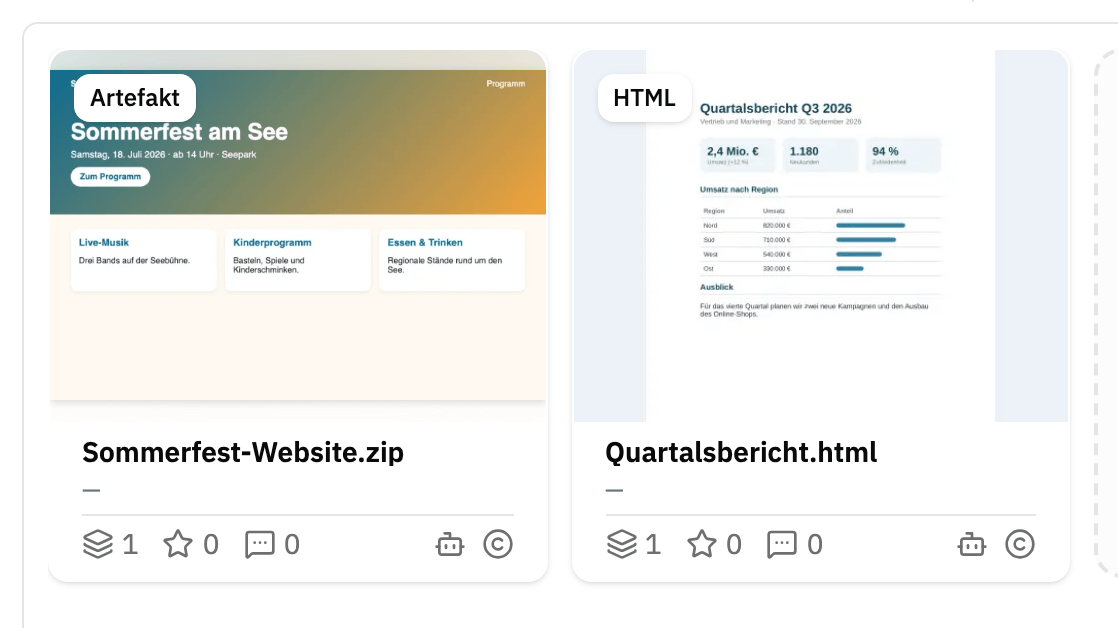
Upload files ending in .html or .htm to a folder as usual. VAULO recognises them as HTML pages. In the grid and the list, the tile shows the top of the page across its full width, much like a browser window. Content a page builds with scripts when it opens, such as charts, is missing from the preview image. The detail view shows it.
View the page
- Open the file with a double click. Once processing has finished, the detail view shows the page itself.
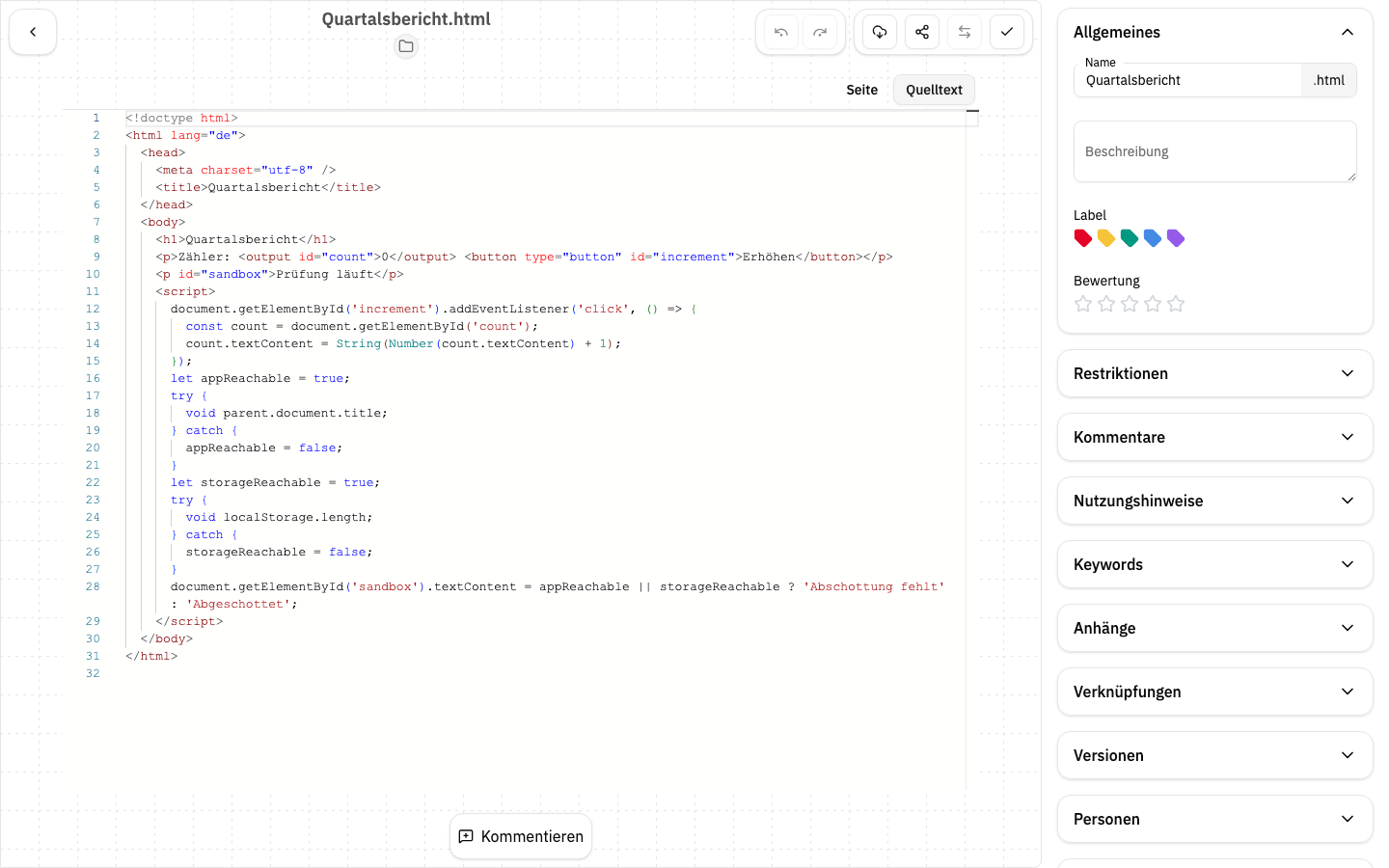
- Click Source code at the top right to see the page's HTML. Page takes you back to the view.
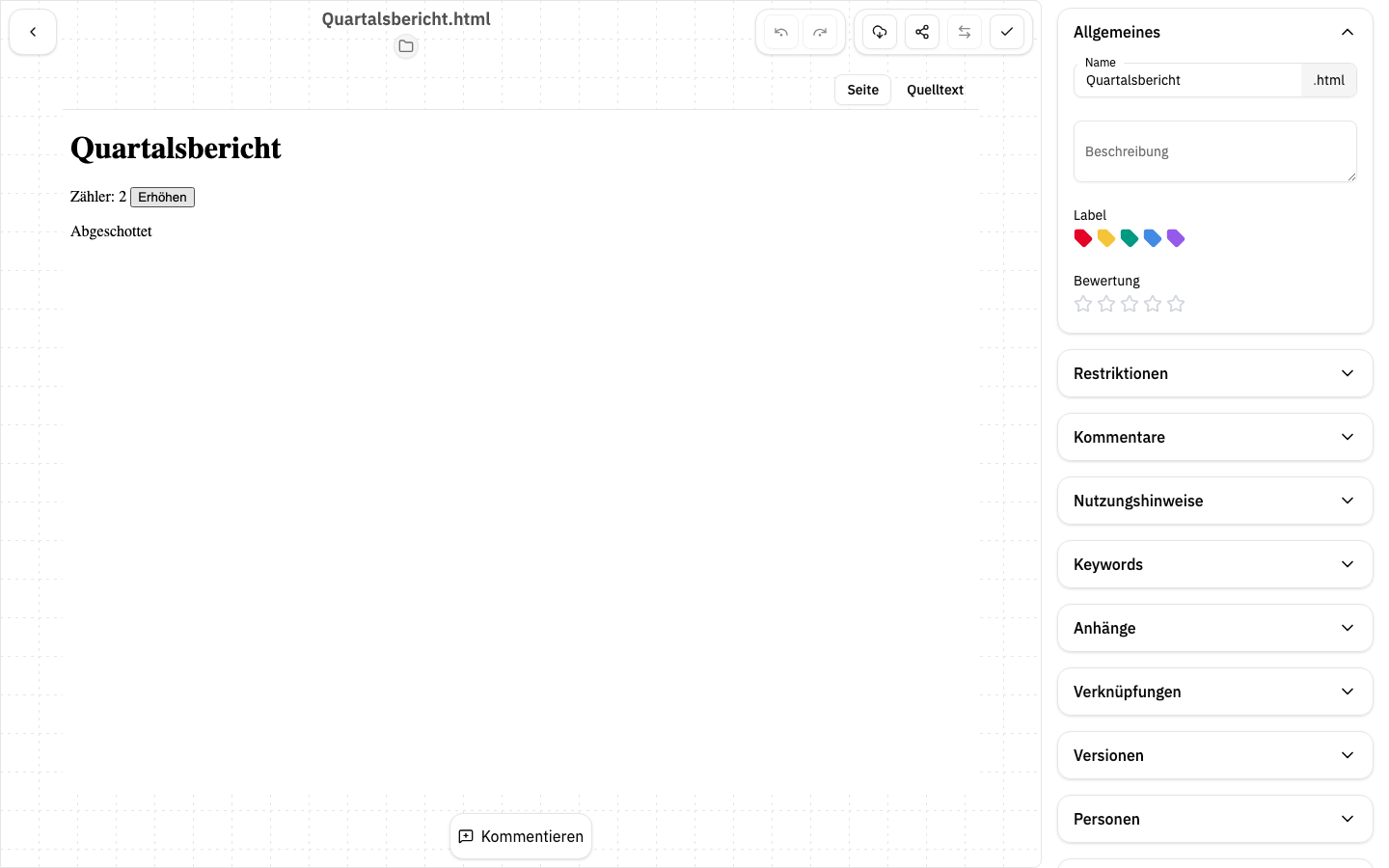
Interactive elements such as buttons, counters or charts work just like in a browser.
Full screen and your own tab
If the space in the detail view is not enough, for example for reports or dashboards, you have two options. Both are also available for artifacts (see below).
- Full screen: Click Full screen at the top right. The page then fills the whole window and keeps running: its scroll position, input and running scripts are kept. Exit full screen or the Esc key takes you back to the detail view. On devices without real full screen, such as the iPhone, VAULO covers the window instead. There you leave the view with Exit full screen.
- Open in new tab: Click Open in new tab. VAULO then shows only the page in a new browser tab, with the file name, the Back to file link and the download. You have to be signed in and allowed to view the file, just like in the detail view. Full screen is available there too.
In both cases the page stays in the same walled-off area (see the Security section).
Several pages as an artifact
Some tools export a whole website at once, for example a design tool with several pages, images and scripts. Upload such an export as a ZIP file:
- The folder then holds one single file labelled Artifact instead of many loose files.
- If the export ships its own preview image, the tile shows it. Otherwise it shows the artifact symbol.
- In the detail view VAULO opens the artifact like a website: images, fonts and scripts from the ZIP file load, and links between the pages work.
- If the artifact has several pages, pick them with the page picker at the top left.
- Downloading gives you the ZIP file back unchanged.
VAULO recognises a ZIP file as an artifact when it contains at least one HTML page. Every other ZIP file stays an ordinary file. Artifacts can be up to 50 MB, at most 200 MB unpacked, and hold at most 5,000 files. Larger ZIP files can be downloaded but not viewed in VAULO. ZIP files you uploaded before artifacts existed stay ordinary ZIP files for now.
Show them live in shares
Visitors of a share first see HTML pages and artifacts only as a preview image. You can set per share that they may open and use the pages live:
- Open the presentation in the editor.
- Under Access & security, tick Show HTML pages and artifacts live.
Your visitors do not need to set anything.
- Visitors click the file in the gallery. The page opens in the large view, with Embedded page above it. The gallery tiles stay preview images.
- Visitors do not see the source code. For artifacts they switch between pages with the page picker.
- This also works when the share does not allow downloads.
- Only pages uploaded by members of your organisation run live, including through imports and workflows. Pages someone uploaded through an upload link never run live in a share; they only show as a preview image. To show such a page live, check it and copy it or upload it again yourself.
- Locked files and files with a virus finding never run live.
- New shares start with the setting off. Templates do not carry it.
The page runs under your share's address, so with your own domain under your name. It is walled off from the rest of the share, but it can, for example, show a form. Only turn the setting on if you trust the pages in the share.
Security
An uploaded page can contain code someone else wrote. VAULO therefore shows it in a walled-off area. This applies to single HTML pages and to artifacts, in full screen, in your own tab and in shares alike:
- The page has no access to your VAULO account, your sign-in or other files.
- It cannot leave VAULO, open new windows or submit forms.
Do not enter credentials or other confidential information into an uploaded page. VAULO protects your account, but it cannot check what the page itself does with what you type.
What is not shown
- Images, fonts or stylesheets stored as separate files next to a single HTML file are not loaded. Upload the page together with those files as a ZIP file, and VAULO shows it completely as an artifact.
- Very large HTML pages over 10 MB are not shown as a page. You can download them and open them in your own browser.
- Links that open a new window do not work in the view.
- In shares without the setting (see above) HTML pages and artifacts are not opened as pages. Visitors see the preview image and the file kind (for example Artifact) in the gallery. When they open the file, a note says there is no preview. If the share allows downloads, they can download the file right there and open it in their own browser.