

Setting Up a Custom Domain: Personalize Share Links with Your Own URL
Learn how to configure a custom domain in VAULO to use your own subdomain for share links. This guide walks you through the domain setup with TXT and CNAME records, configuring redirects and aliases, and using paths for multiple VAULO organizations. Prerequisite: Admin rights in your VAULO organization and access to the DNS settings of your domain host. This feature is only available in certain VAULO plans.
Want to personalize your VAULO share links using your own URL? Then use our Custom Domain feature! With the Custom Domain, you can use your own URL for shares. Please note that this feature is only included in certain VAULO plans.
Set Up Domain
Make sure you have the necessary rights to configure a Custom Domain. Alternatively, speak with the admin of your organization.
Navigate to the Settings for your organization and then to the Domain menu item.
Click on Add new domain.
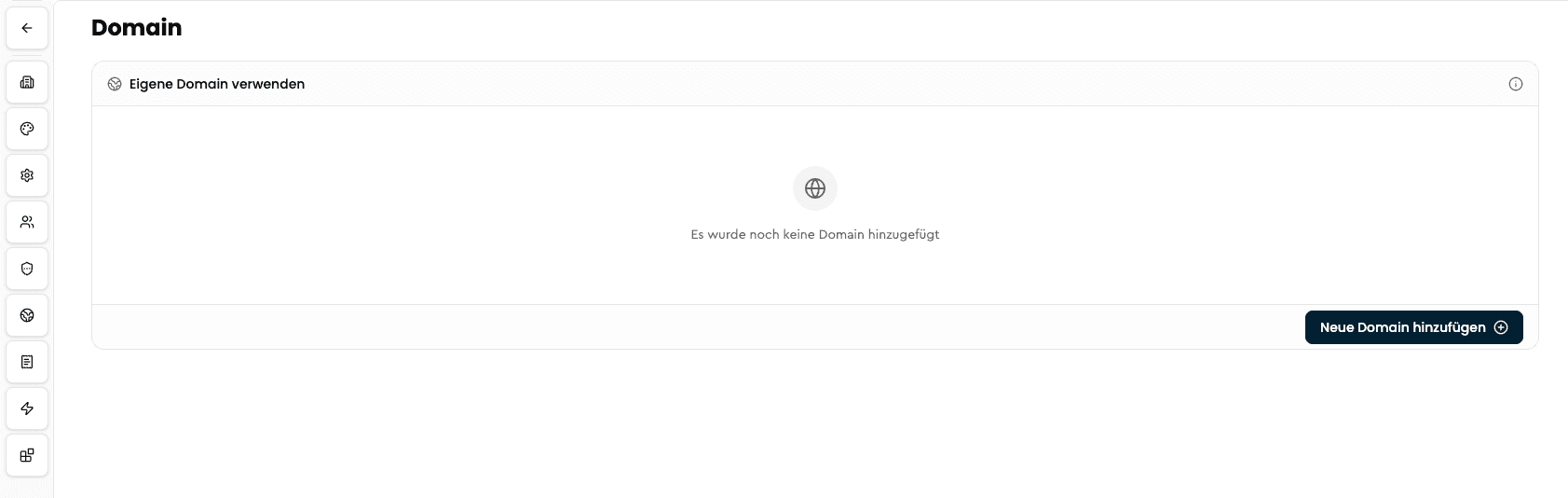
In the modal that opens, enter the subdomain you want to add. For example, media.yourdomain.com.
Click on Add domain.
In the next step, you will be prompted to verify ownership of your domain. This is done at the host of your domain. If you do not have access, please contact your webmaster, who can make the appropriate settings for you.
Also add the desired subdomain from our example media.yourdomain.com at your host and supplement it with the listed TXT record. Then click Verify and continue. An error message may appear at this point because ownership must first be confirmed by your domain host. Please wait 1-2 minutes and click Verify and continue again. Ownership should now be confirmed.
Now add the CNAME record to your subdomain. This setting must also be made at your domain host. Then click Verify and continue. It may also take a few minutes here for the settings to be adopted by your host. If you do not want to wait at this point, you can click Cancel and check later whether the settings have been adopted.
Once all settings have been adopted, you will receive the final confirmation.
If you visit your new subdomain for the first time, it may take a bit longer as we request an SSL certificate in the background. If an error message regarding a missing SSL certificate appears, please reload the page. A 404 error page from VAULO should then be displayed. If this is the case, the setup was successful.
Configure Redirects for URL Paths
If you directly access your previously set up subdomain without a path to an existing gallery, you will always receive a 404 error page from VAULO. If you do not want this, you can configure the URL path accordingly. This feature allows you to redirect the visitor to a specific website. Proceed as follows:
Enter the desired target URL for your redirect in the right field. Make sure to enter the complete URL with https://.
If you leave the path on the right side empty, it refers to the 404 error page that will be redirected.
If you want to redirect a specific path to a target URL, enter it. For example, news. This means that visits to media.yourdomain.com/news will be redirected to the desired target URL.
Configure Aliases for URL Paths
An alias is ideal for setting up a media portal. For example, you can link your media portal to your individual subdomain. Proceed as follows:
Enter a path or leave it empty (in this case, your subdomain will be used).
Select Alias from the dropdown.
Enter the URL of a presentation as the target URL - for example, the URL of your media portal.
From now on, all visits to the configured path or subdomain will be redirected to the target URL.
Paths for Multiple VAULO Organizations
Want to run multiple VAULO organizations under the same domain? Then you can use our paths feature.
Add your new domain including /. For example, media.yourdomain.com/company1.
Click on Add domain.
If this is your primary domain, your shares will now always start with media.yourdomain.com/company1. A second company using your domain could then use media.yourdomain.com/company2 as their domain.
Setting up an organization announcement
Show all members of your organization an important announcement when they open VAULO – optionally with an expiry date or as a non-dismissible notice.
Set up a custom font for your organization
Learn how to upload a custom font for your organization in VAULO. The font is automatically applied across the entire system and in Presentation Studio.