

Extra options for multi-select
Add extra buttons for multi-select that write a fixed field onto every selected file — for example setting “Released” to Yes.
Once you select multiple files, a bar appears at the bottom with the usual bulk actions (label, rating, batch processing, copy, …). You can add extra buttons there: one click writes a fixed field onto every selected file — for example “Released” to Yes.
Batch processing stays next to them. Extra options are for the frequent, always-the-same step; everything else still goes through batch processing.
The button writes a custom field of your organization. Create those fields first in the Data Studio add-on (Settings → Add-ons → Data Studio → Custom metadata).
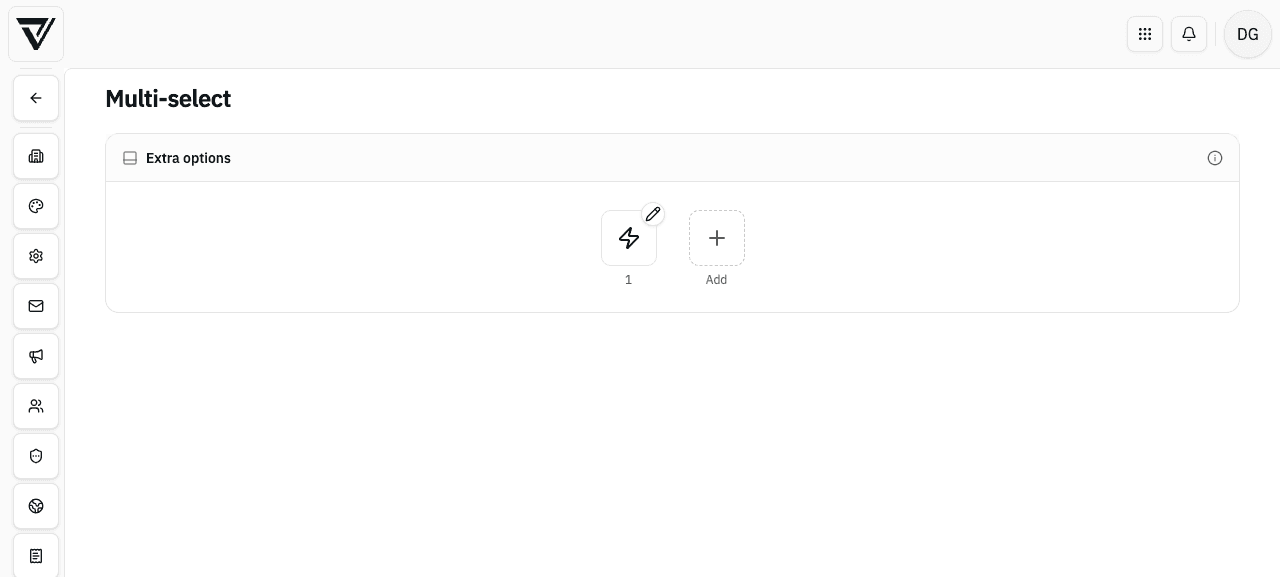
Adding an option
Go to your organization's settings and open the "Multi-select" tab.
Click "Add first action" (empty list) or the "Add" tile. You can have up to eight extra options.
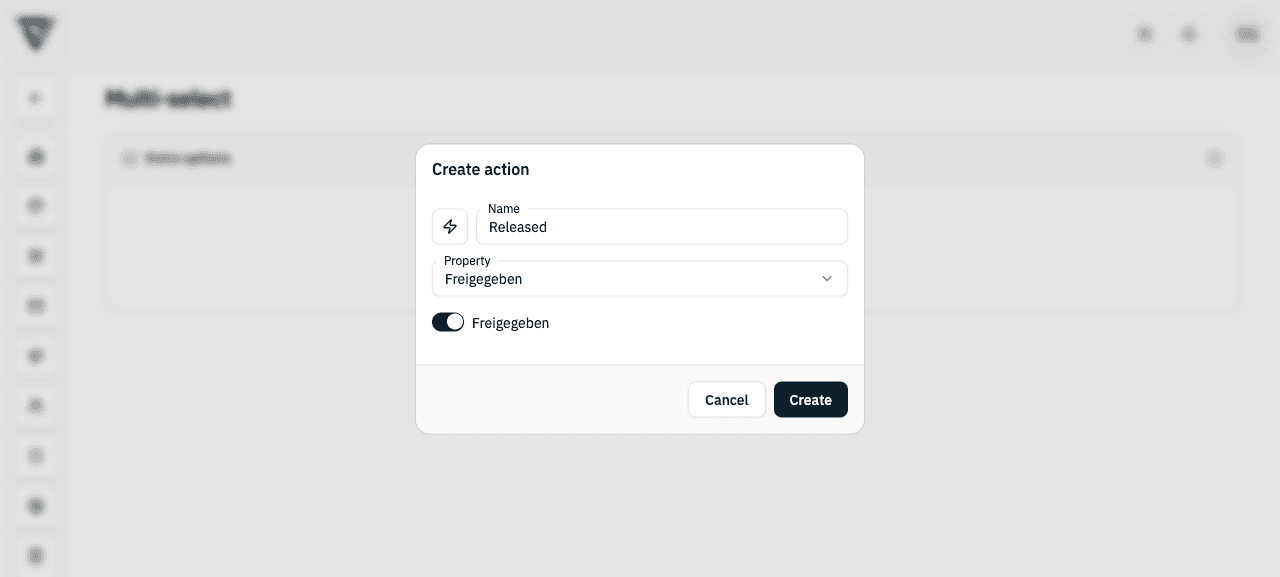
Pick an icon and give the option a name. The name is the tooltip in the bar.
Under "Property", choose the field to write and set the value — for a yes/no field, for example, turn the switch on.
Click "Create".
Editing or removing an option
Click an existing tile (pencil at the top-right of the icon) to change it and apply with "Save". "Delete" in the form removes the option after a confirmation prompt.
In a multi-select
Select multiple files. Your extra options appear in the bottom bar between rating and batch processing. One click writes the stored value onto every selected file.
If some files lack permission to write the field, only those files are skipped. You'll see a notice with the count. The value is still applied to every other file.
Configuring quick actions
Set up quick actions in your organization settings so members can set a rating or a label on a file with a single tap in the mobile VAULO app.
Setting up an organization announcement
Show all members of your organization an important announcement when they open VAULO – optionally with an expiry date or as a non-dismissible notice.