

Installation and sign-in
Install the VAULO app from the App Store and sign in with your VAULO account, a two-factor code or a DayPass.
Install the app
On your iPhone or iPad, open the App Store and search for VAULO.
Tap Get. The app requires iOS or iPadOS 18 or later.
Open the app. You'll land on the sign-in screen.
Sign in with your VAULO account
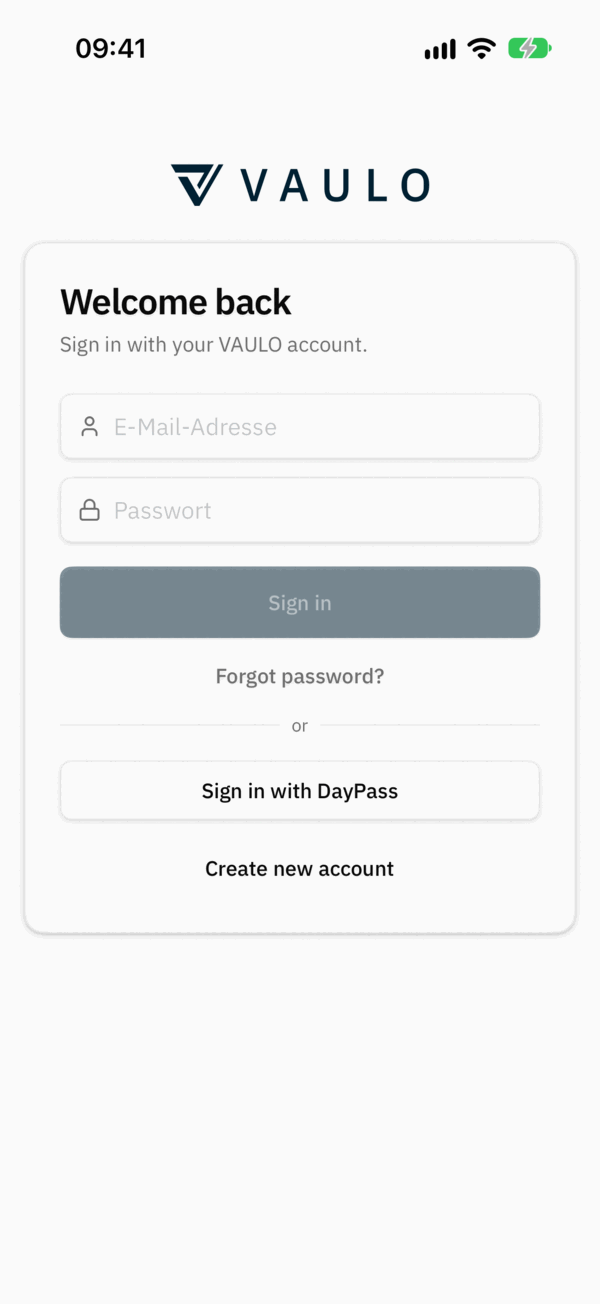
Enter your Email address and your Password – the same credentials you use in the web app. The app automatically suggests passwords saved in your iCloud Keychain.
Tap Sign in.
If two-factor authentication is turned on for your account, Verification appears. Enter the 6-digit code from your authenticator app and tap Confirm. If you don't have your device at hand, choose Use recovery code.
If the Terms of Use or the Privacy Policy have changed, the app asks for your consent once: Agree and sign in.
Set up two-factor authentication
If your organization requires sign-in with a verification code and you haven't set it up yet, the app guides you through Set up two-factor authentication right after you sign in:
- Save your recovery codes – tap Copy to copy them to the clipboard, then Continue.
- Scan the QR code with your authenticator app, or add it directly with Open in authenticator app.
- Enter the code from your authenticator app and tap Turn on.
Common messages
| Message | What you can do |
|---|---|
| "Incorrect email address or password." | Check your credentials or use Forgot password?. |
| "Please confirm your email address first." | Open the confirmation link in the welcome email. |
| "Too many sign-in attempts." | Wait 15 minutes and try again. |
| "Your account is locked." | Contact your organization's administrator. |
Forgot password
On the sign-in screen, tap Forgot password?, enter your email address and tap Send link.
Open the link from the email on your iPhone or iPad. The app opens Reset password.
Enter your New password twice and tap Save password.
Sign in with a DayPass
For events, you may receive a DayPass with a username and password instead of an account. Tap Sign in with DayPass and enter the credentials. After that, you'll only see your events and your profile in the app – see Events in the app.
Create a new account
Don't have a VAULO account yet? Tap Create new account, enter your email address and a password with at least 8 characters, accept the terms and tap Create account. Then confirm your email address using the link in the email and sign in.
Choose an organization
- If you belong to one organization, you go straight to the Home screen.
- If you belong to several organizations, you pick one under Choose organization the first time. After that, the app always opens the one you used last. You can switch at any time in your Profile.
- If you don't belong to any organization, the app shows Welcome to VAULO. There you can accept pending Invitations or create your own under New organization.
You can also accept an email invitation directly in the app: open the link on your iPhone and tap Accept invitation. If you're new to VAULO, you'll set a password first.
VAULO Mobile App for iPhone and iPad
The VAULO app puts your Spaces, folders and files in your pocket: view, upload, share and look after events – right from your iPhone or iPad.
Spaces and folders in the app
Browse Spaces and folders in the VAULO app, sort files, create folders and copy, move, share or download several files at once.