

Search in the app
Find files in the VAULO app by name, keywords or image content and narrow down the results by type, rating, label and period.
Tap Search at the bottom and enter a term in Search files. Search finds files by file name, keywords and image content – so you can also describe what's in a photo.
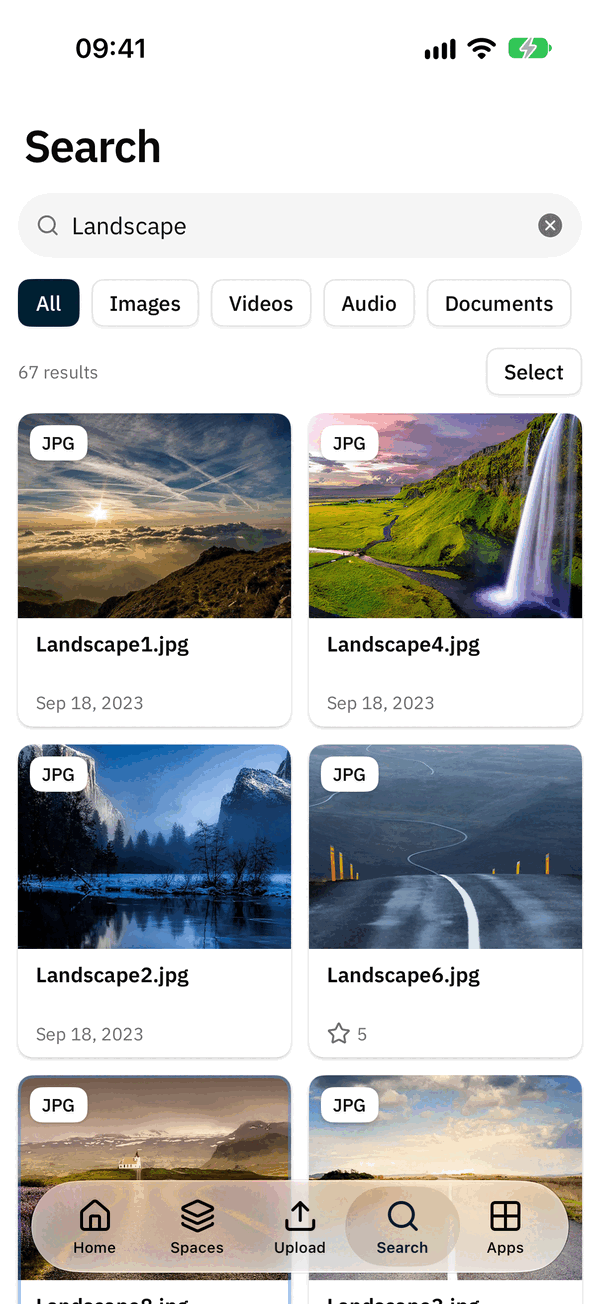
Filters
Below the search field, you can narrow down the results:
- Type: All, Images, Videos, Audio or Documents
- Rating: all ratings or a specific number of stars
- Label: all labels or a specific color
- Period: Any time, Last 7 days, Last 30 days or Last year
The filters also work without a search term – for example, to see all videos from the last 7 days. Without a search term, the newest files are at the top; with a search term, the best matches are.
Working with results
Above the results, you can see how many files were found. Tap a file to open it, or touch and hold it for the file menu. Use Select to mark several results and share, copy, move or download them together.
Back up photo library
Have new photos and videos from your iPhone or iPad photo library uploaded to a VAULO folder automatically – sorted by capture date if you like – and free up space on your device afterwards.
Shared links and Filepush in the app
Create shared links for files and folders in the VAULO app, send files with Filepush and open shared links right in the app.