

Shared links and Filepush in the app
Create shared links for files and folders in the VAULO app, send files with Filepush and open shared links right in the app.
Create a shared link
You can create a shared link for a file, a folder or several selected items:
- in the file or folder menu (touch and hold) → Create shared link
- in the file view via the shared link icon at the bottom
- in selection mode via Share → Create shared link
Under New shared link, choose the Type:
| Type | What it's for |
|---|---|
| Presentation | Show files as a designed page. Choose a Template and whether Allow downloads should be on. |
| DirectDownload | A link recipients use to download the files directly. |
| ExternalUpload | Others use the link to upload files to this folder. Folders only. |
| Embed | Embed code and links to show a single file on a website. |
| AssetFeed | Add the files to one of your organization's asset feeds. Only if feeds exist. |
Options
- Send by email (DirectDownload, ExternalUpload): recipients, message and Send me a copy
- Password protection
- Expiration date with Valid until – preset to 14 days
- Custom link, e.g.
summer-campaign - Ask recipients for their details before downloading
For ExternalUpload, there are also: a Briefing for uploaders, Contact person and Contact email, Create a subfolder for each upload and Require uploader’s name.
Tap Create. Under Shared link created, you can grab the link with Copy link or send it right away with Share. For Embed, you get the matching codes instead, such as Image link and HTML code.
For details on what each type of shared link and each option does, see Share & Distribute. The app creates the same shared links as the web app.
Filepush: send files quickly
With Filepush, you send files from your device without sorting them into a folder first.
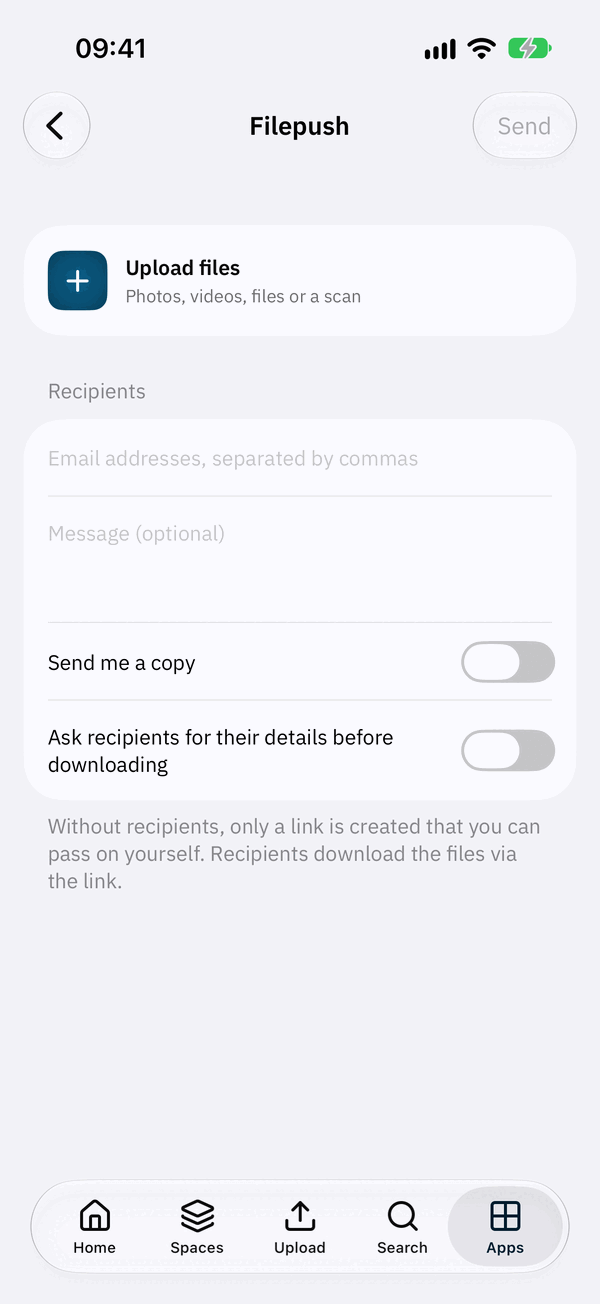
Open Apps → Filepush.
Tap Upload files and choose photos, videos, files or a scan. Use Add more to add further files, and Remove to take a file out again.
Under Recipients, you can optionally enter email addresses (separated by commas) and a Message. If needed, choose Send me a copy and Ask recipients for their details before downloading.
Tap Send. Without recipients, VAULO only creates the link. Under Sent, you can pass it on with Copy link or Share, or start over with New Filepush.
Filepush also works directly from other apps via the share sheet – see Share from other apps.
Open shared links in the app
When you tap a VAULO shared link on your iPhone or iPad – for example in an email or message – it opens directly in the app if it's installed. This works even if you're not signed in, and also for shared links on your organization's custom domains.
- Presentations look exactly the same as in the browser.
- For protected shared links, first enter the password and tap Open.
- For download links, tap Download all to download all files.
- For an ExternalUpload, enter Your name, choose photos, videos or files and tap Upload.
From the menu at the top, you can copy the link or view the shared link in Safari with Open in browser. The app can't display some types of shared links itself; in that case you'll see "This shared link can only be viewed in a browser."
If you receive a VAULO Transfer, tap the link, choose a folder under Choose destination, and the files are copied to your organization.
Search in the app
Find files in the VAULO app by name, keywords or image content and narrow down the results by type, rating, label and period.
Events in the app
As part of an event team, you see your assignments and sessions in the VAULO app, answer polls, set your status and upload photos straight to the event folder.