

Spaces and folders in the app
Browse Spaces and folders in the VAULO app, sort files, create folders and copy, move, share or download several files at once.
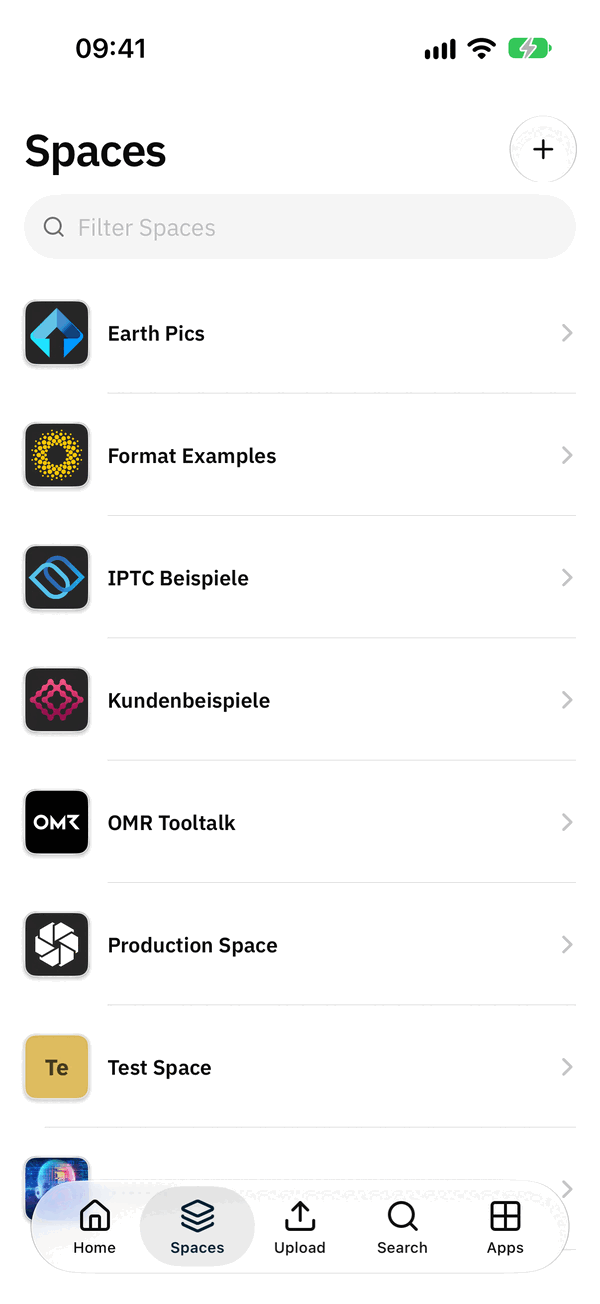
The Spaces section shows all Spaces you have access to. Tap a Space to see its folders, and a folder to see its subfolders and files. Use the Filter Spaces field to quickly find a Space by name.
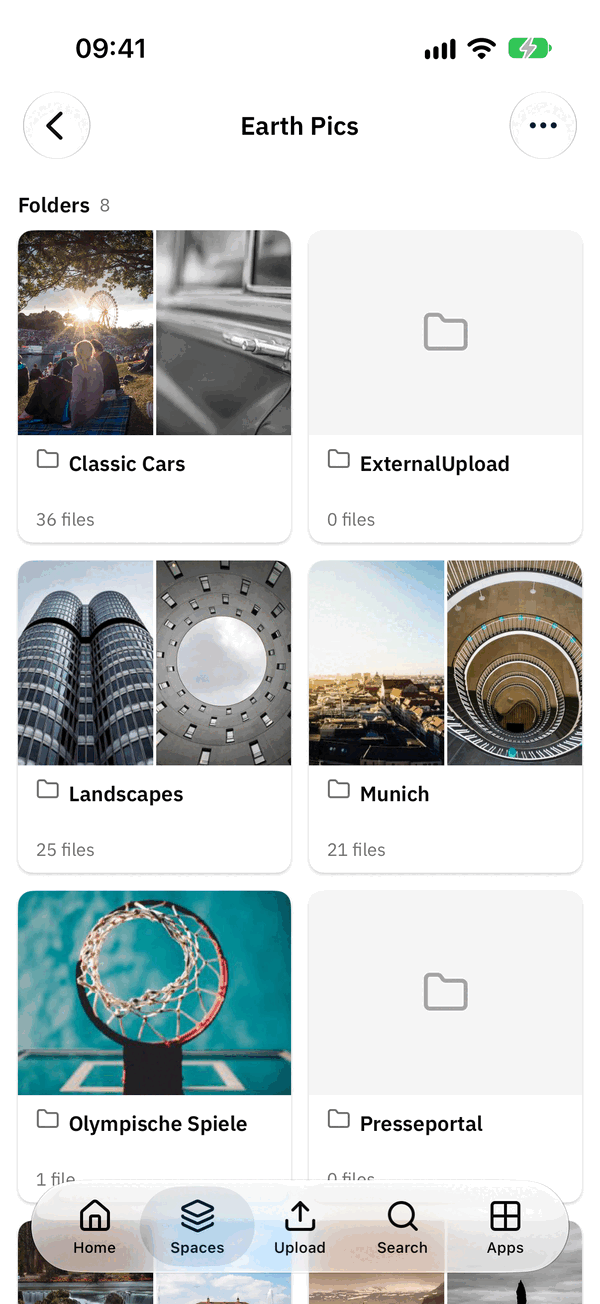
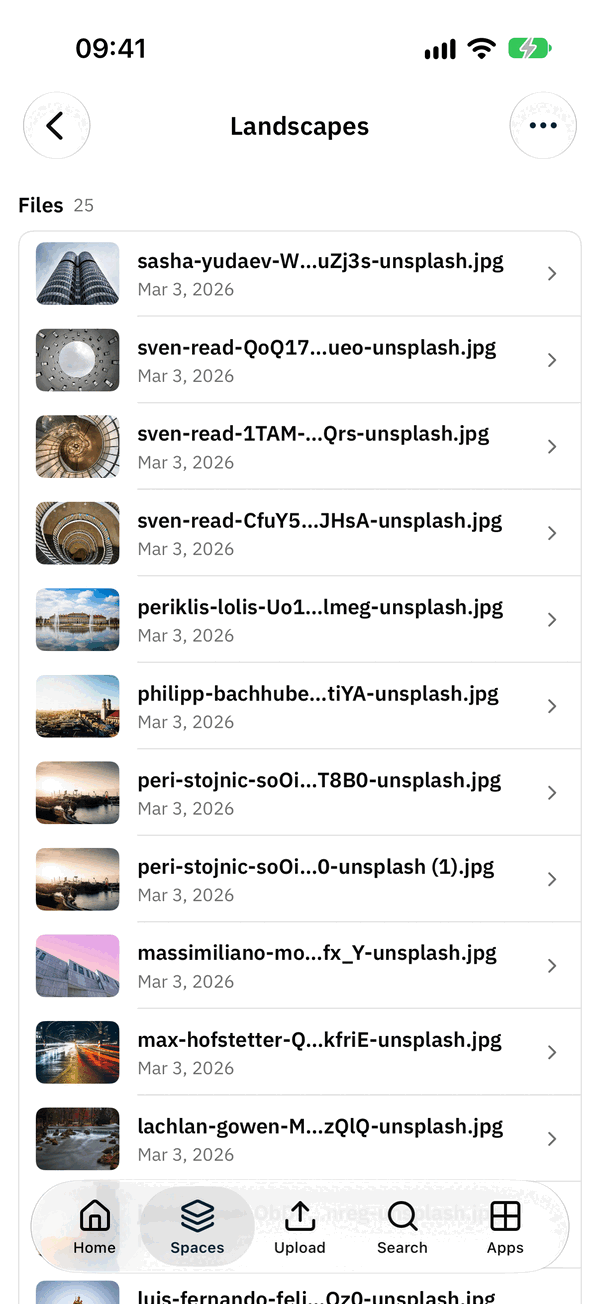
In a folder, the Folders are at the top and the Files below, each with a count. The app automatically loads more files as you scroll.
Create a Space or folder
- New Space: In the Spaces list, tap +, enter a name and tap Create. This only works if your role is allowed to create Spaces.
- New folder: In the Space or folder, tap More (…) at the top right, choose New folder, enter a Folder name and tap Create.
The More menu
Tap More (…) at the top right to access:
| Item | Function |
|---|---|
| Select | Select several files and folders (see below) |
| Create shared link | Share the current folder – see Shared links and Filepush |
| New folder | Create a subfolder |
| Upload files | Upload files directly to this folder – see Uploading |
| Create ExternalUpload | A link others can use to upload files to this folder |
| Sort and view | Choose the sort order, folder order and view |
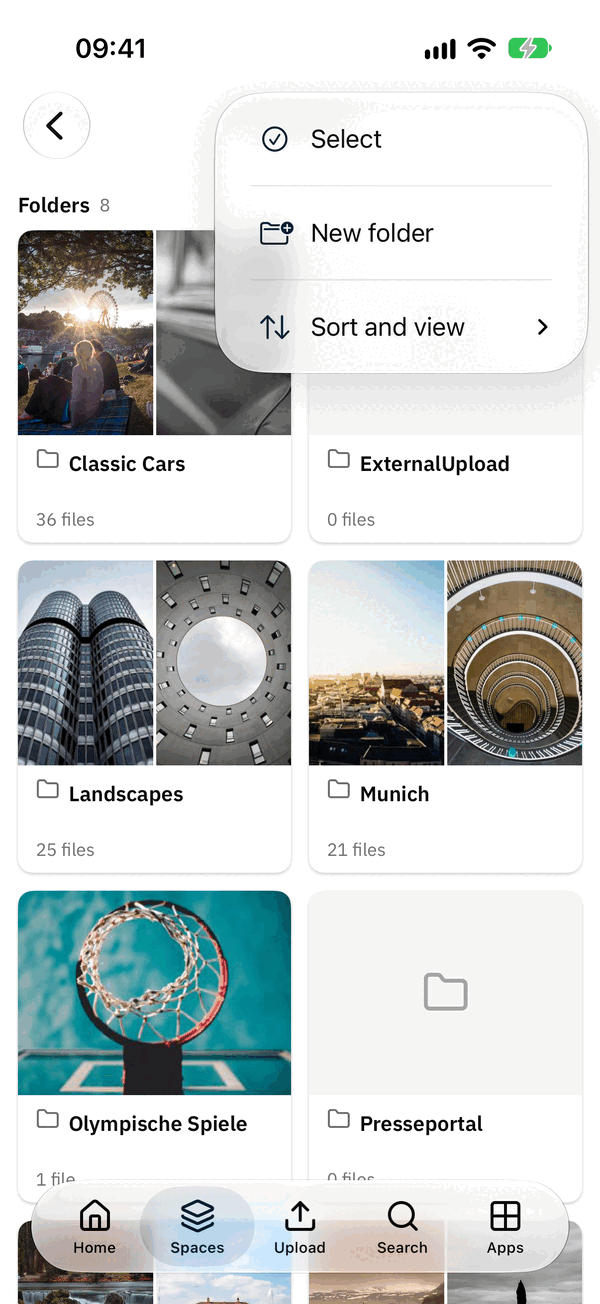
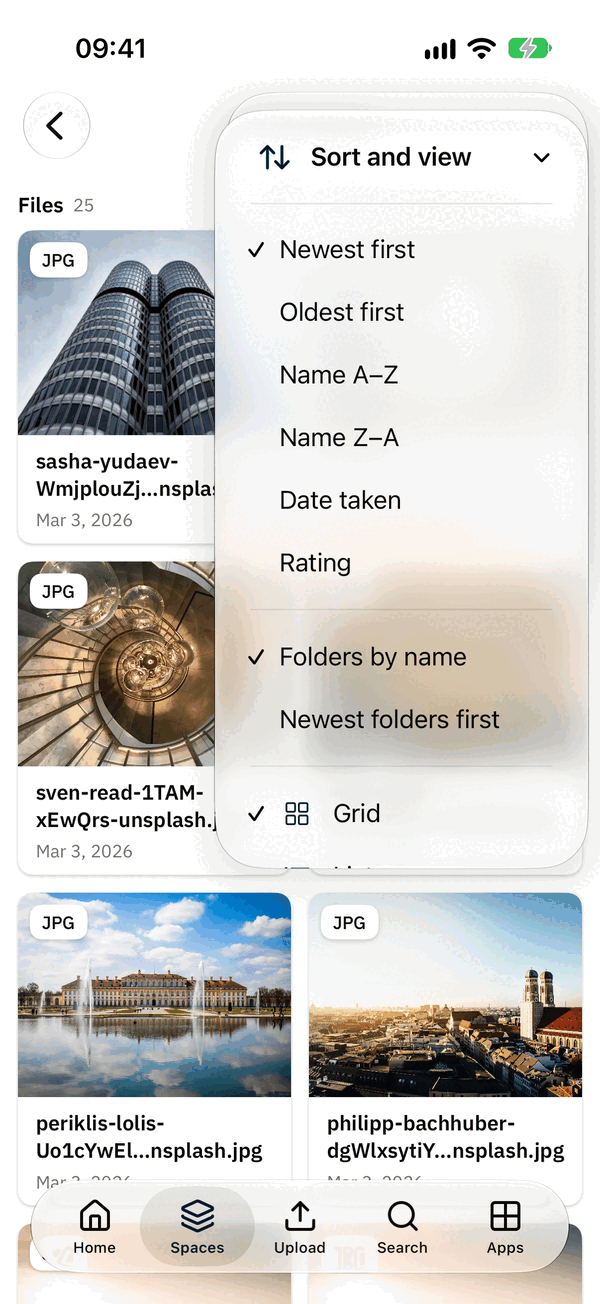
Sort and view
- Sort order of files: Newest first, Oldest first, Name A–Z, Name Z–A, Date taken or Rating
- Folders: Folders by name or Newest folders first
- View: Grid with large thumbnails or List with name, size and date
File and folder menu
Touch and hold a file or folder to open its context menu.
For files:
- Save to Photos – images and videos go straight to your Photos library
- Create shared link, Share original (via the iOS share sheet, e.g. by Messages or AirDrop)
- Download – with a choice of format and size (see below)
- Rename, As folder cover image
- Copy to and Move to
- Label (Red, Yellow, Green, Blue, Purple) and Rating (1 to 5 stars)
- Delete
For folders: Create shared link, Create ExternalUpload, Download as ZIP, Add subfolder, Rename, Copy to, Move to, Label and Delete.
For Copy to and Move to, choose the destination folder under Choose destination and confirm with Copy here or Move here.
Delete moves files and folders to VAULO's Recycle Bin – whether you delete one item (also in a file's detail view) or have selected several. The app asks first and calls the button Delete permanently. The text in the dialog says "permanently deleted", but the content stays in the Recycle Bin. You can restore it in the web app – see Recycle Bin: restoring deleted content.
Select several files
Tap More (…) → Select.
Tap the files and folders you want. All selects everything, None clears the selection.
Choose an action at the bottom:
- Share – Create shared link or Share originals
- Copy or Move
- More – Download, Save to Photos, Label, Rating
- Delete
Tap Done to end the selection.
Downloading
When you Download images, you choose:
- Image format: Original, JPEG, PNG or WebP
- Image size: Original size, 75%, 50% or 25%
Videos and documents are always downloaded as originals. Folders come as a ZIP file; with Keep folder structure, the subfolders are preserved.
The app saves a single image or video directly to Photos. Everything else opens the iOS share sheet, where you can, for example, Save to Files or pass the file on to another app.