

Events in the app
As part of an event team, you see your assignments and sessions in the VAULO app, answer polls, set your status and upload photos straight to the event folder.
If you've been scheduled for an event, the app has everything important at hand: when and where your sessions take place, who's on the team, open polls and the folder for your photos.
Events is a paid add-on. Already included in the Platinum Freelancer plan. Available as an option for all Business plans.
Contact SupportOpen events
- With a VAULO account: Apps → Events
- With a DayPass: The app opens directly in the Events section. Apart from Profile, there are no other sections.
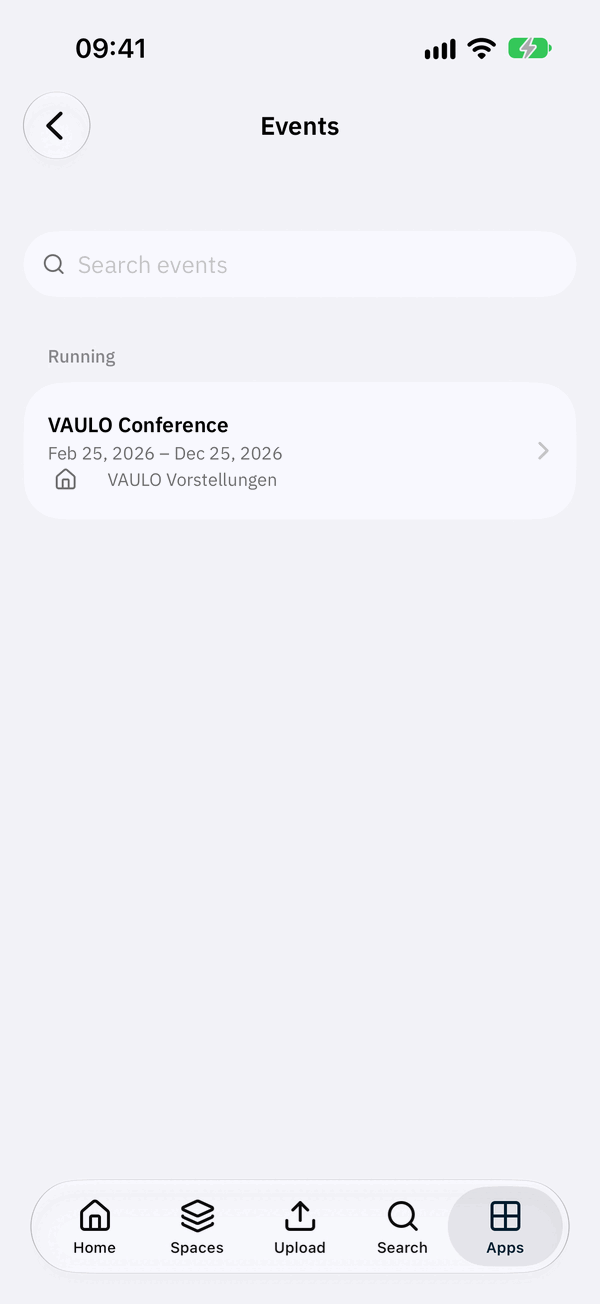
The list shows all events where you're part of the team – including events from other organizations. It's grouped into Running, Upcoming and Past. Use Search events to find an event by name.
An event
At the top of an event you'll see the Event folder. Use Upload files to upload photos and files straight into it.
Below that, use Section to switch between:
- Assignments – your sessions, filtered by Active, Upcoming or Past
- Polls – requests asking whether you're available for certain sessions
A session
Tap an assignment to open the session. There you'll find:
- Time, Duration and Location
- the Session folder with its own upload, if the session has one
- Add to calendar – adds the session to your calendar
- Team with everyone scheduled and their roles
- My status as … – set your status for your role here. The available statuses are defined by the event team.
Answer polls
In the event, open Section → Polls and tap a poll.
Choose the Roles you're available for and add a Comment if needed.
Tap Accept or Decline. If you've already answered, the button says Save response – that's how you change your answer while the poll is still open.
Each poll shows your status (Accepted, Declined, Open, Closed) and whether the event team has Confirmed or Declined your acceptance, or whether it's still Pending.
Notifications
If you allow notifications after signing in, the app notifies you when
- a new session poll is open for you,
- a new session has been assigned to you,
- a session has been updated or removed.
For a new poll, you can Accept or Decline right in the notification. Tapping a notification opens Events.
Not receiving notifications? In the iOS Settings app, check under Notifications → VAULO that they're allowed.
Shared links and Filepush in the app
Create shared links for files and folders in the VAULO app, send files with Filepush and open shared links right in the app.
Profile and settings
Switch organizations in the VAULO app, set the language, lock the app with Face ID and use VAULO in the Files app, with Shortcuts and Siri.