

Profile and settings
Switch organizations in the VAULO app, set the language, lock the app with Face ID and use VAULO in the Files app, with Shortcuts and Siri.
Profile
On the Home screen, tap your round profile picture at the top right. Your profile contains:
- your name, your email address and – if added – your Contact details
- My organizations – tap an organization to switch to it
- Language
- the app lock
- Open VAULO in browser and Help and support
- Sign out and, at the very bottom, the app's version number
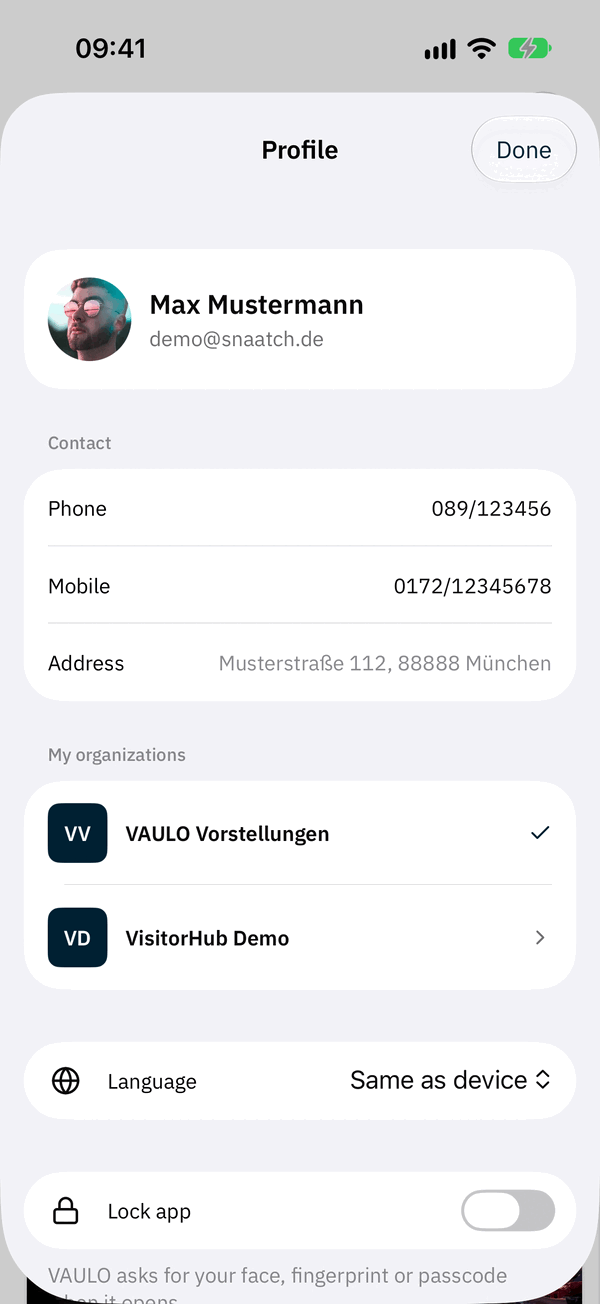
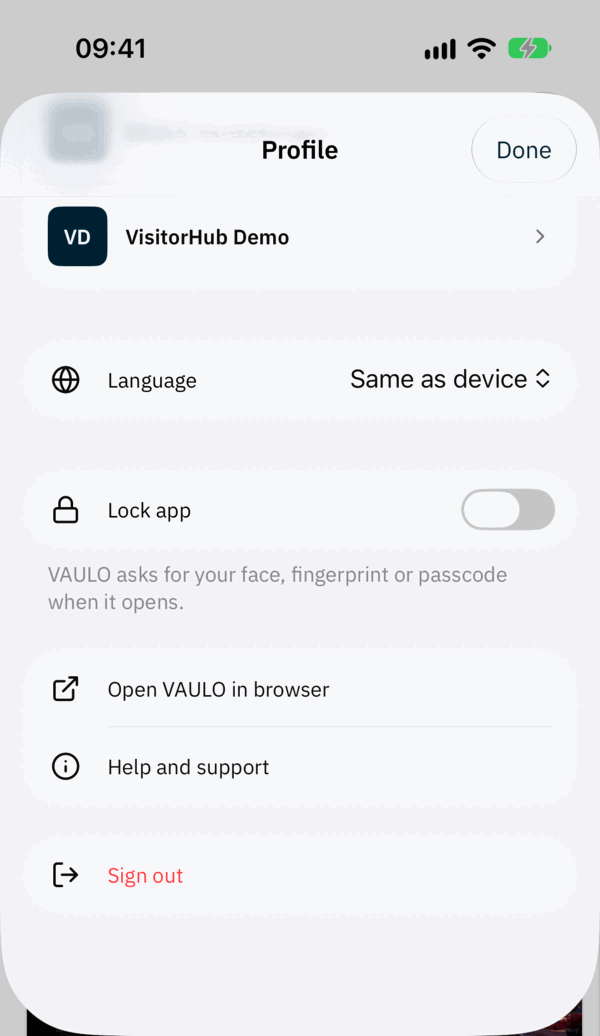
Tap Done to close the profile. You can change your profile details, your password and two-factor authentication in the web app.
Language
The app is available in German, English, Spanish and French. The default is Same as device. If you choose a different language, it applies the next time you open the app.
Lock the app with Face ID
Turn on Lock with Face ID (Touch ID or Optic ID, depending on your device). VAULO then asks for your face, fingerprint or device passcode every time you open it. This protects your files if someone else gets hold of your unlocked device.
Sign out
Tap Sign out and confirm. Let any running uploads finish first. When you sign out, VAULO also disappears from the Files app.
VAULO in the Files app
As long as you're signed in, VAULO appears in the iOS Files app under Locations. There you can
- browse your Spaces and folders and open files,
- copy new files and folders into it – they're uploaded to VAULO,
- open files from VAULO in other apps, e.g. as a Mail attachment.
You can't rename, edit or delete existing files in the Files app – such changes are reverted. Use the VAULO app for that.
Quick actions on the Home Screen
Touch and hold the VAULO icon on the Home Screen. You can then go straight to Upload, Send Filepush, Scan document or Search. Your two most recently used upload folders also appear, with Upload here.
Shortcuts and Siri
VAULO comes with actions for the Shortcuts app and Siri:
| Action | What happens |
|---|---|
| Upload to VAULO | Uploads files to a folder without opening the app |
| Send Filepush | Sends files via Filepush and returns the link |
| Search in VAULO | Opens search |
| Open folder in VAULO | Opens a specific folder |
| Scan document in VAULO | Starts the document scanner |
Add the actions to your own shortcuts – for instance to upload the day's photos every evening – or run them from Siri by the name of your shortcut.
The Files app, quick actions and Shortcuts aren't available with a DayPass.