

Find the app version
See which version of the VAULO app is installed on your iPhone or iPad, and how to update it.
If you contact support about a problem with the app, the version number helps us a lot. Here's where to find it.
Show the version number
Open your profile
On the Home screen, tap your round profile picture at the top right.
Scroll to the very bottom
Below Sign out you'll see the version, for example VAULO 2.3.0 (8). The first number is the version, the number in brackets is the build number.
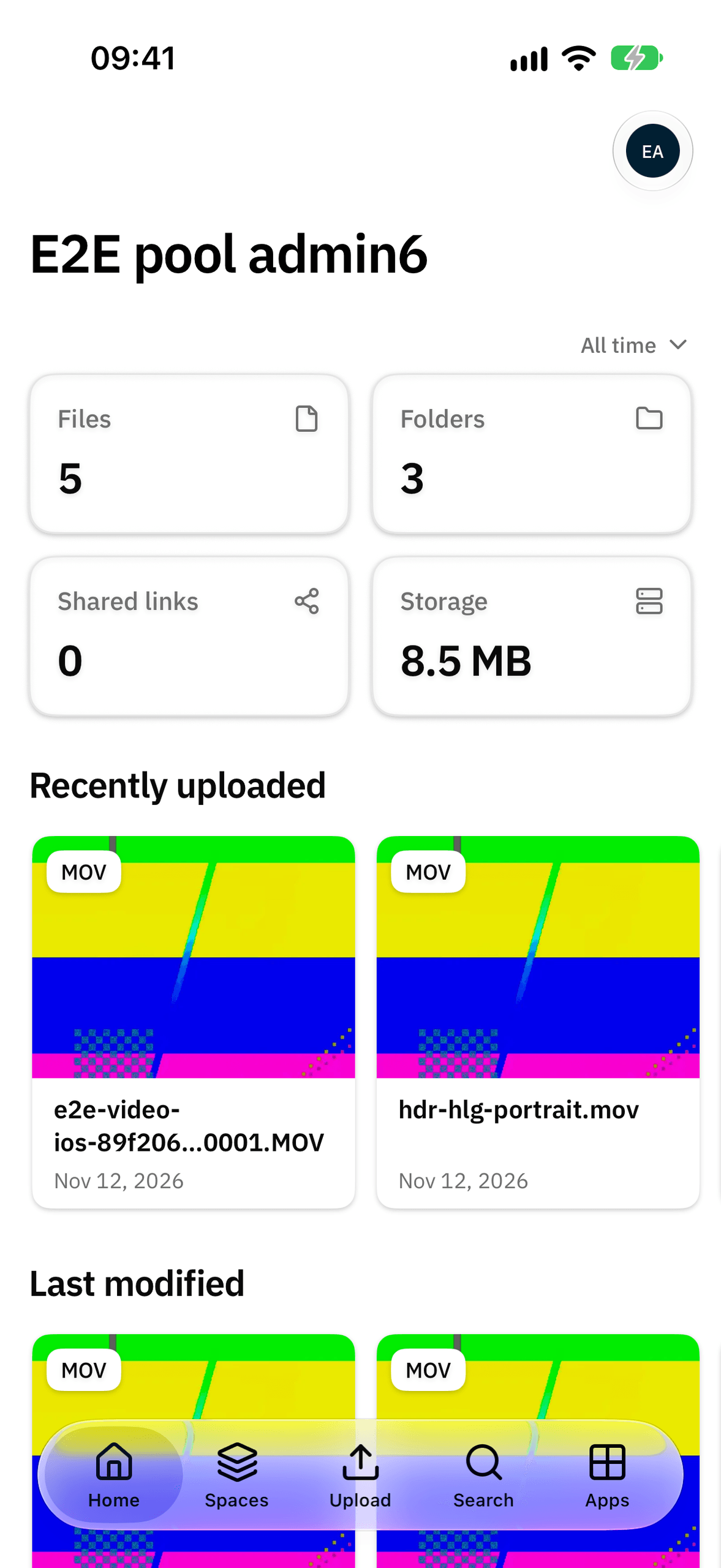
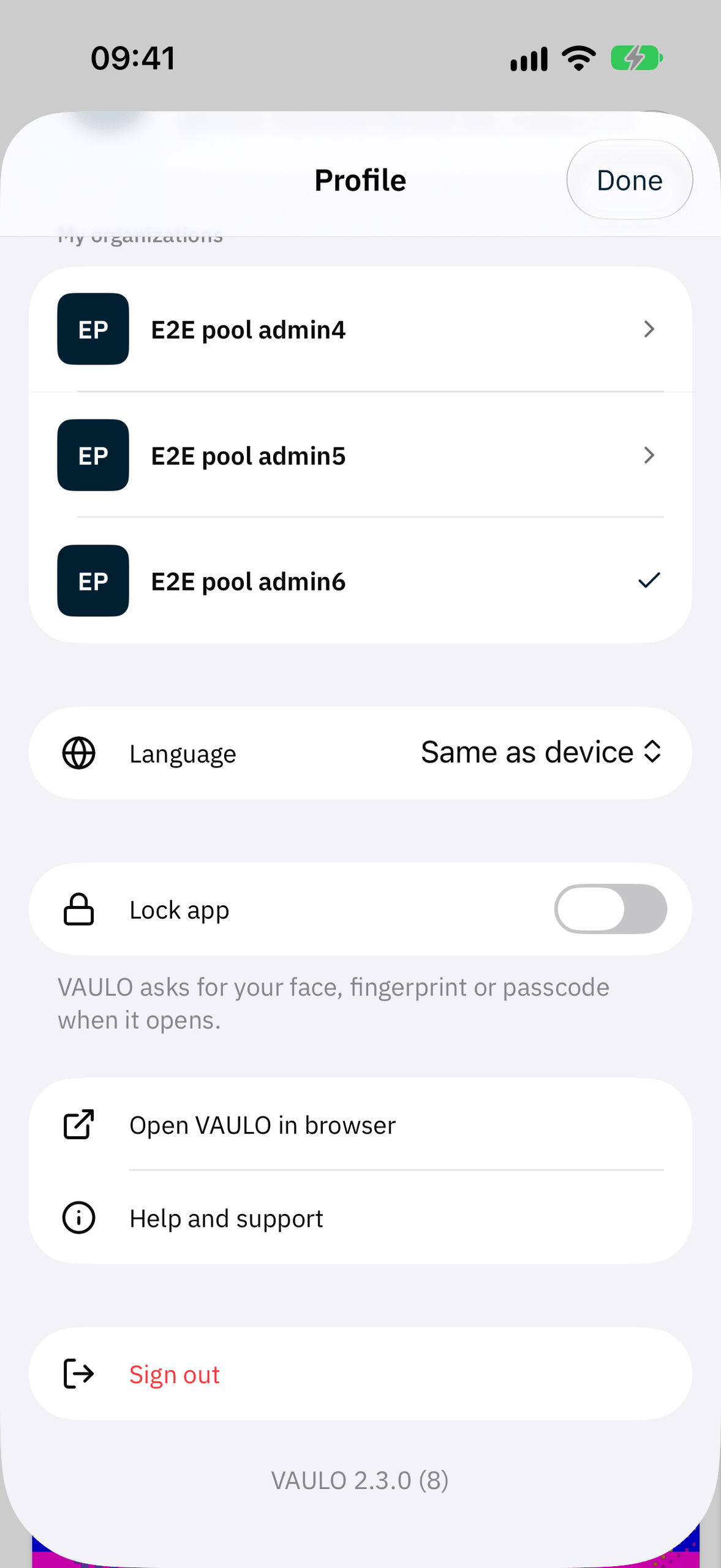
With a DayPass, open your profile from the Profile tab at the bottom.
Update the app
- Open the App Store and tap your profile picture at the top right.
- Scroll to the pending updates and tap Update next to VAULO.
To get new versions automatically, turn on App Updates in the iOS Settings under Apps › App Store.
On work devices, the IT department often manages the apps. If you can't update VAULO yourself, contact your IT.
Profile and settings
Switch organizations in the VAULO app, set the language, lock the app with Face ID and use VAULO in the Files app, with Shortcuts and Siri.
VAULO for Mac
With the Mac app, your spaces and folders appear right in the Finder: open files, upload with drag and drop and move them to the Trash – without a browser.