

File view in the app
How to view images, videos and documents in the VAULO app, swipe between files and edit the description, keywords, label, rating and IPTC data.
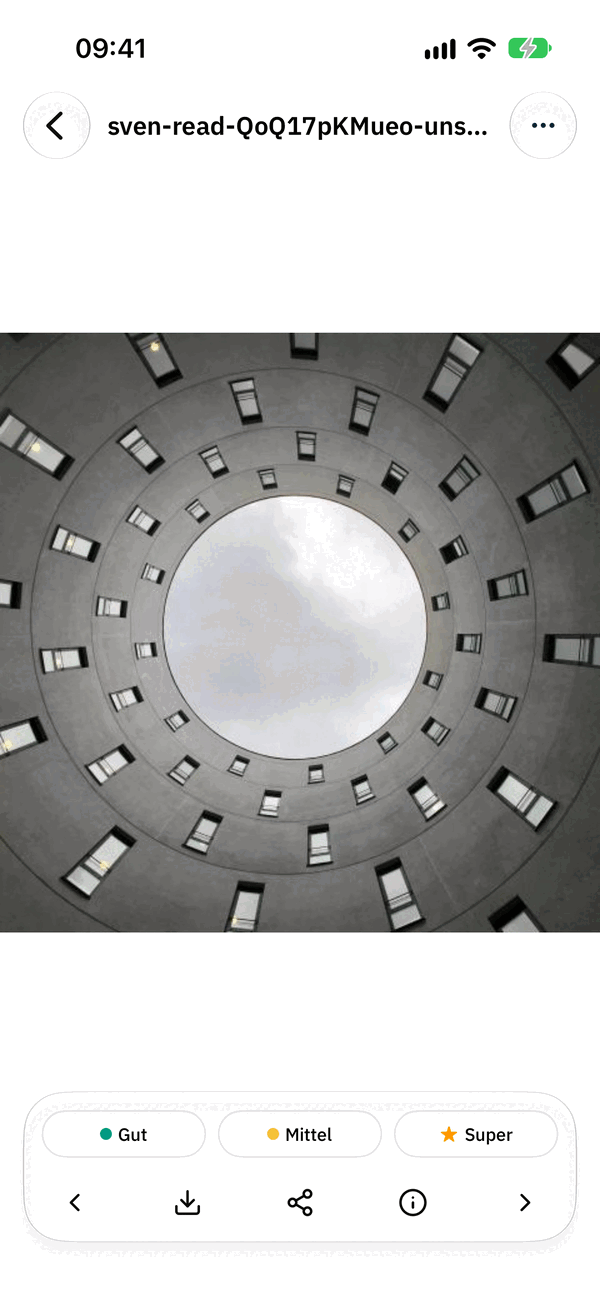
Tap a file in a folder, in search or on the Home screen to open it full screen.
Viewing
- Swipe left or right to see the previous or next file in the same list.
- Images can be zoomed with two fingers or a double tap.
- Videos play right in the app with Play video.
- PDFs, Office documents, text, audio and many other formats are also displayed directly in the app.
- A tap on the file hides and shows the bars.
If there is no preview for a format, you'll see "No preview is available for this file." If a freshly uploaded file is still being processed, the app shows "The file is being processed." and updates automatically.
Bottom bar
| Icon | Function |
|---|---|
| Left / right arrow | Previous or next file |
| Download | Save the file to Photos or download it with a chosen format and size |
| Create shared link | Create a link to this file – see Shared links and Filepush |
| Details | Open information and metadata (see below) |
If your organization has set up quick actions, they appear as buttons above this bar. One tap sets the stored rating or label, a second tap removes it again.
Actions menu
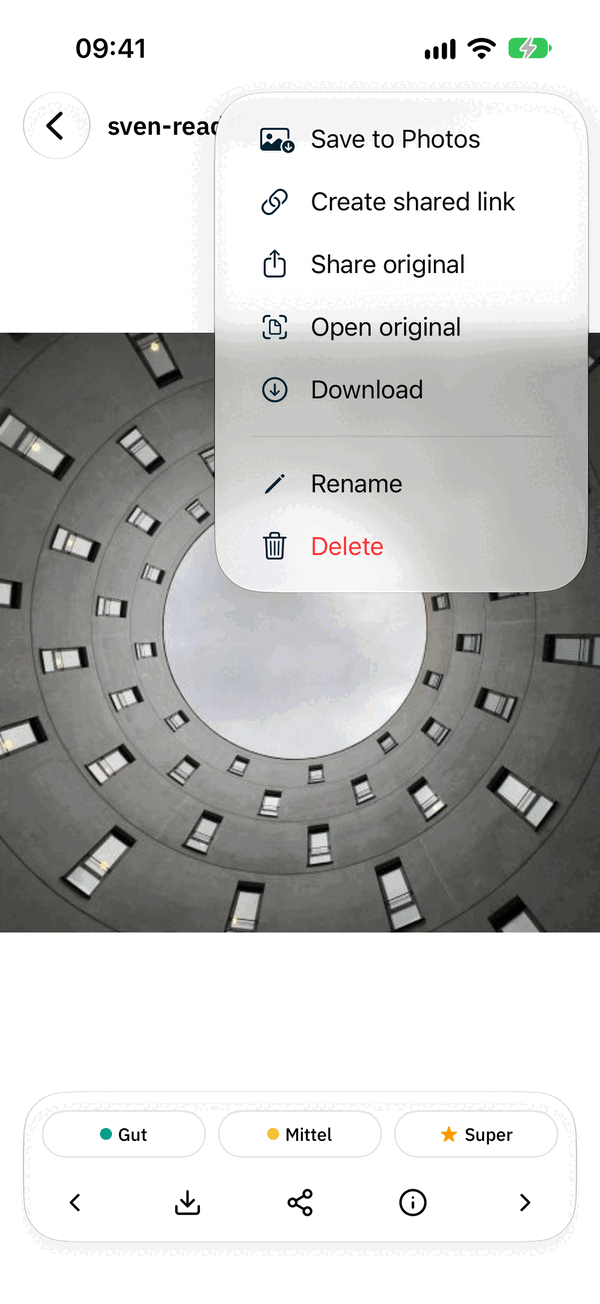
Tap … at the top right to access: Save to Photos, Create shared link, Share original, Open original, Download, Rename and Delete.
Details
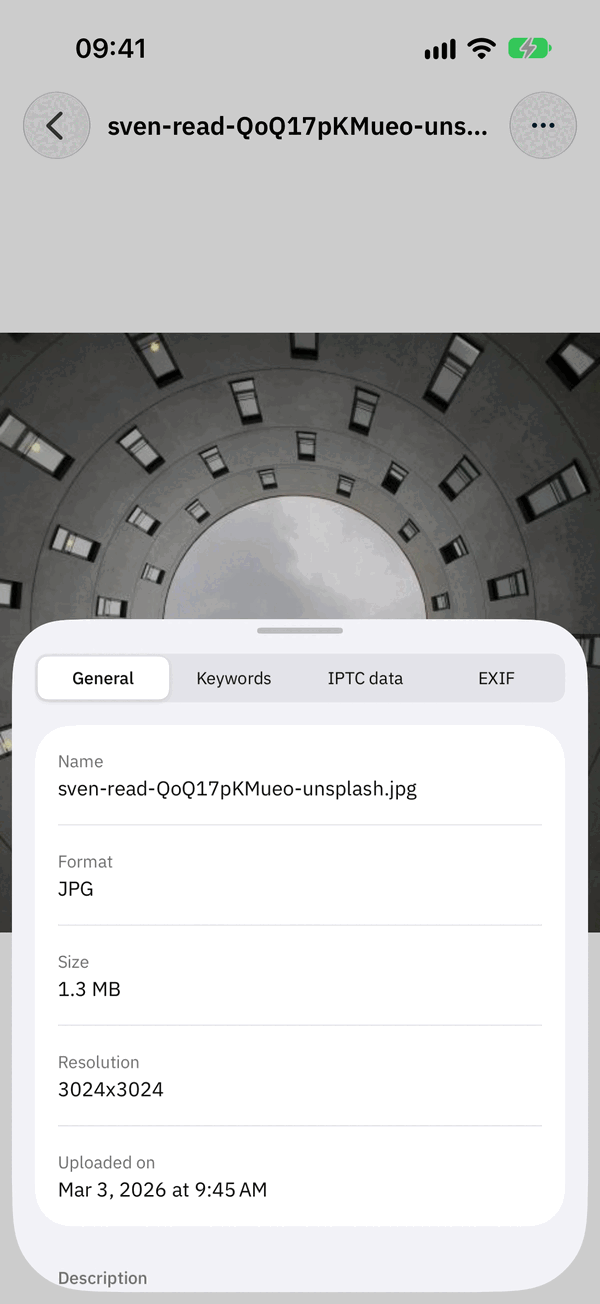
Tap Details to open the file's information. Drag the panel up to see more. Depending on the file and your organization's settings, these tabs are available:
| Tab | Contents |
|---|---|
| General | Name, asset ID, format, size, resolution, uploaded by and on. This is also where you edit the Description, the Label and the Rating. |
| Terms of use | Usage period and terms of use – only if they've been added |
| Keywords | The file's keywords. Add new ones with Add keyword, remove existing ones with the x. |
| IPTC data | The IPTC fields of an image, with a pencil icon for editing |
| EXIF | Date taken, camera, lens, settings and – if available – the location on a map |
| Versions | All versions of the file; the current one is marked Active. Only for files with multiple versions. |
A red ! at the top of the file view means that required fields set by your organization are missing. The details show which ones: "1 required field missing" or "N required fields missing".
Edit and transfer IPTC data
In the IPTC data tab, tap the pencil (Edit IPTC) to open the editor. The fields are grouped into Content, Location, Creator and rights, Creator contact and Models and image supplier. Tap Save to apply your changes.
To transfer the same information to another image, choose Copy IPTC data from the clipboard menu in the tab, then Paste IPTC data on the other image. This replaces the IPTC fields and the description, and adds the keywords to the existing ones.
You can view older versions in the app, but not restore them. You can do that in the web app.
Spaces and folders in the app
Browse Spaces and folders in the VAULO app, sort files, create folders and copy, move, share or download several files at once.
Uploading with the app
Upload photos, videos, scans and documents from your iPhone or iPad to VAULO – from the app, from other apps via the share sheet or automatically with LiveUpload.