

Uploading with the app
Upload photos, videos, scans and documents from your iPhone or iPad to VAULO – from the app, from other apps via the share sheet or automatically with LiveUpload.
With the app, you get photos and files from your iPhone or iPad straight into VAULO. Uploads keep running in the background, even when you leave the app or lock your device.
Using the Upload section
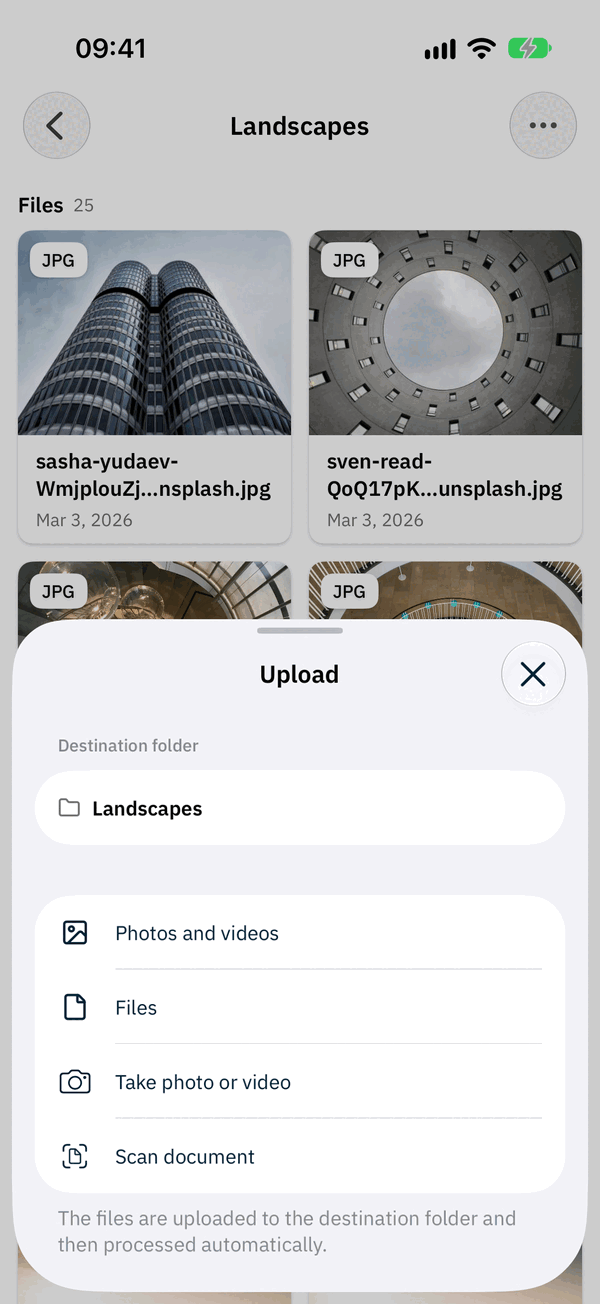
Tap Upload at the bottom.
Choose what you want to upload:
- Photos and videos from your photo library
- Files – PDFs, Office documents and more from the Files app
- Scan document – capture pages with the camera as a PDF
Choose the Destination folder: one of the Recently used folders, or any folder via Choose another folder, then tap Upload here.
Directly into a folder
If you're already in the right folder, tap More (…) → Upload files. Here you can also open the camera directly with Take photo or video.
While uploading, you can see the progress of each file. When it's done, the app shows "Upload complete".
- If the same file already exists elsewhere in VAULO, the app points this out with "Already exists in: …".
- Scans are named like "2026-10-16 Scan 3 09.58.12.pdf", and camera shots start with "Foto" or "Video". You can rename them afterwards like any other file.
If the file already exists
If the destination folder already contains a file with the same name, the app asks File already exists – What should happen?
| Option | Result |
|---|---|
| As new version | The new file becomes the current version; the previous one is kept as an older version. |
| Replace current version | The current version is overwritten. |
| As new file | Both files are kept side by side. |
| Skip | This file is not uploaded. |
If you're uploading several files, Apply to all uses your choice for all further conflicts. Confirm with Continue.
Uploading in the background
You don't have to wait until everything has been uploaded. The upload keeps running when you switch apps or lock your device. On the Lock Screen and in the Dynamic Island, you'll see Upload to VAULO with the remaining time, and the result at the end.
Share from other apps
You can send photos, videos and files from any other app – such as Photos, Files or Mail – to VAULO via the iOS share sheet:
In the other app, select up to 50 files and tap the Share icon.
Choose VAULO. If VAULO doesn't appear, you'll find it under More at the end of the row of apps.
Under Save to VAULO, choose the Type:
- In folder – one of the Recently used folders, or a folder under Choose destination folder, then Upload here
- Filepush – optionally enter email addresses and a message to send the files right away
Tap Send. After a Filepush, you can pass on the link with Copy link.
For this to work, you need to be signed in to the VAULO app. Otherwise the share window shows "Not signed in".
LiveUpload: camera uploads straight into a folder
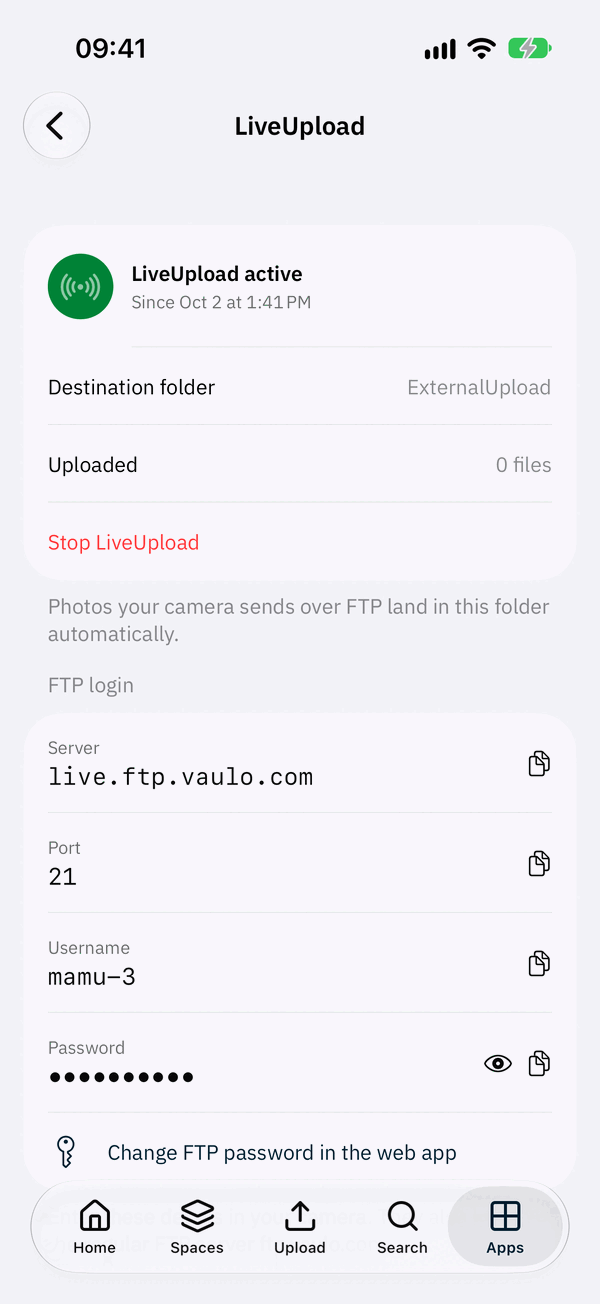
With LiveUpload, photos from a camera with FTP support land in a VAULO folder automatically – for example during a shoot or an event.
Open Apps → LiveUpload.
Choose the Destination folder and tap Start LiveUpload.
Enter the displayed FTP login in your camera: server live.ftp.vaulo.com, port 21, username and password. You can reveal and copy the password.
While LiveUpload is running, the app shows LiveUpload active and the number of uploaded files. Tap Stop LiveUpload to end it. You can change the FTP password in the web app.
File view in the app
How to view images, videos and documents in the VAULO app, swipe between files and edit the description, keywords, label, rating and IPTC data.
Back up photo library
Have new photos and videos from your iPhone or iPad photo library uploaded to a VAULO folder automatically – sorted by capture date if you like – and free up space on your device afterwards.