

Set the detail view for your organization
Choose in the organization settings which sections the detail view shows to all members: hide sections, arrange them, rename them, and have them open expanded.
In the organization settings, you decide which sections the detail view of a file shows to all members of your organization. This lets you hide sections you don't need (for example Nutzungshinweise ("Terms of use"), Personen ("People") or Restriktionen ("Restrictions")), put the remaining ones in a fixed order and give them your own name if needed.
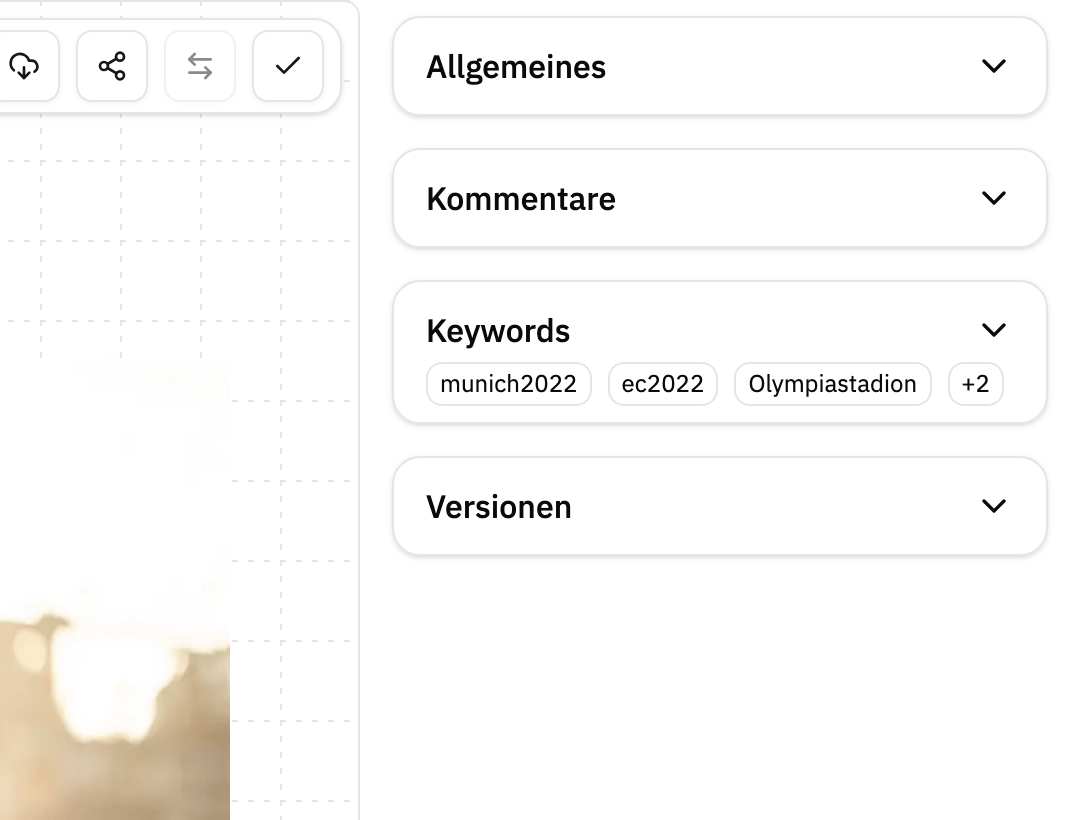
This setting applies to all members of your organization. How each person arranges the detail view just for themselves is described in Customizing the file detail view.
Choose and hide sections
Open the organization settings
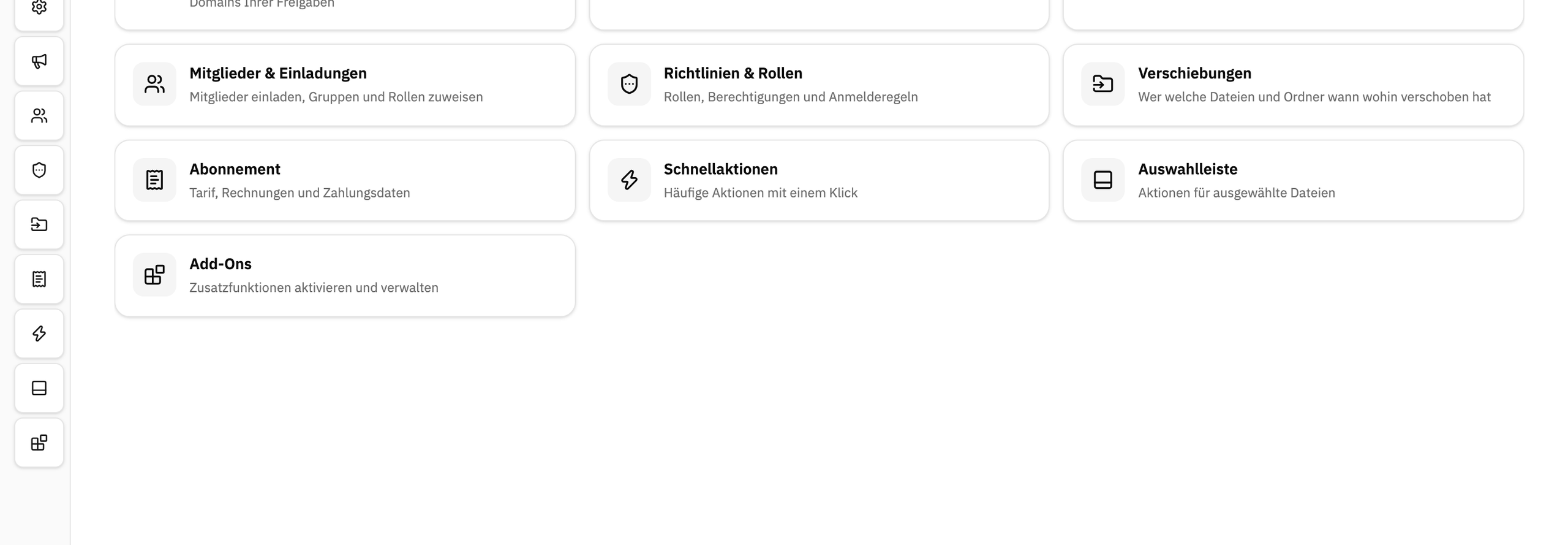
Go to your organization's settings and open the "Organisationseinstellungen" ("Organization settings") tile.
Find the file detail settings
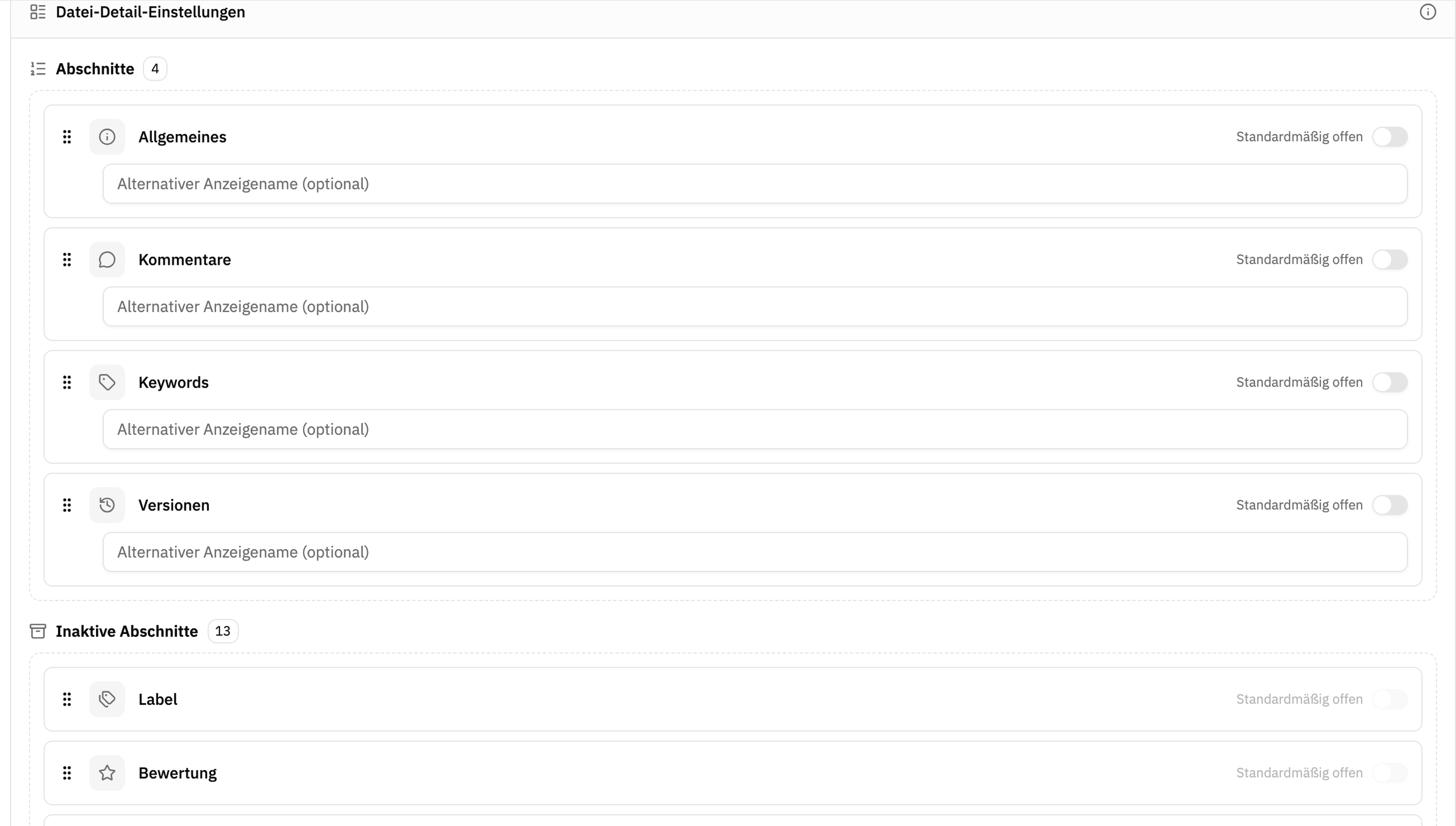
Scroll to the "Datei-Detail-Einstellungen" ("File detail settings") area. As long as nothing is set up there, it shows the note "Benutzer-Einstellungen werden genutzt" ("User settings are used") and all sections are listed under "Inaktive Abschnitte" ("Inactive sections").
Drag the sections you want into the list
Grab a section by the six dots on the left and drag it into the "Abschnitte" ("Sections") list. Do this for every section that should stay visible in the detail view. You also change the order inside the list by dragging.
Done
Every change is saved right away. Everything left under "Inaktive Abschnitte" is hidden from the detail view for all members.
Don't forget your own metadata groups
As soon as the "Abschnitte" list has at least one entry, the detail view shows only these sections. So also drag your own groups from Data Studio (marked "Benutzerdefiniert", "Custom") into the list, otherwise they are hidden too.
More settings per section
For every section in the "Abschnitte" list you can also:
- turn on "Standardmäßig offen" ("Open by default") so the section is already expanded when a file opens.
- enter an "Alternativer Anzeigename" ("Alternative display name"). The detail view then shows this name instead of the usual one.
Show a section again
Drag the section from "Inaktive Abschnitte" back into the "Abschnitte" list. To hide a section, drag it the other way into "Inaktive Abschnitte".
Remove the setting
Click "Auf Benutzer-Einstellungen zurücksetzen" ("Reset to user settings") at the bottom of the area. After that, the detail view shows all sections again, and every person can set the order and which sections start expanded for themselves.
Personal Account Settings
Customizing your VAULO account settings allows you to personalize your experience. In this step-by-step guide, you will learn how to manage newsletter subscriptions, enable default downloads, and customize the detail view to optimize your workflow.
Organising Spaces
How to structure your Spaces in VAULO meaningfully – with real-world examples.