

Footer
The end of your page: brand, links to imprint, privacy policy and pages, social media and a copyright line – optionally always at the bottom edge.
The footer ends a presentation the way a website ends: with your brand, links to legal texts and pages, social media icons and a copyright line. It is the counterpart of the navigation bar and is edited the same way.
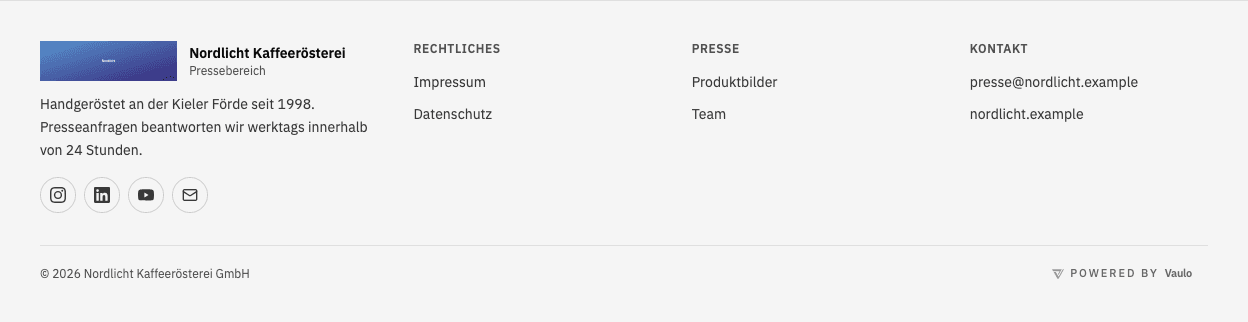
Typical use:
- Make the imprint and privacy policy from the Legal Hub reachable on every page
- Collect links to pages, folders or your website
- Link your social media profiles
- Close the presentation with your brand and a copyright line
Inserting
You find the footer in the block palette under Navigation (Advanced mode). A click always appends it at the end of the page – no matter which block is selected. If you drag it into a gap, it lands there.
Start with a template
At the very top of the sidebar there are four templates: Classic, Dark, Compact and Plain. A template sets how the footer looks – arrangement, background, separator line and the "Powered by VAULO" note.
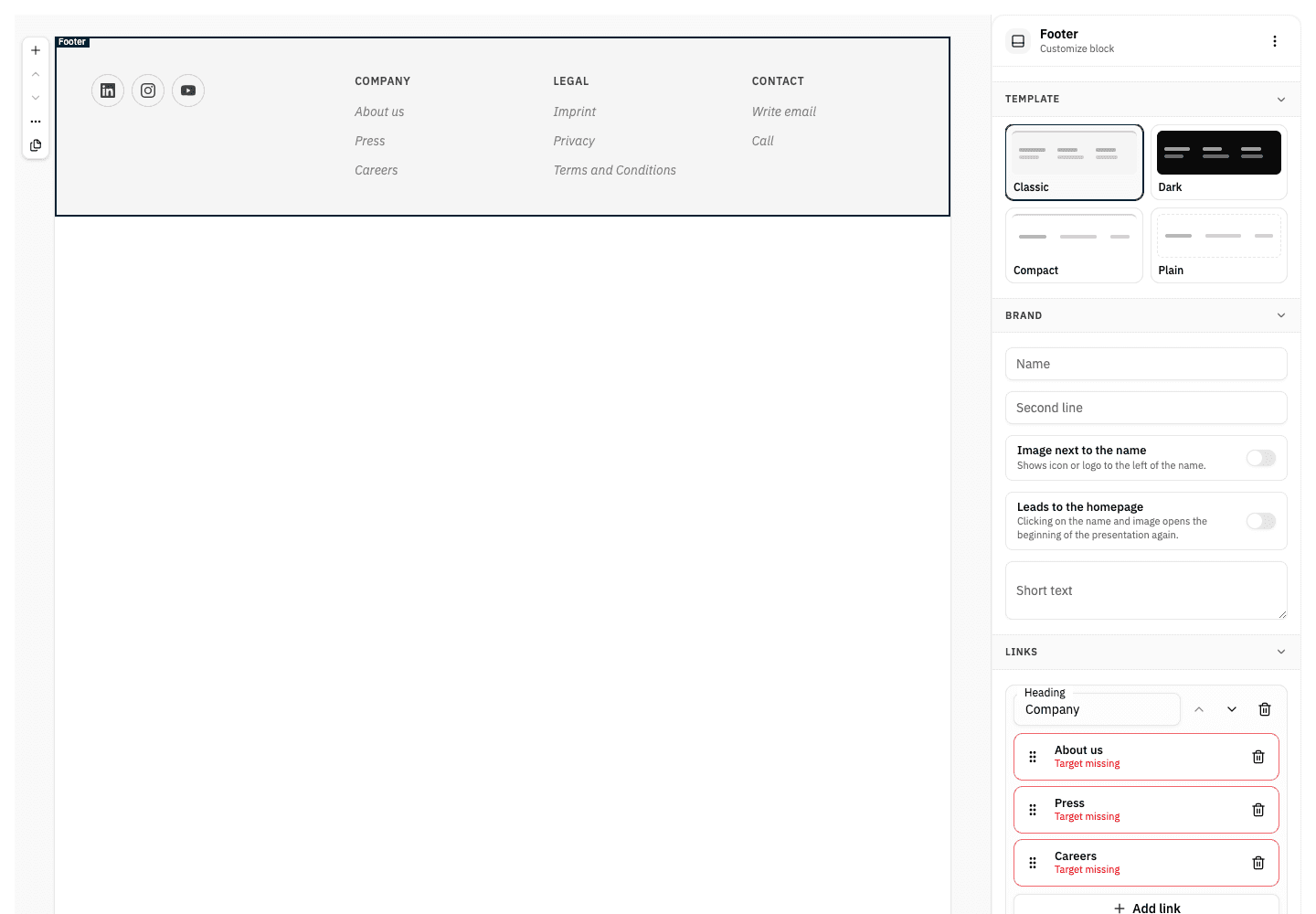
If the footer is still empty, the template adds placeholders right away: links such as imprint, privacy policy, terms, about us or press, and social media icons. They show you what the finished footer looks like. As long as a placeholder leads nowhere, it is marked red in the sidebar ("Target missing") and is not shown to viewers. You only add the targets – or remove what you don't need.
If the footer already has content and you pick another template, VAULO asks first (Apply template):
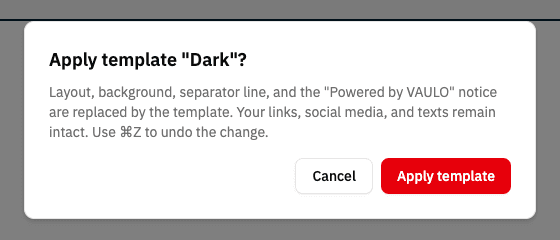
Your links, icons and texts are always kept – only the look changes. ⌘Z (Ctrl+Z on Windows) undoes the switch.
Everything in the sidebar
Click the footer on the canvas. The sidebar shows it in reading order: Template, Brand, Links, Social media, Bottom line and below that Display. Every change is visible on the canvas immediately – there is no save and no cancel.
Brand
- Name and Second line – as in the navigation bar
- Image next to the name – symbol, logo or the logo of your VisitorHub portal
- Leads to the homepage – a click on name and image opens the start of the presentation again
- Short text – a few lines below the brand, for example a claim, an address or opening hours (only in the Columns layout)
Links
Links are organised in groups. In the Columns layout each group becomes a column with its heading – for example "Legal", "Press" and "Contact". Add group creates a new column; the arrows move it left or right.
Collapsed, each link is one line: its name and, below it, where it leads. A click expands it:
- Name – what viewers read
- Leads to – Legal text, Page, Folder, Section or External link
A legal text is a document from the Legal Hub, for example your imprint. Select legal text opens the familiar picker. Viewers see the text in a window over the page and don't leave the presentation. If you change the document in the Legal Hub later, the footer shows the new version automatically. A link without a name takes over the document's name.
As an external link, web addresses (https://…), mail and phone links (mailto:, tel:), anchors and paths within the share work. For security reasons the footer does not open other kinds of addresses – the sidebar marks such a link red.
Change the order with the handle on the left; the bin removes a link. As in the navigation bar, a link without a name or target stays marked and is only shown to viewers once it is complete.
Social media
Add icon adds a round icon below the brand. Choose the network – LinkedIn, Instagram, Facebook, X, YouTube, TikTok, Pinterest, WhatsApp, website or e-mail – and enter the profile address. For the e-mail icon the address itself is enough. Viewers don't see an icon without an address.
Bottom line
- Rights holder – shown as "© 2026 Rights holder". The year stays current automatically.
- Show "Powered by VAULO" – a subtle note on the right of the bottom line
Display
- Always at the bottom of the page – see below; on by default
- Arrangement – Columns (brand plus one column per link group) or One line (everything compact side by side, without group headings)
- Display borderless – the footer extends beyond the page margins, edge to edge
- Background – Transparent, Light, Muted, Dark
- Separator line at the top
On a smartphone, brand and link columns stack automatically.
Always at the bottom of the page
If a page is shorter than the browser window, the footer would otherwise sit in the middle of the screen. With Always at the bottom of the page it sits at the bottom edge of the window in that case. On a long page it simply follows the content. It never sticks over the content while scrolling and covers nothing.
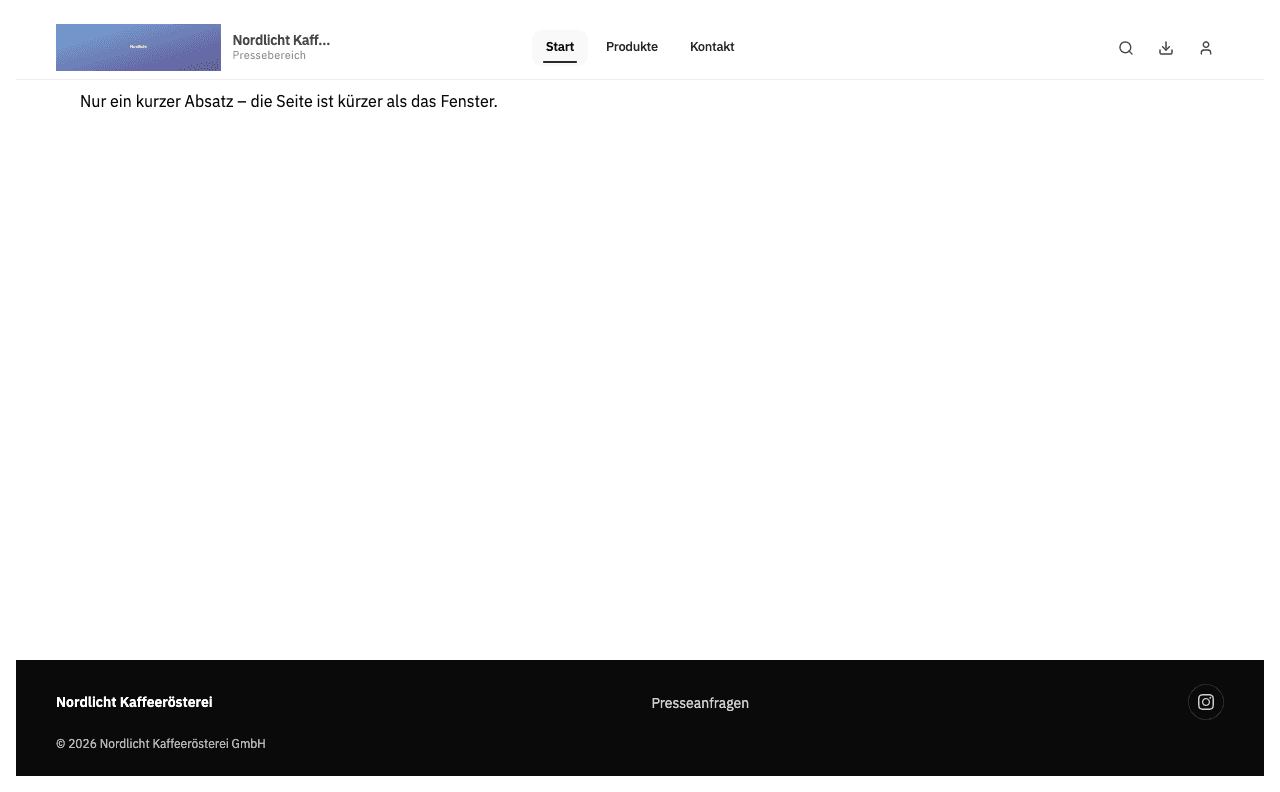
This applies to the footer at the end of the page. If another block follows below it, it is no longer the end and behaves like any other block. A Powered by VAULO block directly below it counts as part of the footer.
The footer also stays when visitors open My shares or start a search: the header at the top, the list in the middle, the footer at the bottom. That keeps the imprint and privacy policy reachable on every view.